

Explore your Data with Embeddings
The Picsellia Datalake offers several features that rely on the embeddings that are computed for each image; those features allow a smooth and efficient exploration of a large volume of images based on mathematical methods.
On a Datalake holding thousands of unlabelled or untagged images, these embeddings let you make sense of your Data visually and semantically instead of one image at a time: find near-duplicates before they bias your Dataset, spot outliers and corrupted images, gather more examples of a rare or failure case, or search by content when no Tag or Metadata exists yet to filter on.
This is the Embeddings exploration mode, one of the three exploration modes of the Datalake alongside Query Language and Charts, detailed here.
Embeddings computation and the Embeddings exploration mode are only available for images. Videos are not supported.
In detail, based on the embeddings computation, in a given Datalake, you'll be able to:
- Perform similarity search
- Query your data with the Text-to-image search
- Explore the embeddings precisely with the integrated UMAP projection map
1. How to configure it?
First of all, before using the features that rely on the embeddings computed for your images, you need to activate this computation. To do so, you need to access the Datalake settings, especially the Data Embeddings page, and click on Activate:
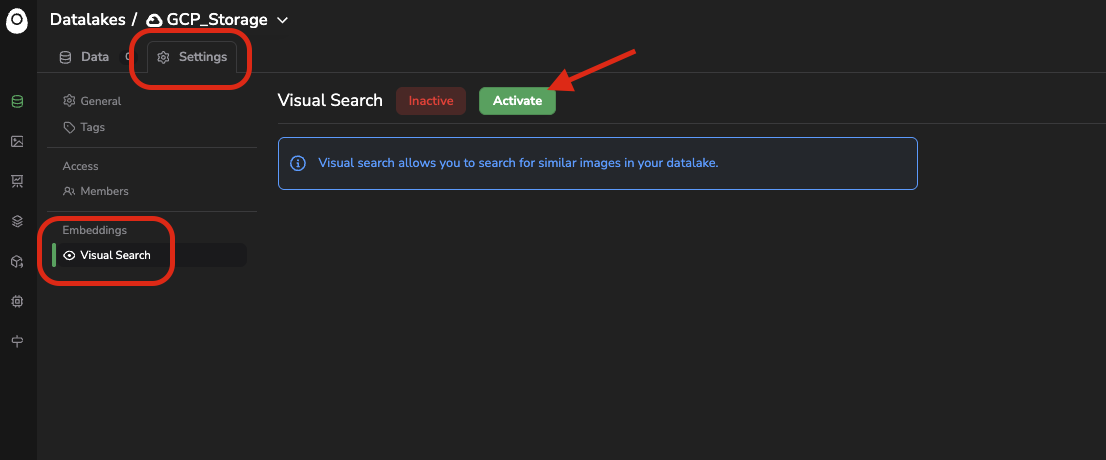
Access the Visual Search configuration page
You need to have the Admin rights on the current
Datalaketo access its Settings page
Please note that the embeddings computation is Datalake related, meaning that if you have several Datalake, you'll need to perform this activation for every Datalake.
Once activated, the computation of the images that are already in your Datalake will start; the compute time obviously depends on the volume of images in your Datalake. This computation can be tracked thanks to the progress bar or directly from the related internal Job created and accessible in the Jobs tab.
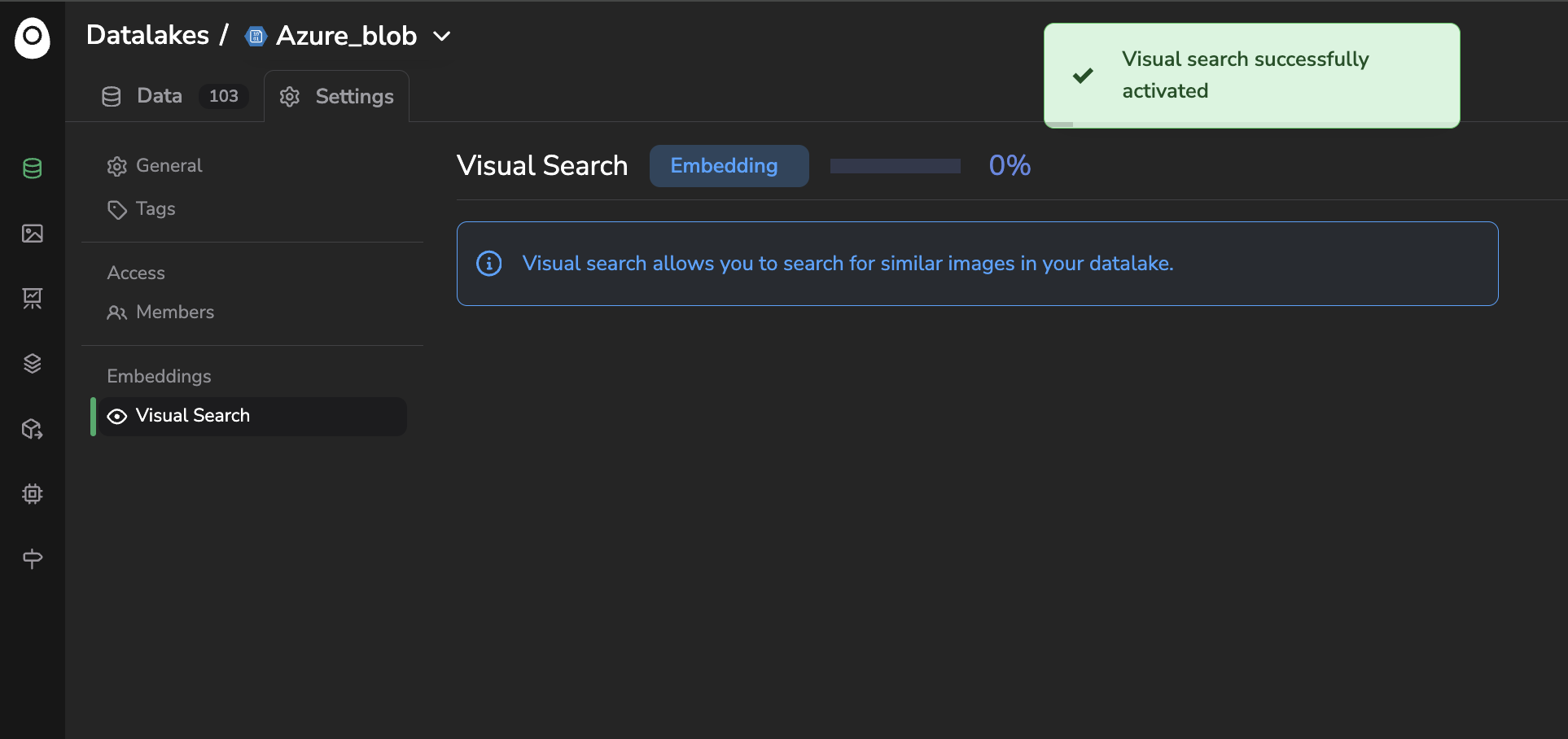
Activation of the Visual Search
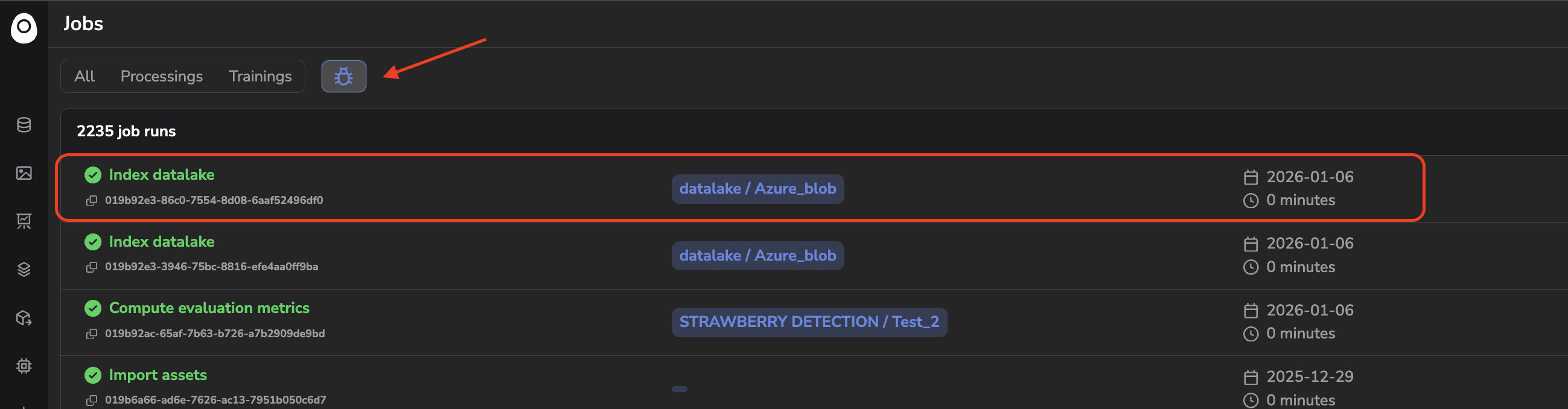
Embeddings computation Job
Once the computation is over, you'll have access to an embeddings status overview that details the number of images treated successfully and also the ones that have not been computed for any reason:
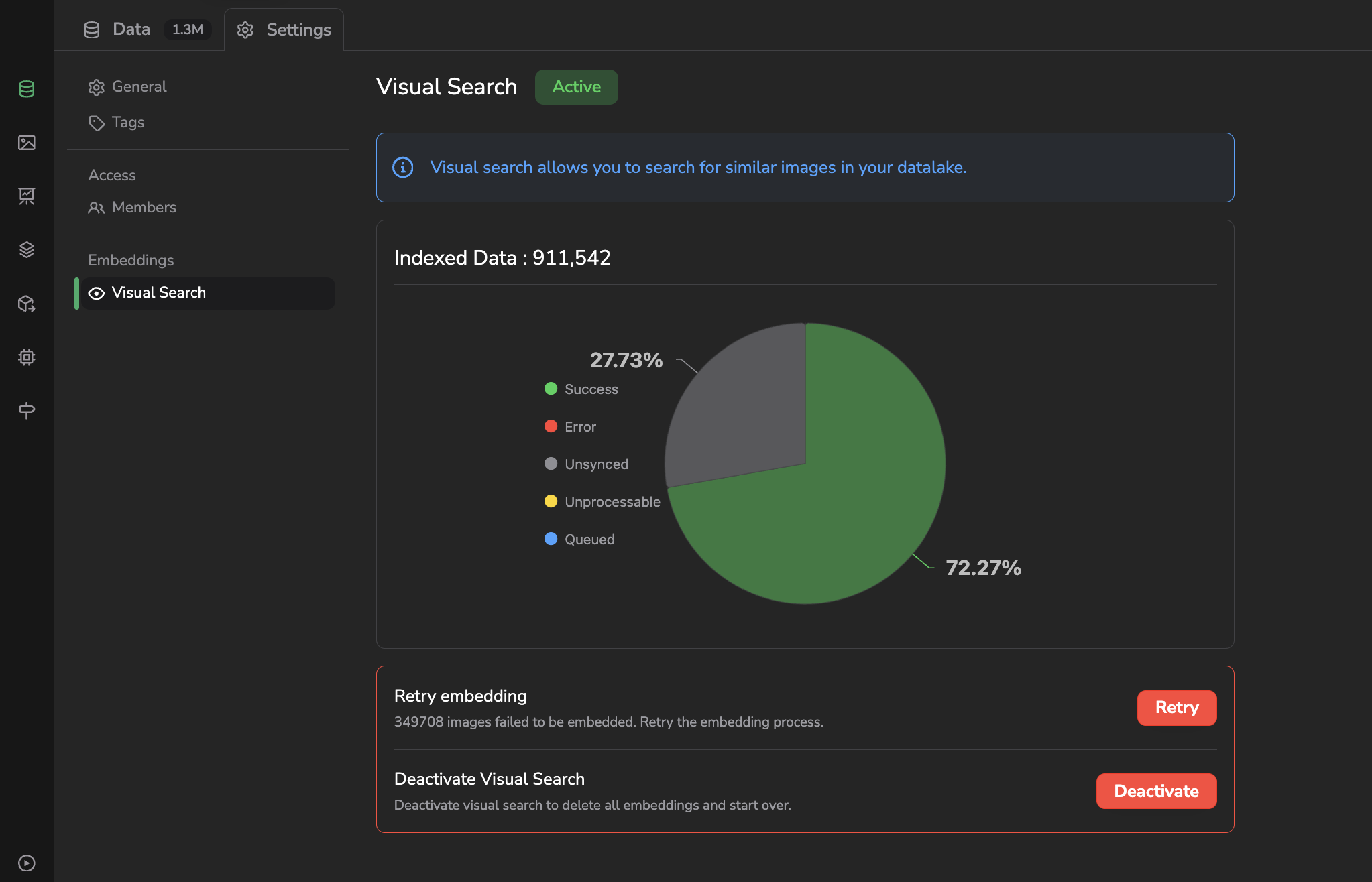
Embeddings computation overview
As is the case in the above screenshot, it happens that some images can not be computed, either due to an isolated issue during the computation process or because some images are not in a format that is handled. In both cases, you can relaunch the embeddings computation for all the images that are in a given status using the Retry button:
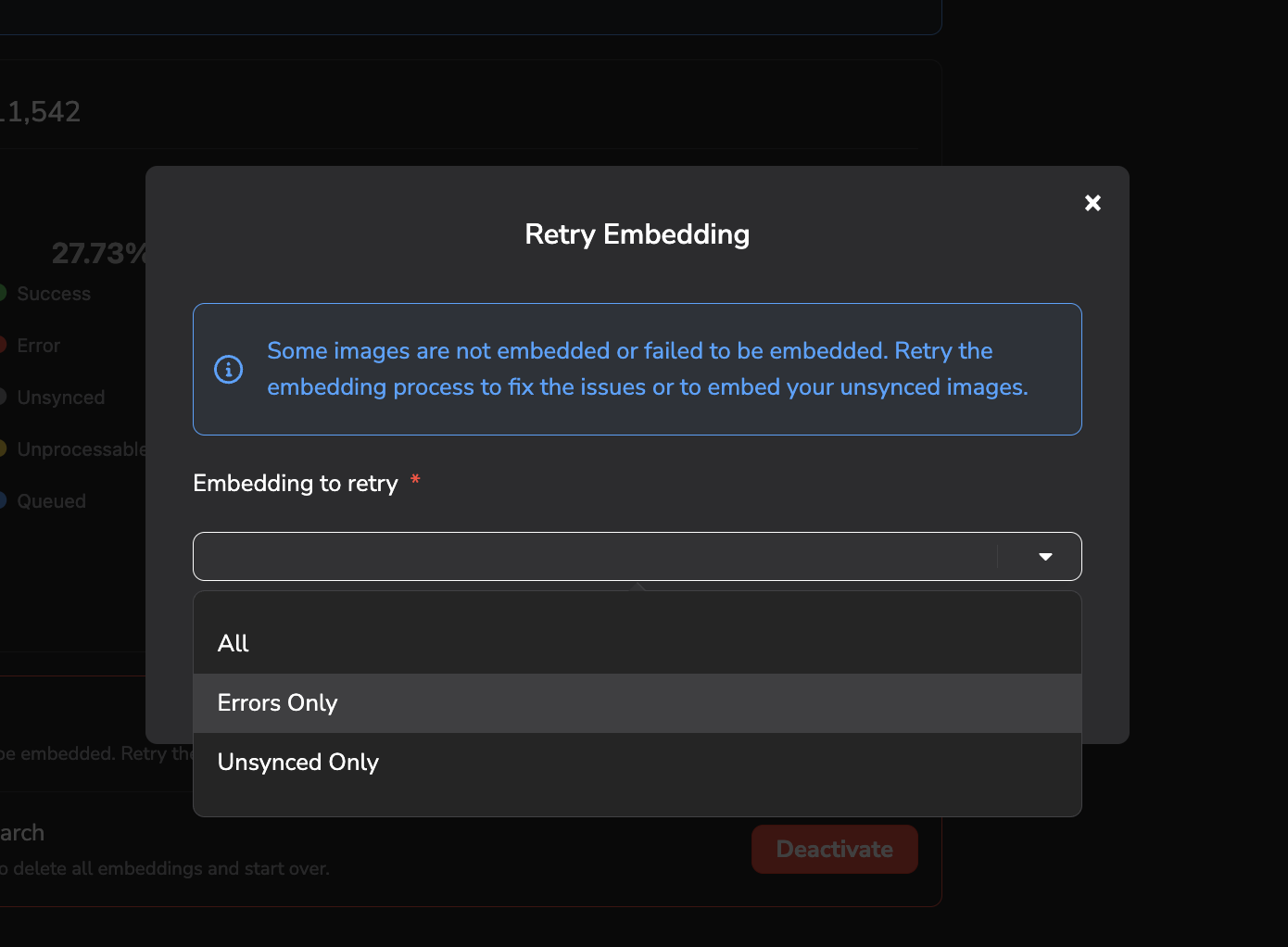
Retry embeddings computation
Once the computation is over, the Active flag appears. This means that from now on, each new image uploaded to the current Datalake will, if possible, be computed to generate an embedding from this one.
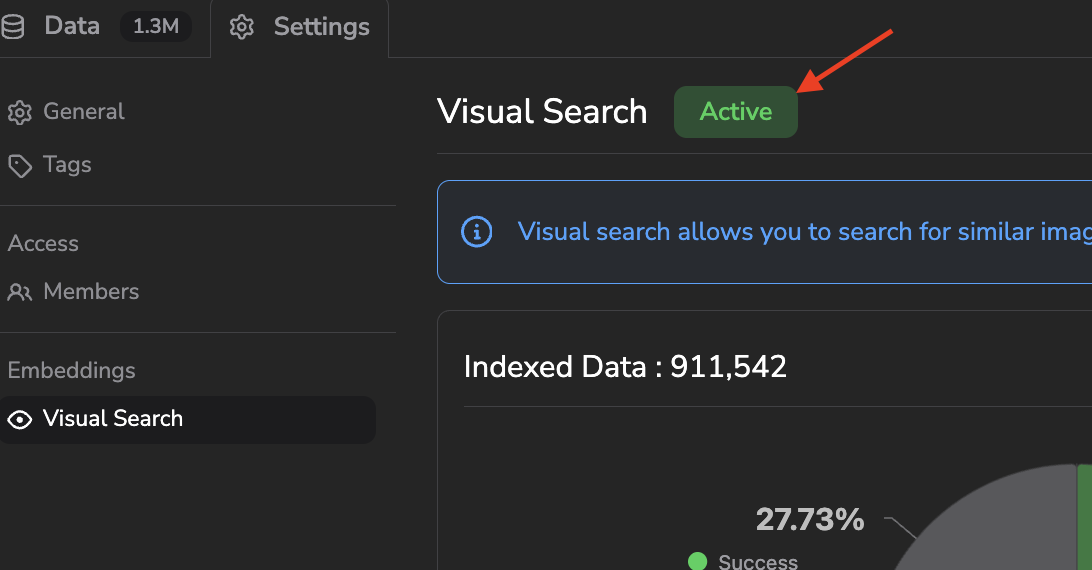
Visual Search feature status
Please also note that you can deactivate the embeddings computation at any moment by clicking on Deactivate. This will, as a consequence, delete all the embeddings already computed for the current Datalake so please be very cautious while using this button.
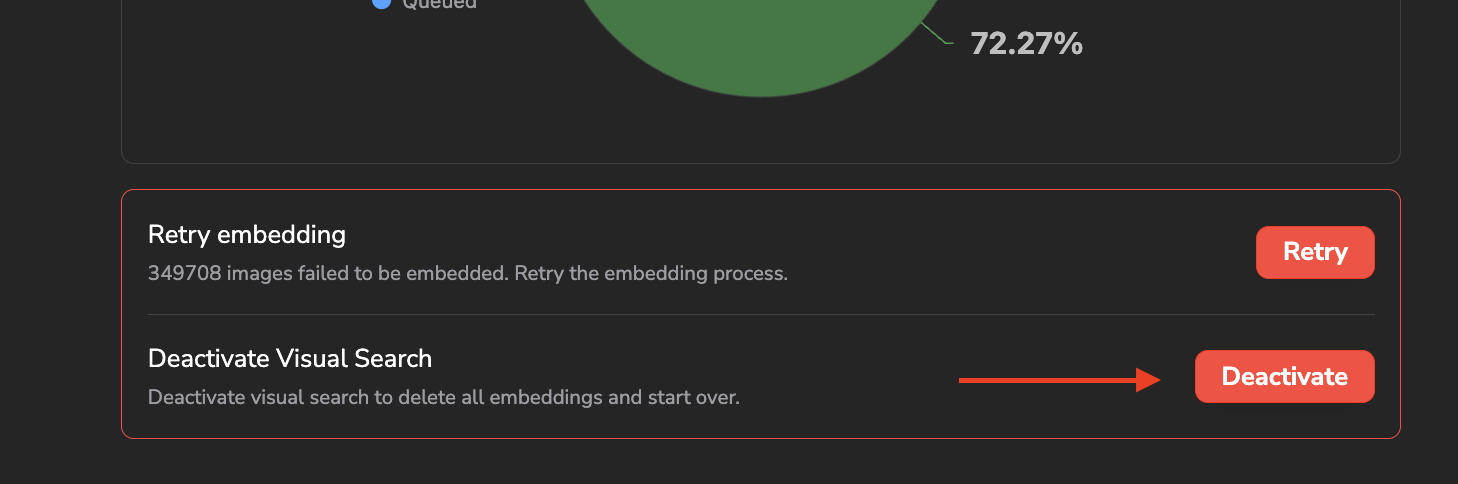
Visual Search deactivation
Let's talk quickly about the technologies that are used behind this embeddings computation.
Basically, it is the library open_clip that is used to generate one embedding vector per image. In particular, it is the model ViT-B-16 with the weights datacomp_xl_s13b_b90k that are used by default. Once generated, each embedding vector is stored in a QDrant Vector Database, especially the Vector Search Engine, to implement the different exploration features that will be detailed below.
Use your own embeddings model?
The Picsellia embeddings system has been built by design to handle any type of embeddings model, so if you want to use your own model to compute the embeddings of your
Datalake, please reach out to the Picsellia team in order to set up this specific configuration.In case you need more than a generic OpenCLIP model to compute and explore your embeddings, you can also leverage the Experiment Tracking feature of Picsellia to fine-tune the generic OpenCLIP model on your own images and captions. This would then allow you to quickly train and integrate an embedding model that generates insightful vectors in your particular context. For that need also, please reach out to the Picsellia team to proceed.
Now that the Visual Search feature is fully activated and the embeddings computation is over, let's detail together the different features that will leverage them to perform image exploration.
2. Similarity Search
The first and most common way to leverage the embeddings is through Similarity Search. Basically, it allows identifying the images that look the most like the selected one.
To find the X most similar images from your Datalake for a selected one, you just need to select it directly among your Datalake, click on the eye icon (Find Similar) next to the search bar, type the number of most similar images to search for, and click on Search.
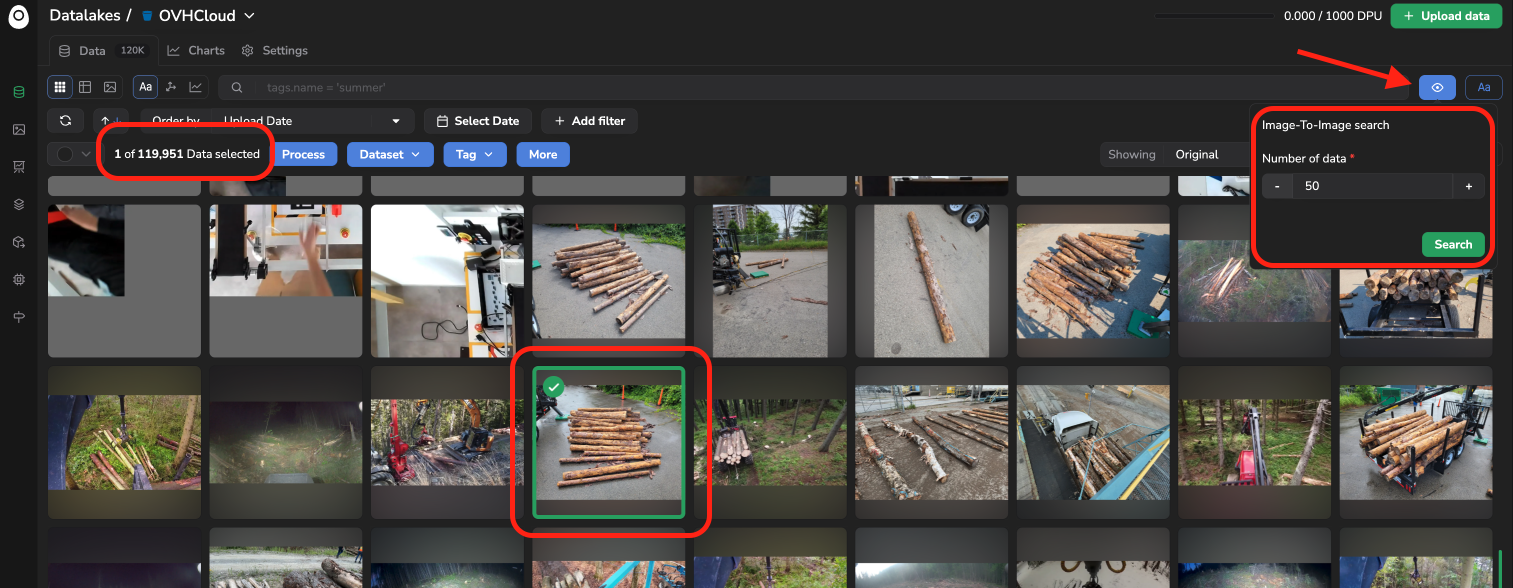
Usage of similarity search
The Find Similar icon is accessible only if one image is selected
Once the most similar images are found by Picsellia, they will be displayed in the Datalake overview as shown below. Each similar image will then be displayed with its relative similarity score and ordered by higher similarity score. You can close the similarity mode by clicking on the cross button next to the eye icon.
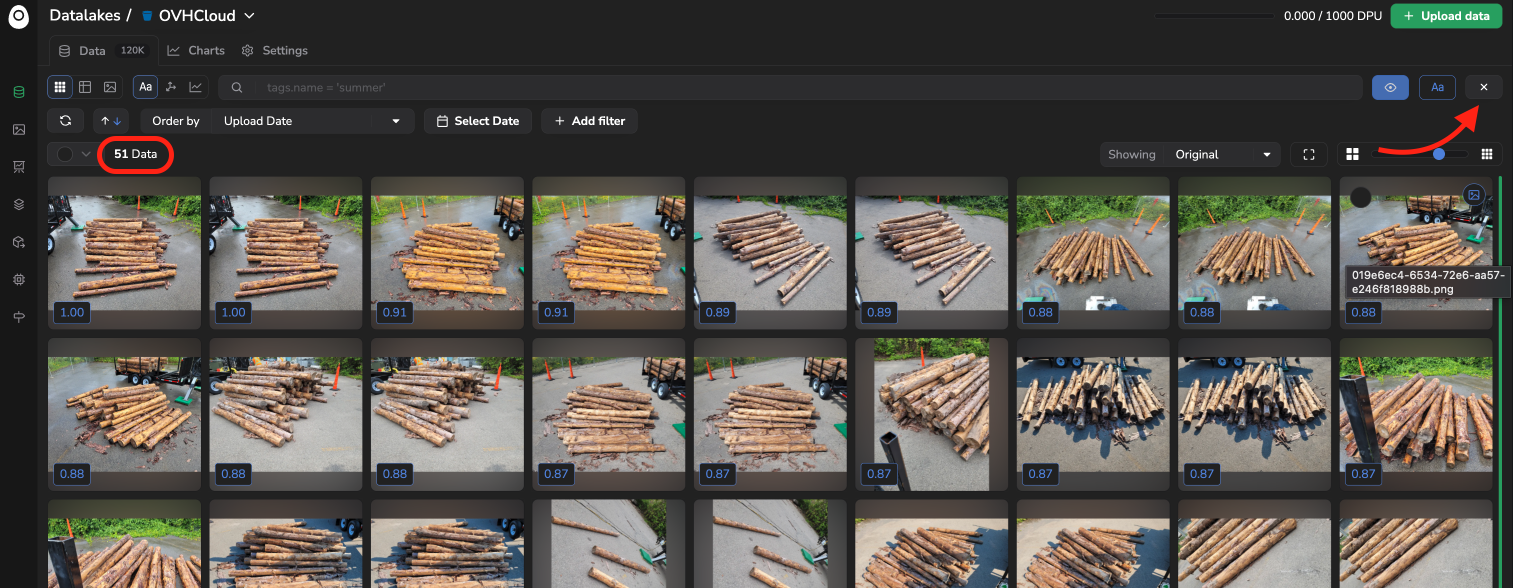
Display of the most similar images with relative similarity scores
3. Text to Image search
You can also explore your images not based on the similarity with a given image aspect, but based on a text prompt. This is made possible by the captioning embedded in the OpenCLIP model.
Basically, it allows identifying the images that correspond most closely to a given text prompt.
To find the X images from your Datalake that fit a text prompt, you just need to click on the Aa icon (Text Search) next to the search bar, enter your query, type the number of most relevant images to search for, and click on Search.
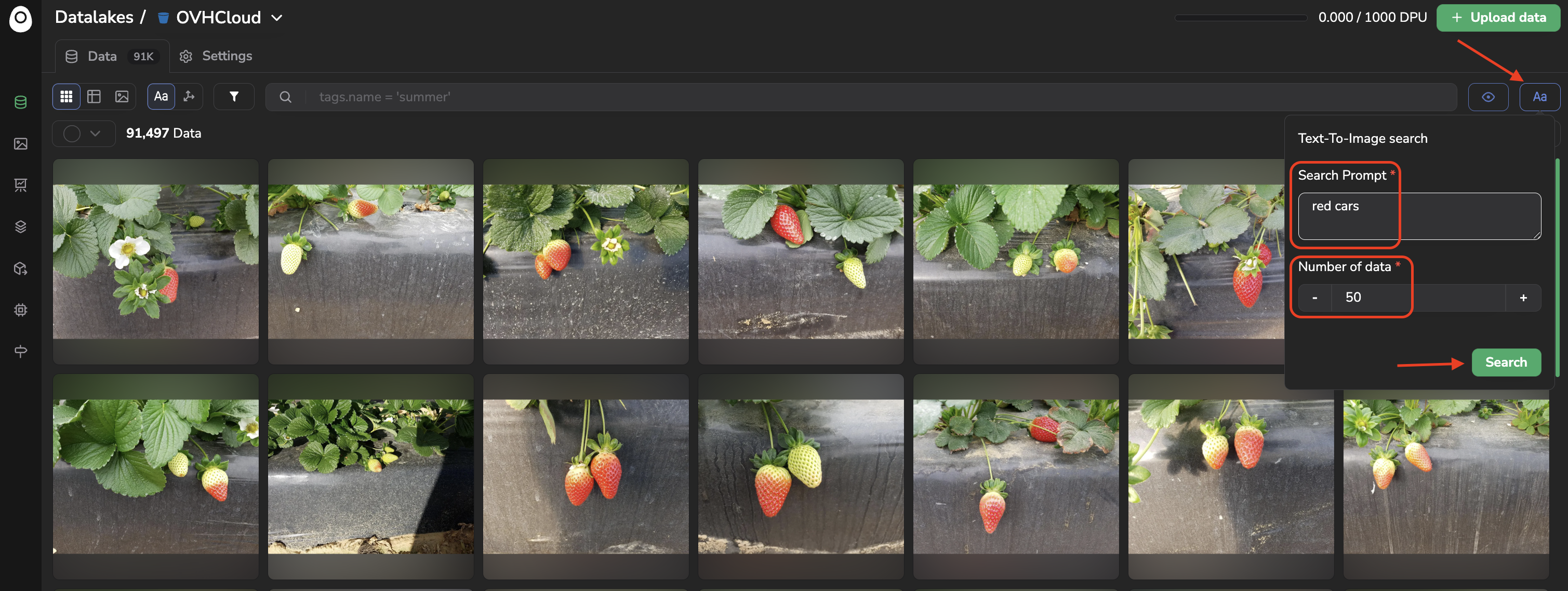
Configure your text-to-image query
Once most relevant images are found, they will be displayed in the Datalake overview as shown below:
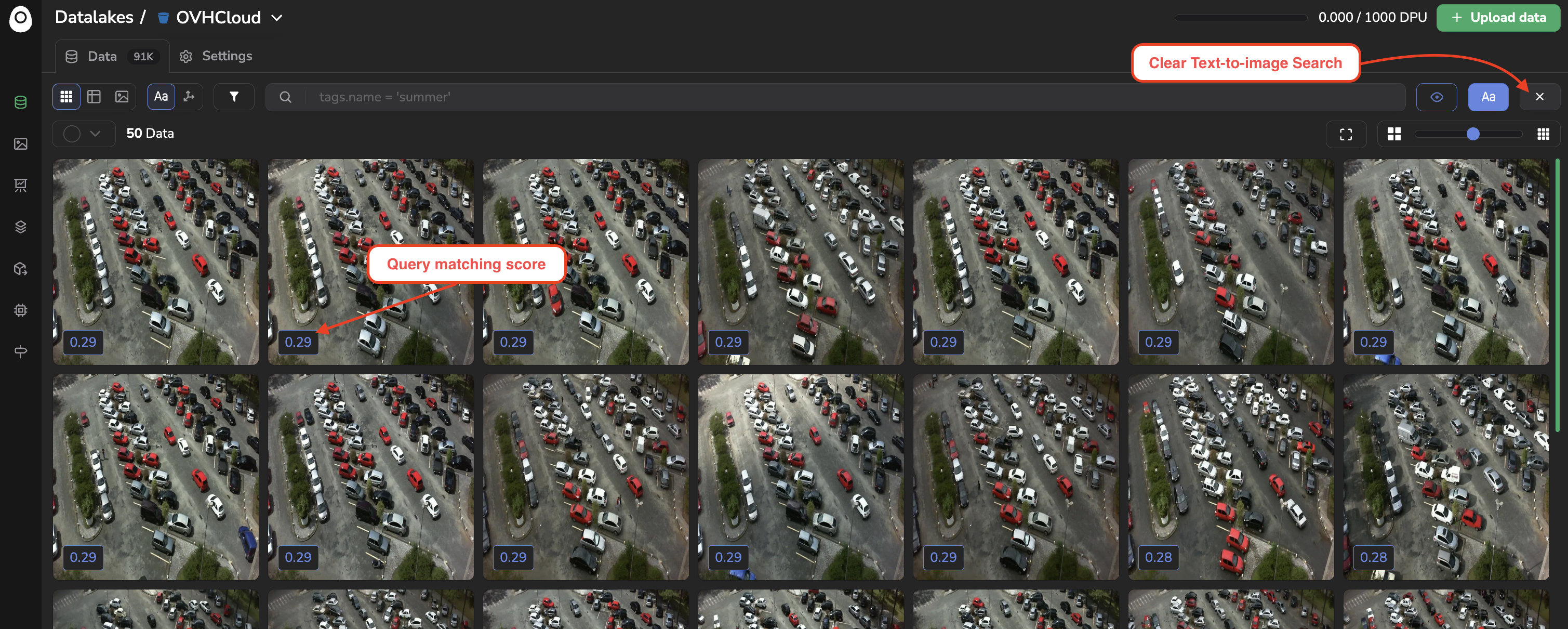
Display of images matching the query with the relative matching score
4. UMAP Projections
The last way to leverage embeddings in your Picsellia Datalake might be the most powerful and flexible: the UMAP projection and visualization of every embedding vector computed for the current Datalake. This is what you get by switching to the Embeddings exploration mode.
Basically, the main area shows a scatter plot displaying the point cloud of all your embedding vectors computed and projected following the UMAP method.
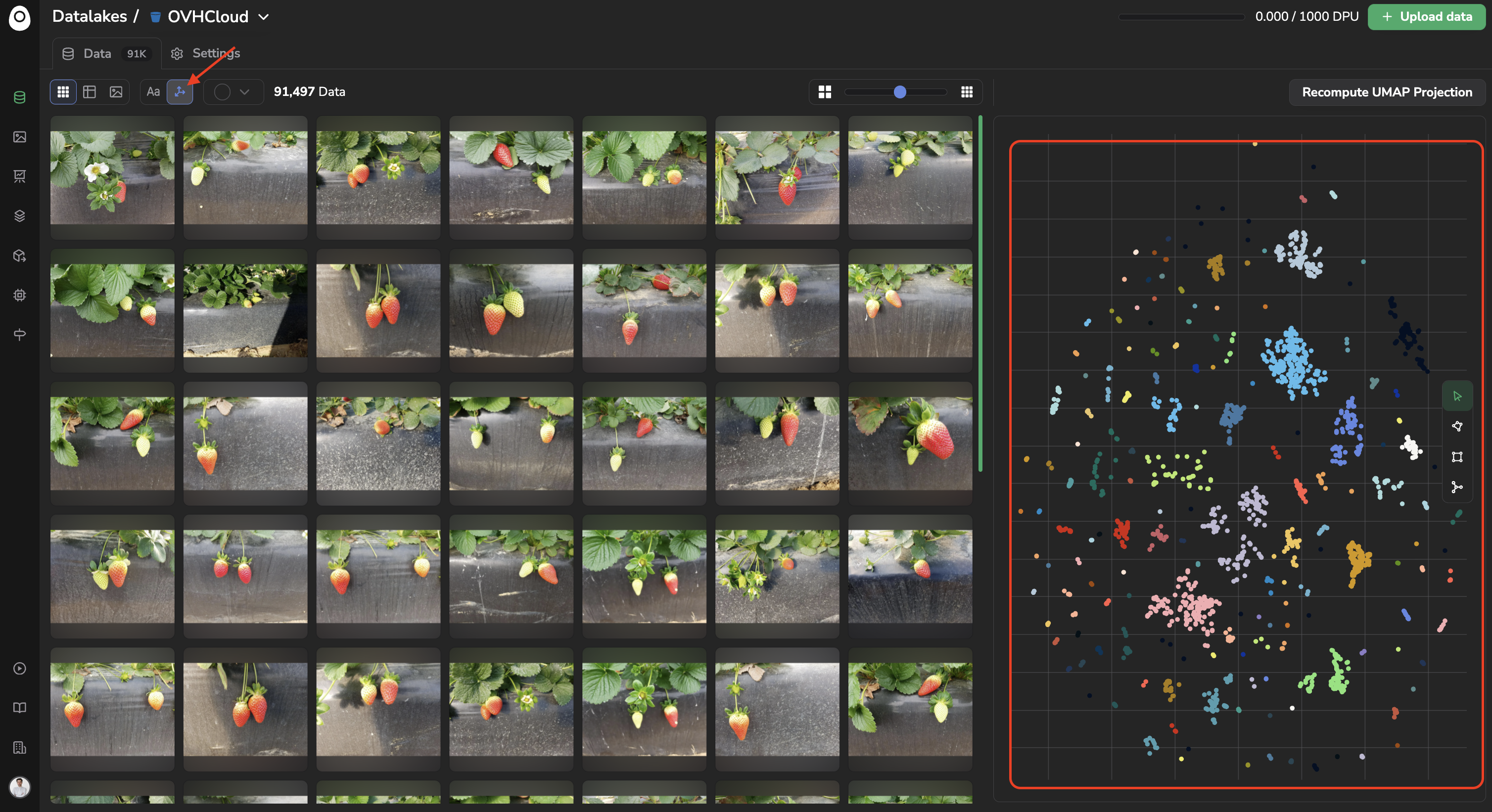
UMAP projection in the Datalake for embeddings exploration
Each point here represents one or several images (depending on the number of images considered).
The images that are visually close to each other are grouped together using the DBSCAN clustering method and identified with the same color.
You can explore the embedding point cloud by selecting a group of points using the Select with lasso, Select with rectangle, or Select by cluster tools available on the right of the scatter plot; they will allow you to select a bunch of points:
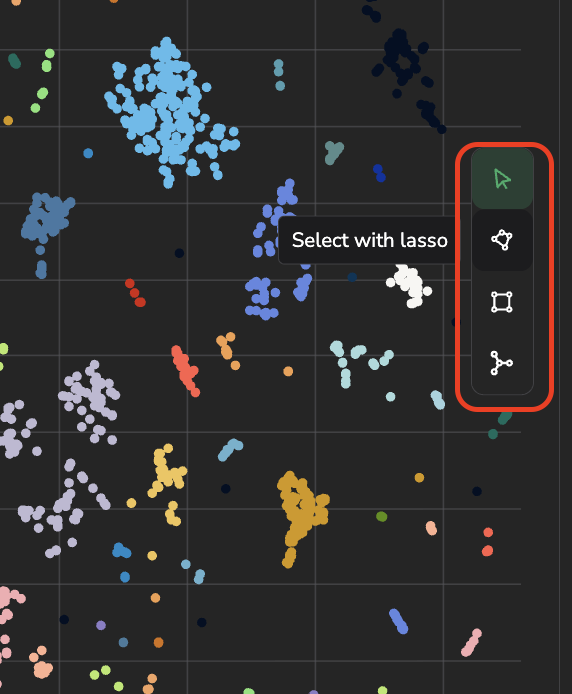
Tools available to select embeddings and display associated images
The images corresponding to the selected points will be highlighted in red and be displayed on the left panel:
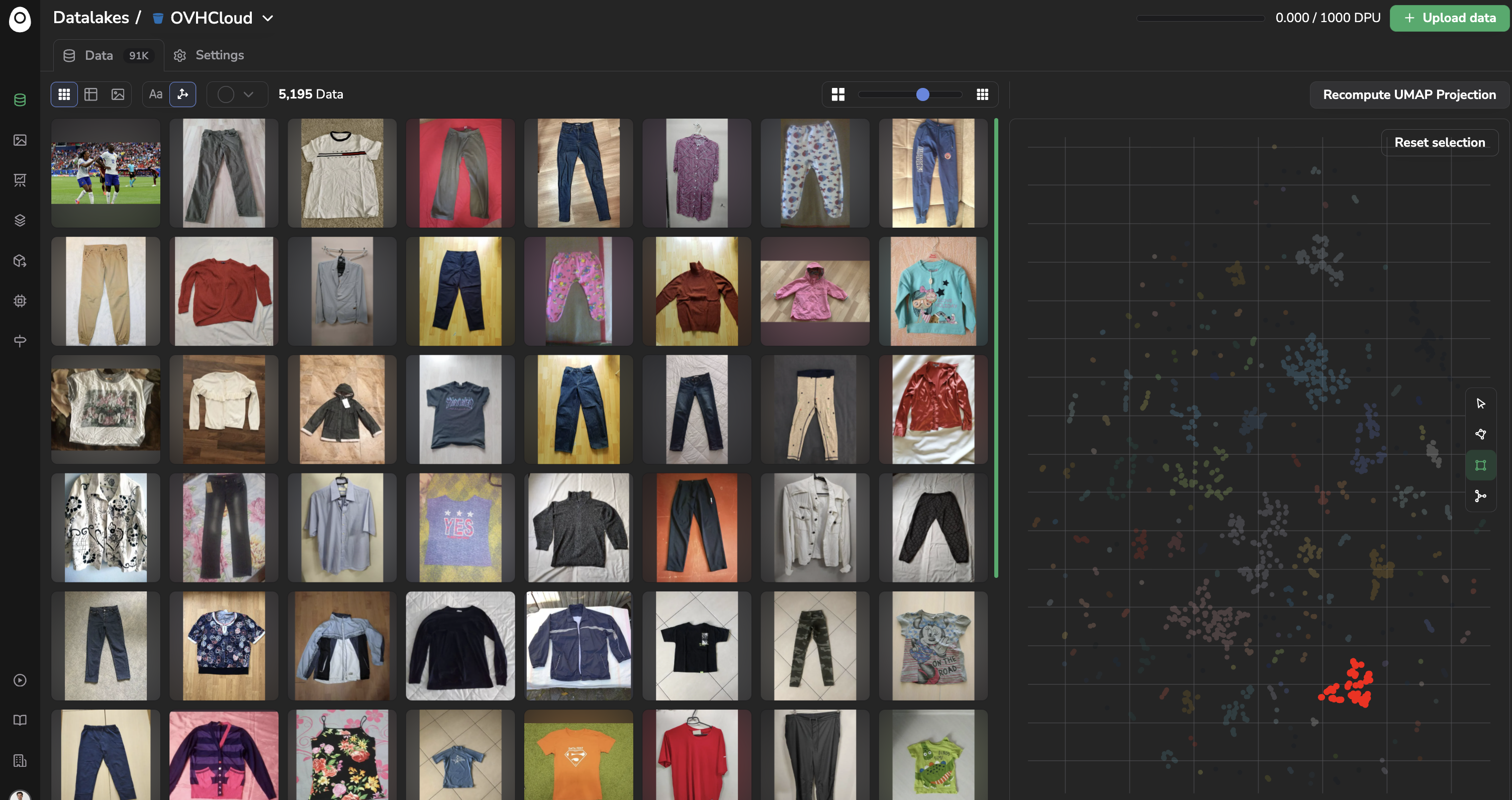
Display of a bunch of selected embedding points
Please note that it is not possible to explore the Datalake using the embeddings scatter plot at the same time alongside the Search Bar or Charts. You can switch between the two exploration modes as long as the embeddings selection or query in the search is reset.
Nevertheless, once images have been filtered with the embedding exploration tools, they can be selected and, using the Process or Actions buttons, attached/detached a DataTag, sent to a Processing, or used to create a new DatasetVersion:
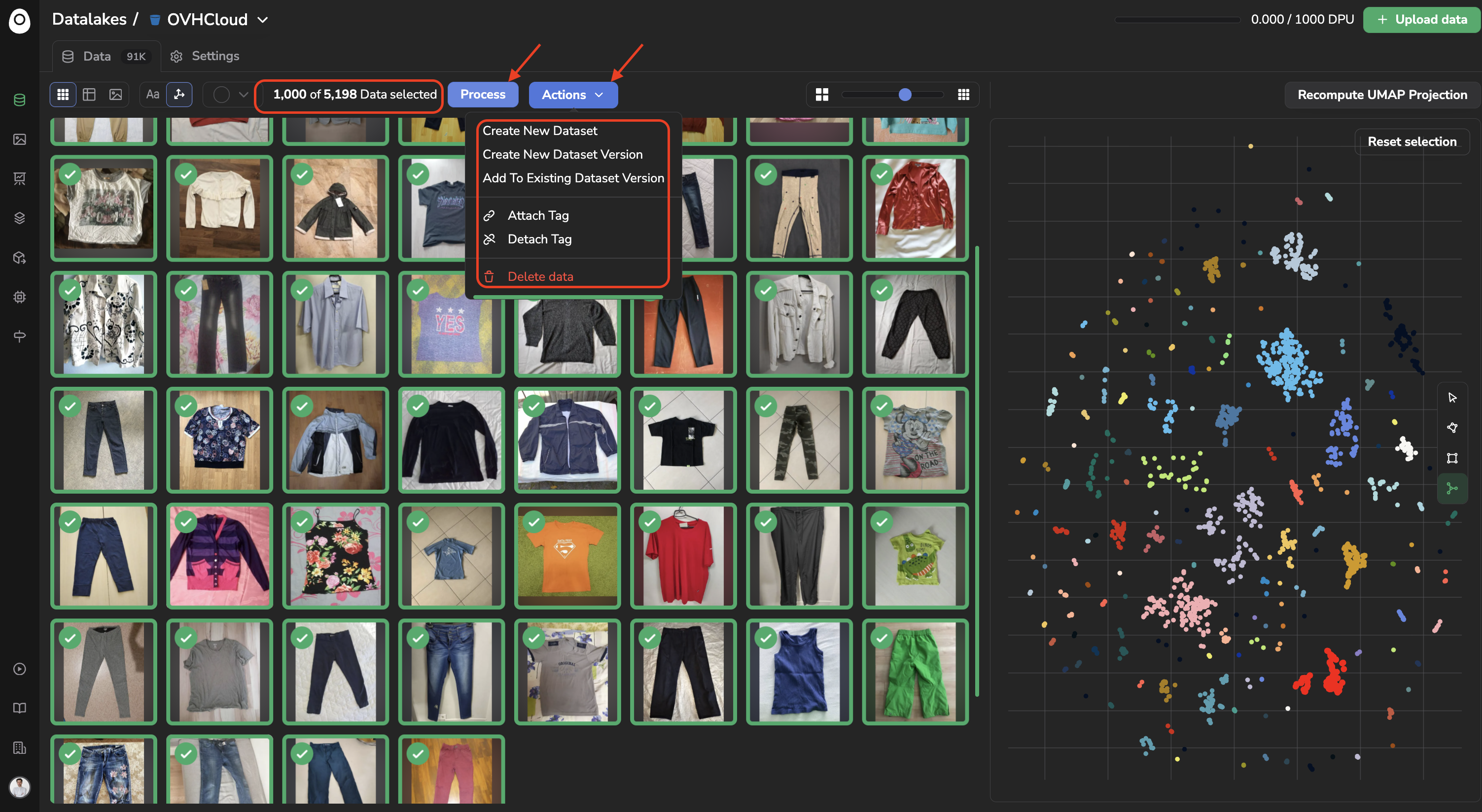
Use caseA very illustrative use case, would be to identify the isolated points that are likely outliers or corrupted images, visualize them to validate it and tag them to retrieve them easily in the future.
To reset the embeddings selection, you can click on Reset Selection.
The computation of the UMAP projection is not automated, so you can manually recompute the point cloud with all the latest images by clicking on Recompute UMAP Projection.
Please note that by recomputing the UMAP, you'll have the ability to set some UMAP and DBSCAN parameters (N Components, Epsilon, Min Samples) as shown below:
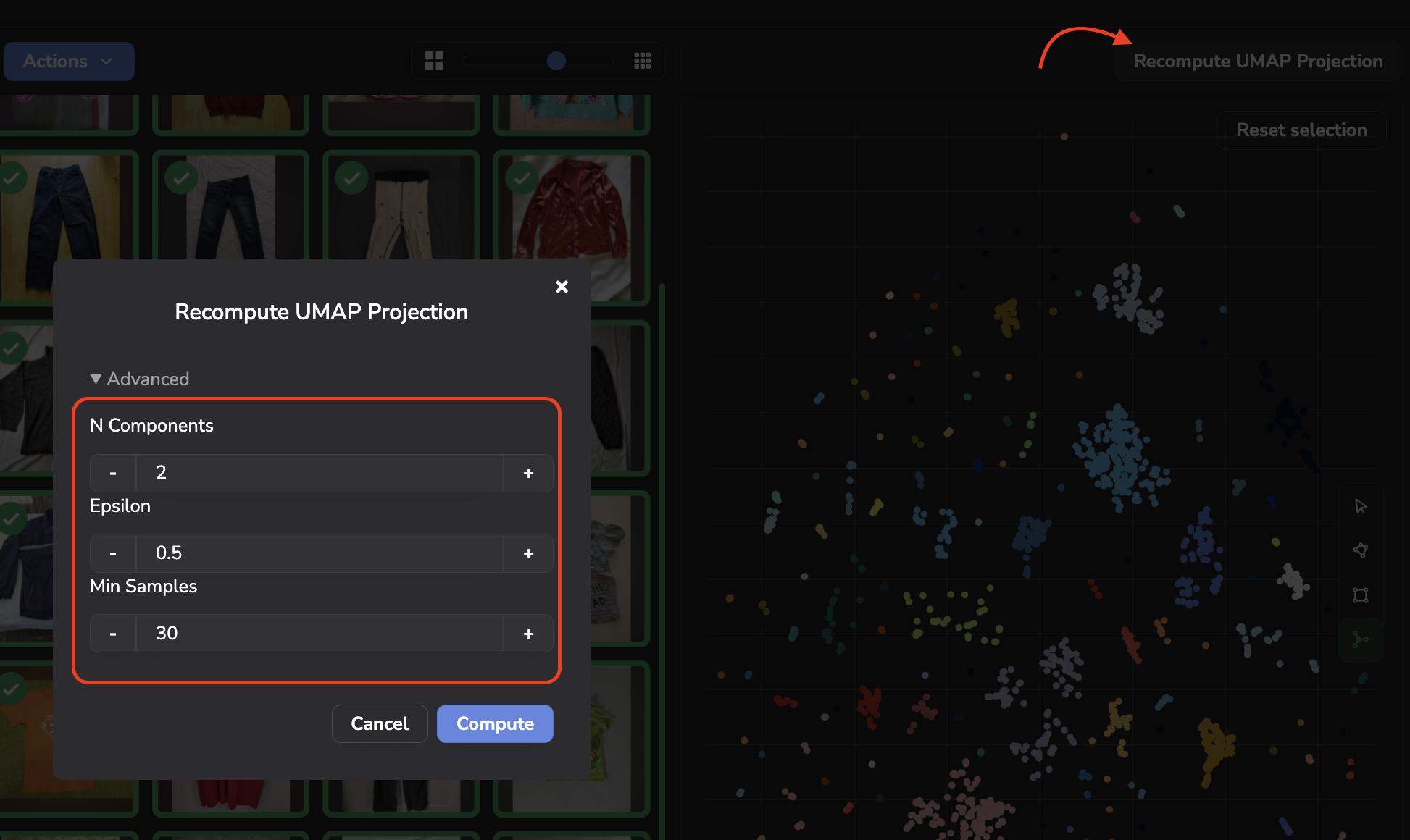
More details about the UMAP parameters are available here.
The DBSCAN parameters are the following:
- ε (epsilon): The maximum distance between two points for them to be considered neighbors.
- Min_samples: The minimum number of points required to form a dense region.
Updated about 2 months ago