

Users Management System
On Picsellia, you can implement granular Role-Based Access Control.
Several different layers of rights exist, allowing you to provide either global or granular rights to Members accessing your Organization.
To properly manage the Members of the current Organization, you need to access the Organization Settings (introduced here) and its Members tab as shown below:
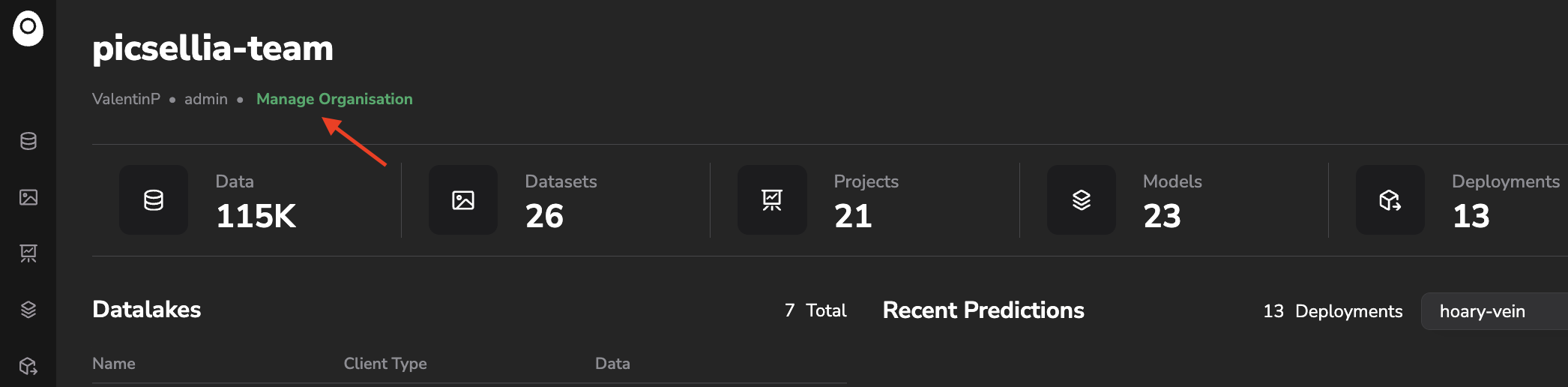
Access Organization Settings

Access the Members tab
1. Add and manage Members
To enable collaboration, you can invite your colleagues to any Organization you have access to.
This can be done if you are the Owner or have been added as an Admin in the organization.
Here are the steps to add someone to your organization:
- Go to your organization settings
- Access the "Members" tab (screenshot below)
- Click on the "Invite member" button

Invite Member
Here you have two options to actually send the invitation:
- Enter the username of the person who already has a Picsellia account
- Enter the email address of the person you want to invite
Note that if the email address corresponds to an existing account, they are going to be added right away; otherwise, they will receive an email inviting them to create an account. While waiting for the invited person to sign up, they'll appear in the Members list with a Pending status.
Available seatsThe number of seats available in your Organization depends on your Picsellia plan. The current usage (e.g.
12/100 members) is displayed at the top of the Members list. Some filters are also avaible to filter out Members based on the role or the status (Active/Inactive)
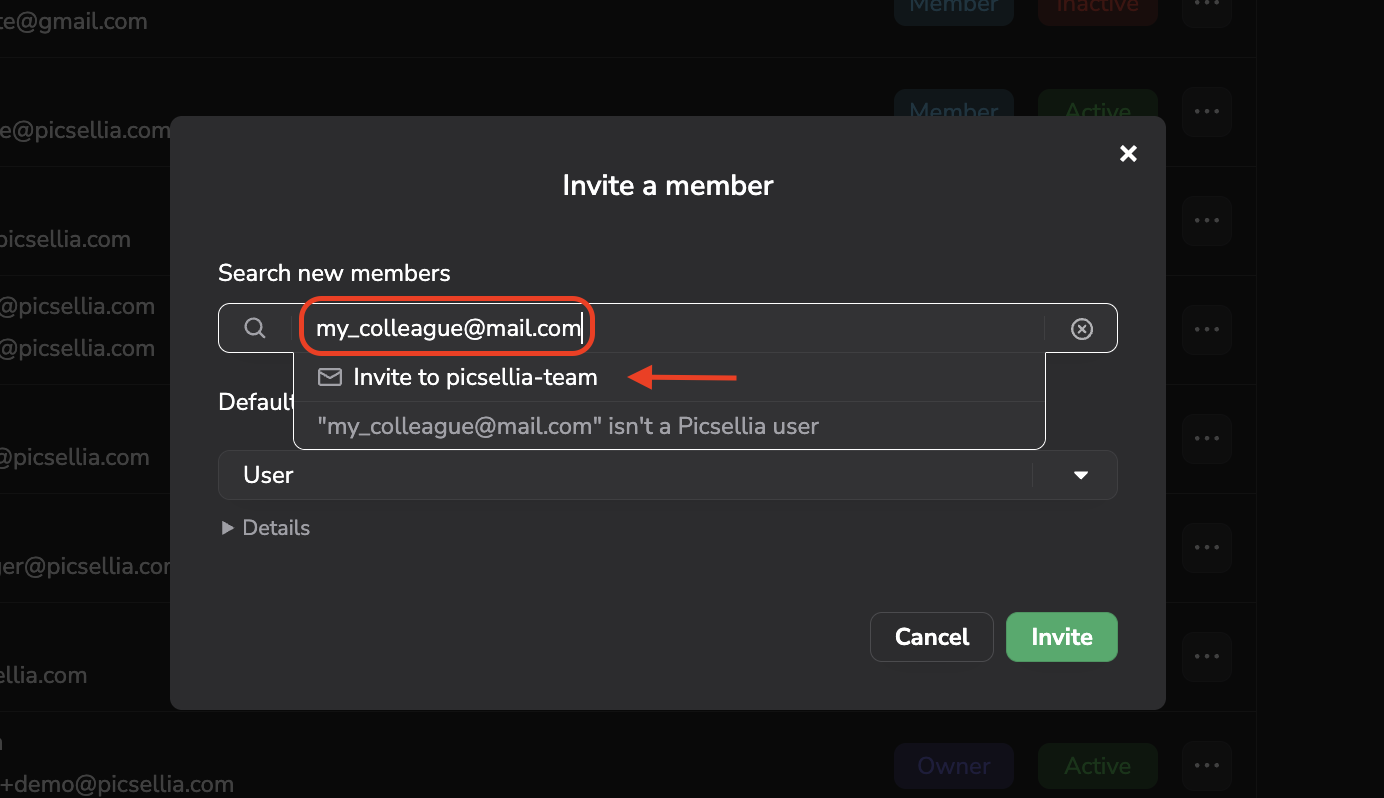
Invite a new Member
The invitation pop-up also allows you to define the Organization Rights of the Member that will be created in the current Organization. More details on the Organization Rights in the dedicated section.
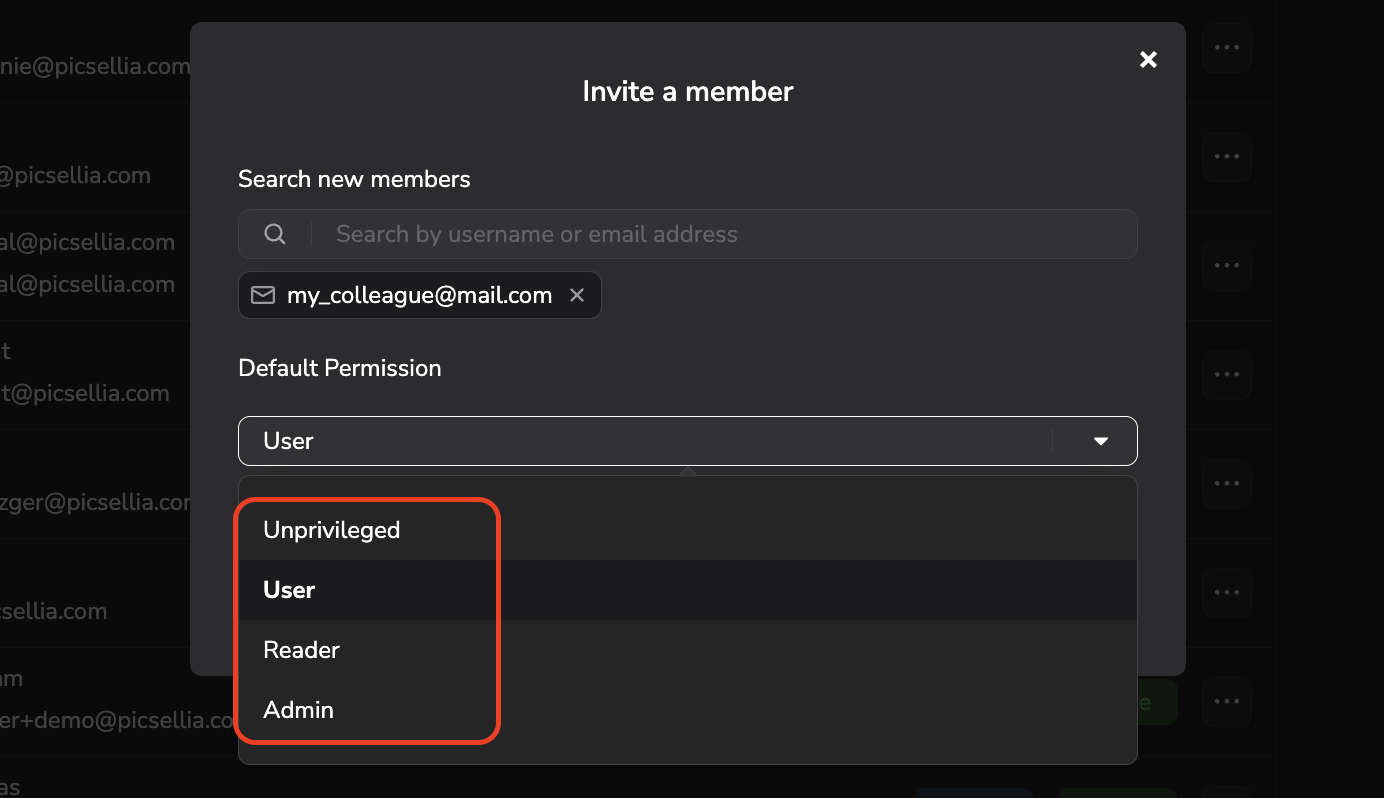
Provide Organization Rights to a new Member
Once added, any Member can be removed from the current Organization thanks to the button ... > Remove member.

Remove a Member
Removed MembersIf you remove a member from your organization, it will become "Inactive". It means that he won't have access to your organization anymore but might still appear as the creator of some resources.
LegacyThe removal of a member DOES NOT delete any of its associated resources such as Annotations or Datasets from your organization.
2. Manage Members' Rights
Let's now focus on defining the proper level of rights for each Member of the current Organization.
You can access their permissions as shown below:

Modify Member's rights
For each Member, you'll then access the details of his permissions for the current Organization:
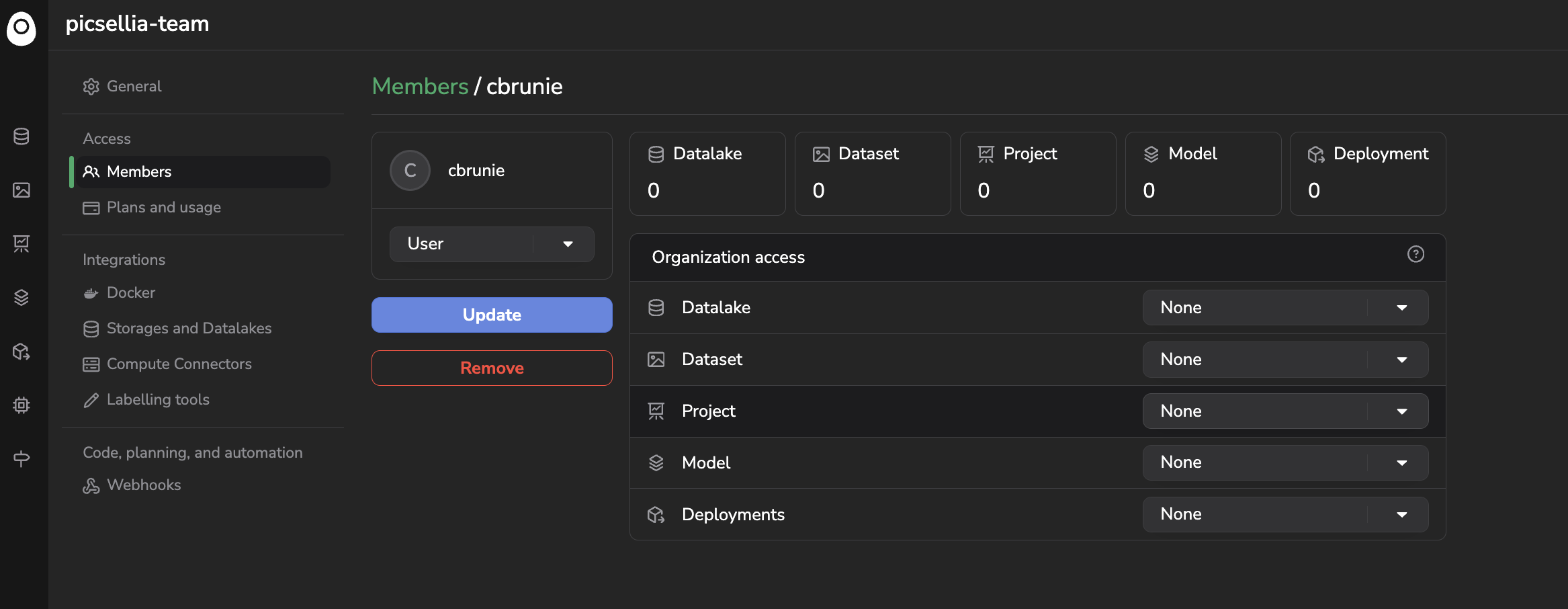
Member's right panel
For each Member of an Organization, you can define several different levels of rights:
- Organization Rights
- Organization Access
- Direct Access
A. Organization Rights
The Organization Right of a Member defines its ability to :
- Access the Organization settings (that includes all the panels you can see in the screenshot below)
- Create the following Picsellia resources:
Datalake,Dataset,Project,ModelandDeployment
This Organization Right can be Admin, User, Reader, or Unprivileged.
The Organization Right can be set as follows:
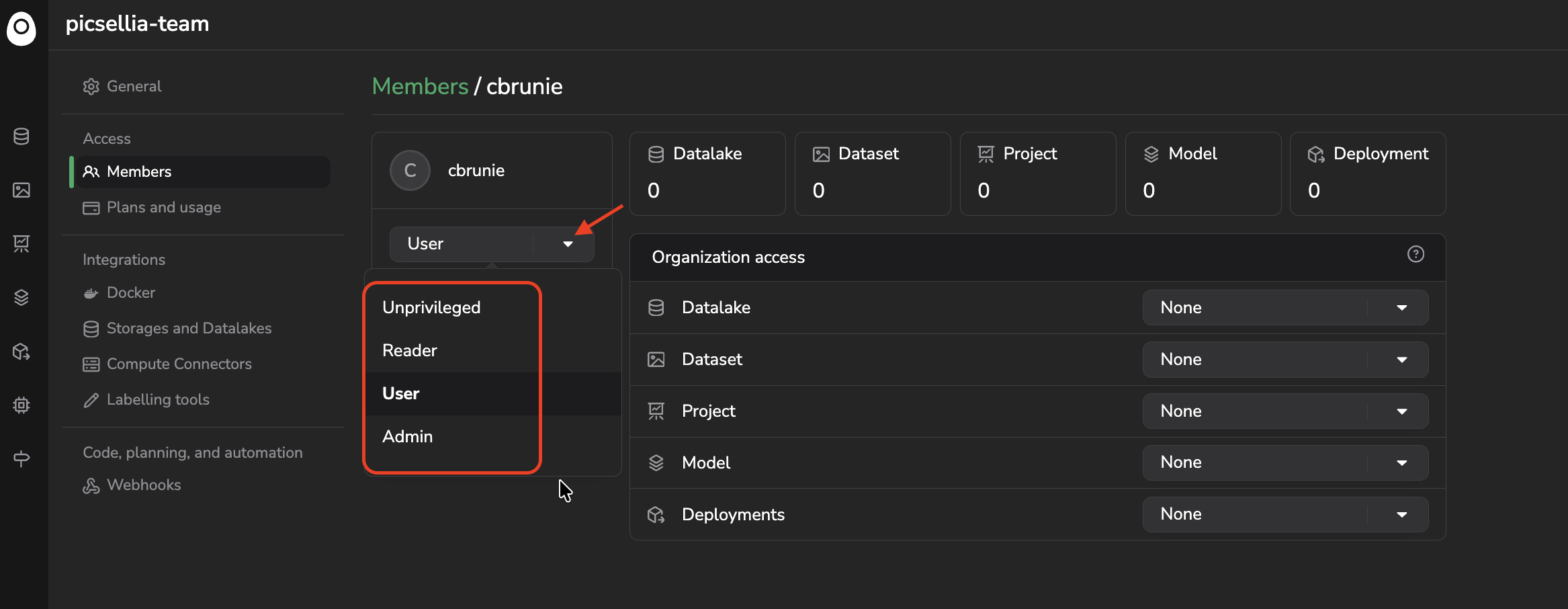
Define the Organization Right of a Member
Organization OwnerThe Member who created the Organization is displayed with an Owner badge in the Members list. This role behaves like Admin in terms of rights, and there is always exactly one Owner per Organization.
The rights of the Owner cannot be edited: any attempt to change them from the Members list is rejected, so an Organization can never end up without an administrator.
First of all, please note that only Members with the Admin rights as Organization Right can access the Organization settings.
Moreover, the Organization Right defines the Member's ability to create Picsellia resources: Datalake, Dataset, Project, Model and Deployment.
Below are listed the differences between the potential Organization Rights levels:
- A Member with an Admin Organization Right will always be able to create any of these Picsellia resources. This Member will have the Admin Organization Access on all the resource types, and this right cannot be downgraded; as a consequence, the Member will always have access to all the existing resources without exception. The Admin Organization right also provides access to the Organization Settings tab.
- A Member with a User Organization Right will also be able to create any of these Picsellia resources. For each resource type, the access rights can be edited in the Organization Access table. The User Organization right doesn't provide access to the Organization Settings tab.
- A Member with a Reader Organization Right is not able to create any of these Picsellia resources. The Reader Organization Right doesn't provide access to the Organization Settings tab.
- A Member with an Unprivileged Organization Right is not able to create any of these Picsellia resources. Moreover, a Member with an Unprivileged Organization Right won't be able to access any other feature than Campaign (in which he will be able to list all the Annotation Campaigns he is involved in by getting Tasks assigned), meaning that this Member won't be able to access any Picsellia resource; this is why his Organisation Accesses are set up as None without any editing possibility. The Unprivileged Organization Right doesn't provide access to the Organization Settings tab. More details on the Annotation Campaigns and the Unprivileged role are available here.
B. Organization Access
While Organization Right defines the ability of a Member to create a Picsellia resource in the current Organization, the Organization Accesses defines its ability to access and edit the ones that already exist in the current Organization.
Contrary to the Organization Right, the Organization Accesses can be defined per resource type, which means that for each Member you can define a given Organization Access for the existing Datalake, Dataset, Project, Model and Deployment.
For each resource type, the Organization Accesses can be granted to a Member as follows:
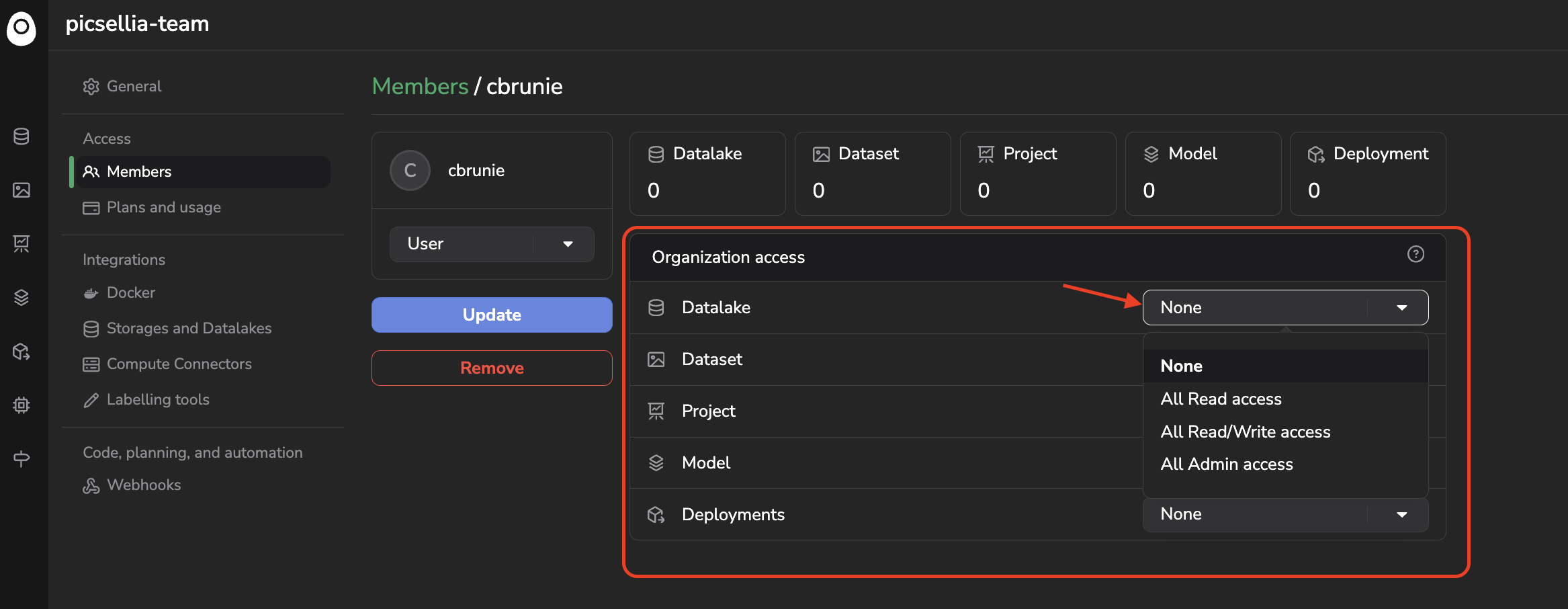
Grant Organization Access on the Datalake resource type
Please note that if a Member has the Unprivileged or Admin Organization Rights, you won't be able to edit its Organization Accesses; indeed, in the case of Unprivileged, all the Organization Accesses are always to None, whereas for the Admin Organization Rights, all the Organization Accesses are always defined to All Admin Access.
Below are the details of the different Organization Accesses:
- A Member with a None Organization Access on any resource type won't be able to list any object of that particular resource type; as a consequence, this Member won't be able to access, edit, or delete it either.
- A Member with All Read Organization Access on any resource type will be able to list and read all of the objects of that particular resource type in the current Organization.
- A Member with All Read and Write access Organization Access on any resource type will be able to list and edit all of the objects of that particular resource type in the current Organization.
- A Member with an All Admin Access Organization right on any resource type will be able to list, edit, and delete all of the objects of that particular resource type in the current Organization. In addition, the Member will be able to access the Settings page of any object of that particular type, allowing them to manage access to this particular object.
It is important to note that the Member right on any Picsellia resource is shared by all the objects below this resource; for instance, it means that a Member will always have the same rights on all the DatasetVersion of a given Dataset, same for the Data in a Datalake, the Experiment in a Project, the ModelVersion in a Model or the PredictedAsset in a Deployment.
Until now, we have been able to define separately how to grant a Member the right to instantiate a Picsellia resource (Organization Right) and also to define a level of right for every existing resource of a given type (Organization Access).
That said, in some cases you would need to give access to a Member to only some of the Dataset among all the ones in your Organization. Also, let's consider that your Organization Right is User, but your Organization Access on the Dataset resource type is None, meaning that you would be able to create a Dataset (thanks to your Organization Right) but not even to read it, due to your Organization Access. To avoid such cases, the Picsellia User Management system allows you to provide Direct Access to some specific objects.
C. Direct Access
The Direct Access mechanism allows a Member to be granted a higher right than the one granted through the Organization Access for a particular Picsellia object.
Contrary to the Organization Rights and Organization Accesses, the Direct Accesses are not managed in the Organization Settings but in the Settings page of the concerned object.
Let's take the case of providing a Direct Access on a given Dataset. To grant a Direct Access to a Member on a givenDataset, you can access the Settings page of the concernedDataset, then go to the Members tab.
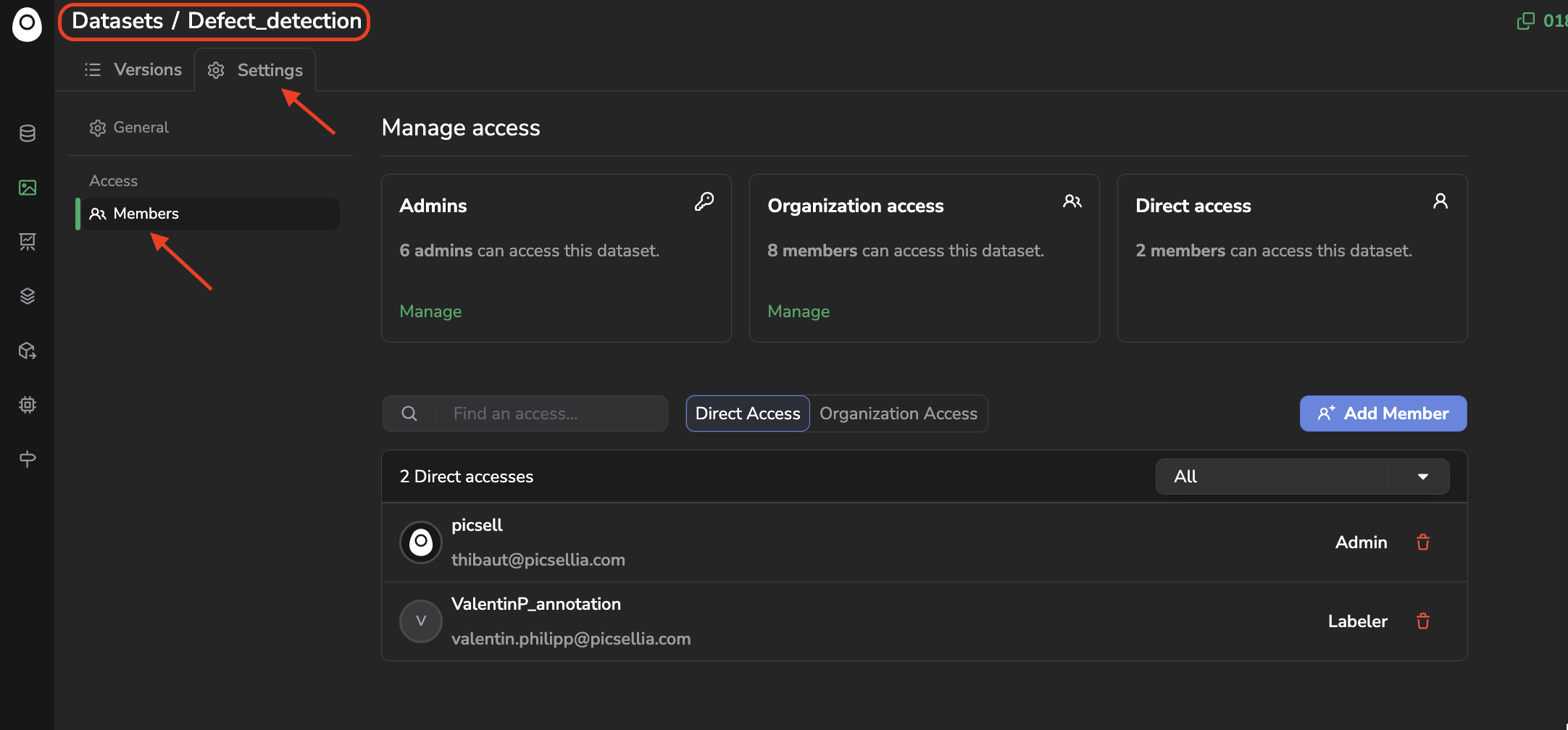
Members tab of a given Dataset
In this view, accessible only if you have an Admin Organization Right or an Admin Organization Access on the concerned resource type, you'll retrieve in the header a summary of how many Members can access the current resource (in this case,Dataset) and through what access type:
- Admins: The number of Members that can access the current object with Admin rights because they have Admin Organization Rights that imply Admin Organization Access on every existing object with that particular resource type (in this case,
Dataset) - Organization access: The number of Members that can access the current object with either Admin, User, or Reader rights because they either have Admin Organization Rights (listed in the above bullet point) or have an Organization Access defined to not None on that particular resource type (in this case
Dataset) - Direct access: The number of Members that can access the current object because another Member with sufficient rights granted him/her Direct Access to the current resource. Most of the time, it implies that the Member now has a higher level of rights on the current resource than what he/she would get through the Organization Access on the current resource type.
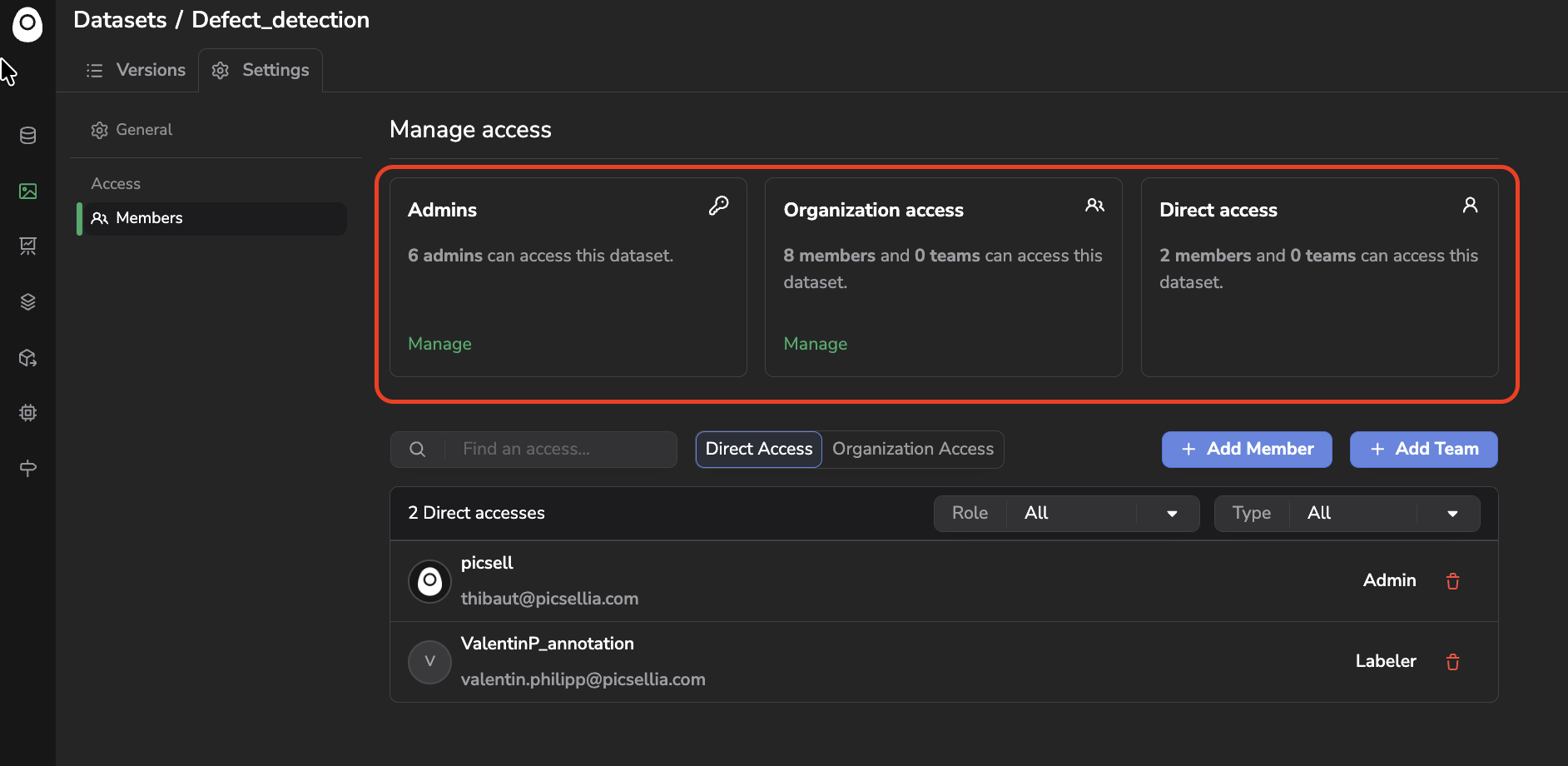
Summary of access on the current resource
Please note that the Manage button available below the number of Admins & Organization access will redirect you to the Organization Member page.
Then, below you'll retrieve the details of the Members that can access the current resource, either through their Organization Access or with a Direct Access. For each Member, the type of Organization Access that they have on the current resource type is also displayed.
Please note that you'll retrieve here any Member with Admin Organization Right because they always have All Admin access as Organization Access for any resource type, and any Member with User or Reader as Organization Right but with an Organization Access that is defined on All Read Access, All Read/Write Access, or All Admin Access on the resource type of the current resource.
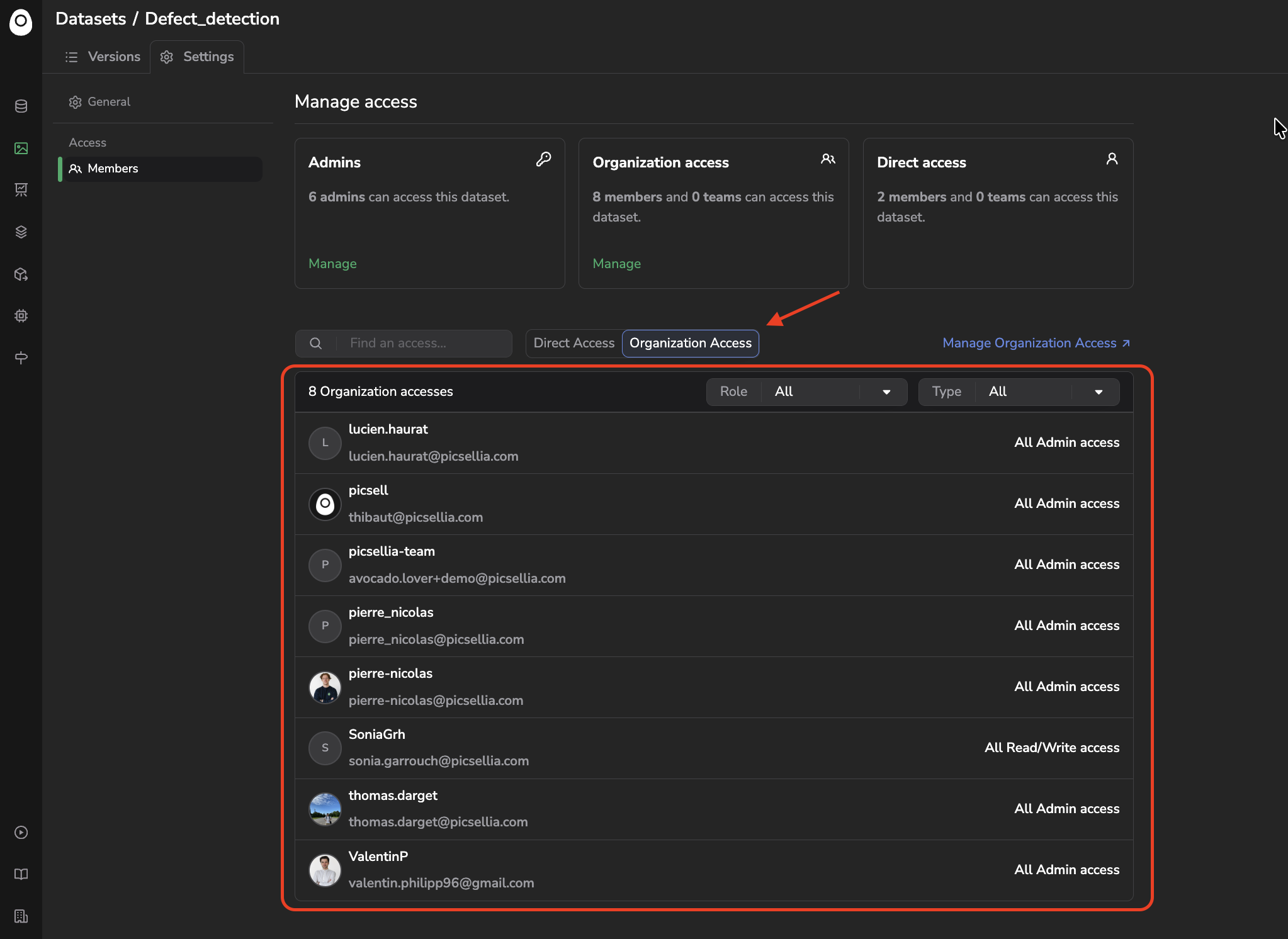
List of Members with Organization Accesses on the current resource
For instance, in this example, we understand that among the 8 Members accessing the current resource through Organization Access, 6 of them got All Admin Access because they have Admin as Organization Right, 1 has Reader/User as Organization Right but got All Admin Access defined as Organization Access for Dataset resource type, and the last Member has Reader/User as Organization Right but got All Read/Write defined as Organization Access for Datasetresource type.
This list is fixed and cannot be modified on the current page, as the Organization Access is applied for every Picsellia object. So the only way to modify the Organization Access globally is to access the Members page in the Organization Settings.
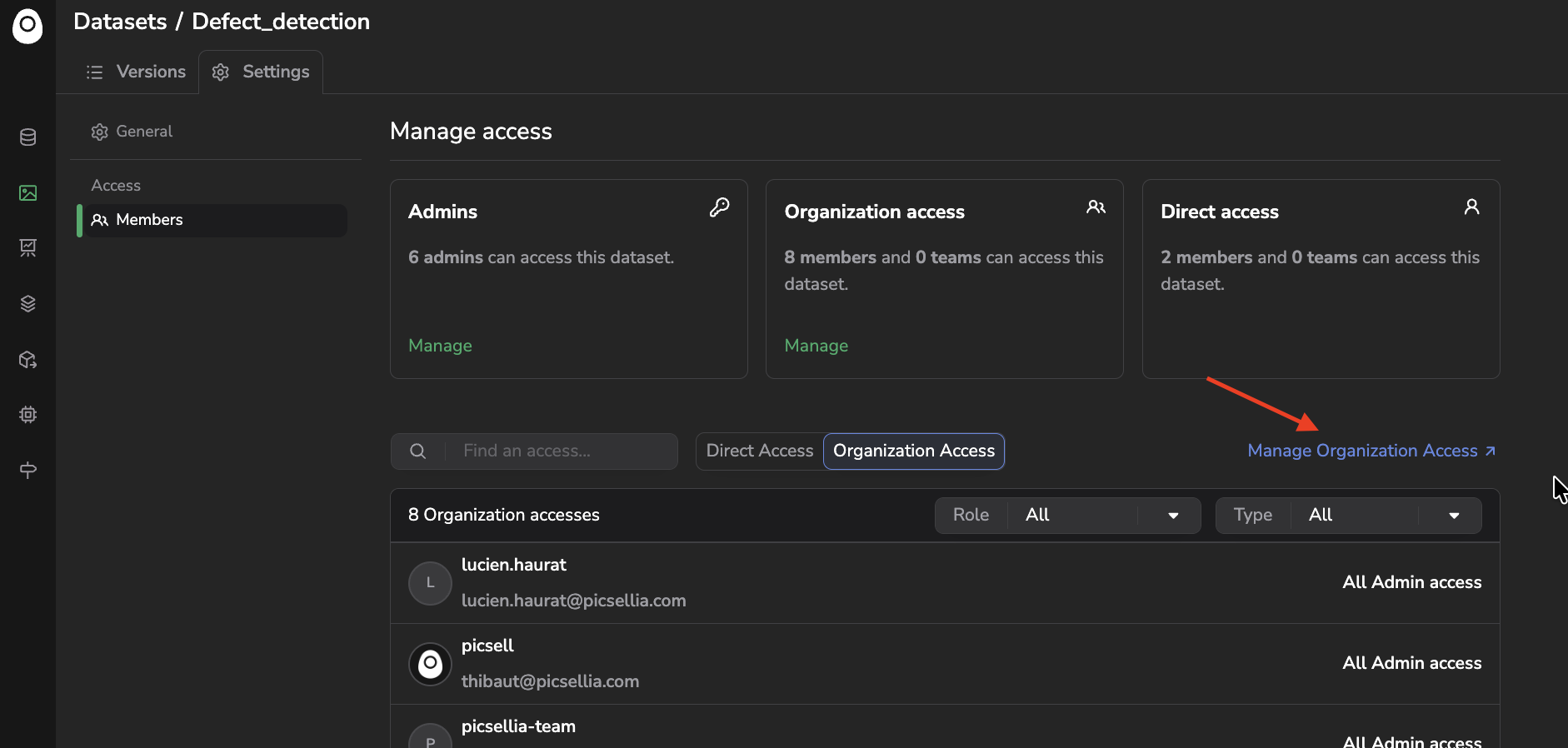
Access the Members page in Organization Settings
That said, to grant a Member elevated privileges on a particular object, you can provide him/her with a Direct Access.
To do so, you need to access the list of existing Direct Accesses and click on + Add Member as shown below:
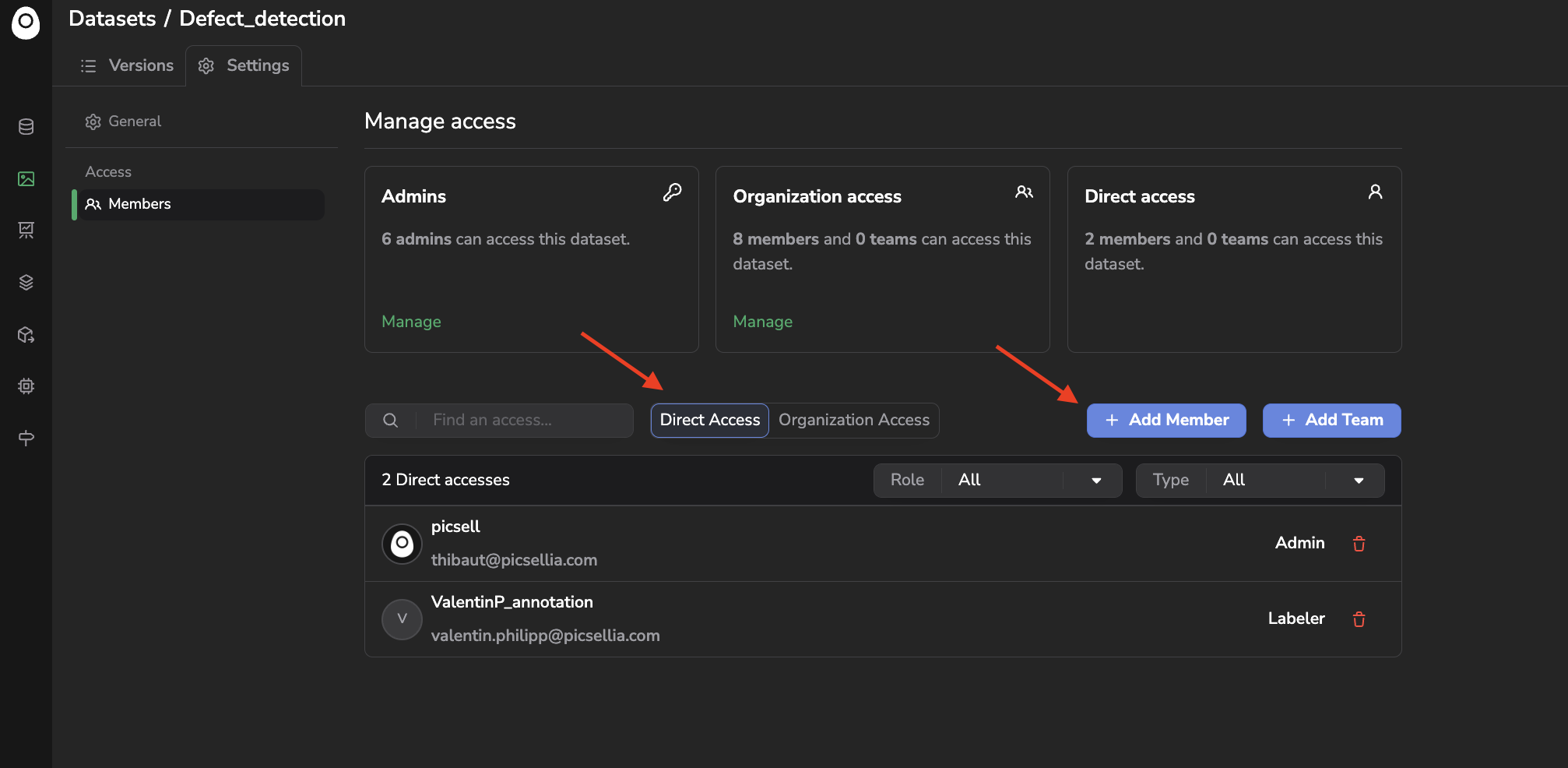
Direct Access list
Then you will be able to type the usernames of the Members that you want to give a Direct Access to and define their associated role on the current resource:
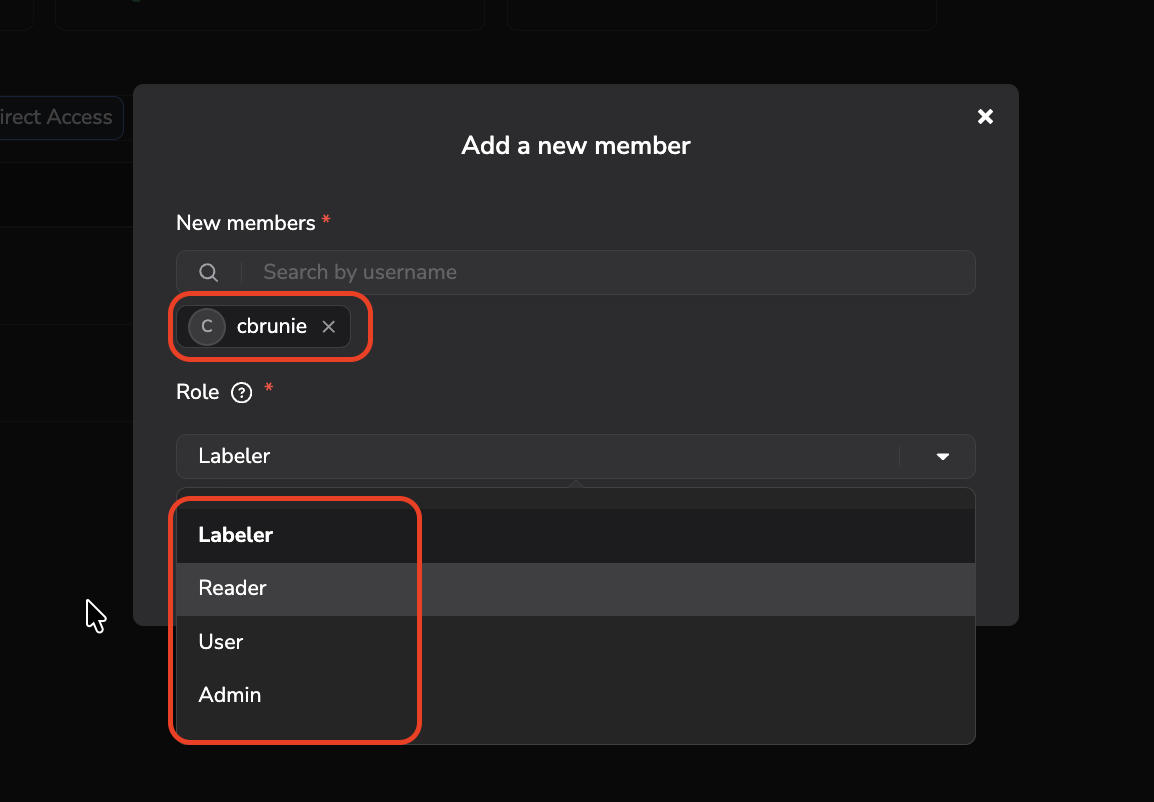
Grant a Direct Access
The available roles for a Direct Access are pretty much the same as the Organization Access; they are listed below:
- Labeler: A Member that gets a Labeler role on the current resource will be able to access it only in the frame of an Annotation or Prediction Review Campaign. It means that once accessing the resource with Labeler Direct Access, the Member will be able to be an Assignee in a Campaign step and get Tasks assigned to him/her; the Member will then be able to complete the Tasks assigned to him/her through the Campaign tab. It also means that the Member won't be able to access any
DatasetVersionorDeploymentdirectly from the related tab, but from the Campaign tab. Please also note that this role is only available when defining a Direct Access on a Datasetor aDeployment`. - Reader: A Member that gets a Reader role on the current resource will be able to access it, list all the objects below, and read them. However, this Member won't be able to edit any of those objects or access the Settings panel.
- User: A Member that gets a User role on the current resource will be able to access it, list all the objects below, and edit them. However, this Member won't be able to access the Settings panel.
- Admin: A Member who gets an Admin role on the current resource will be able to access it, list all the objects below, and edit them. The Member will also be able to access the Settings panel.
Once added, the Direct Access list will be updated with the new Direct Access that you just created; in parallel, the Member will be able to access the current resources with the rights we were granted.
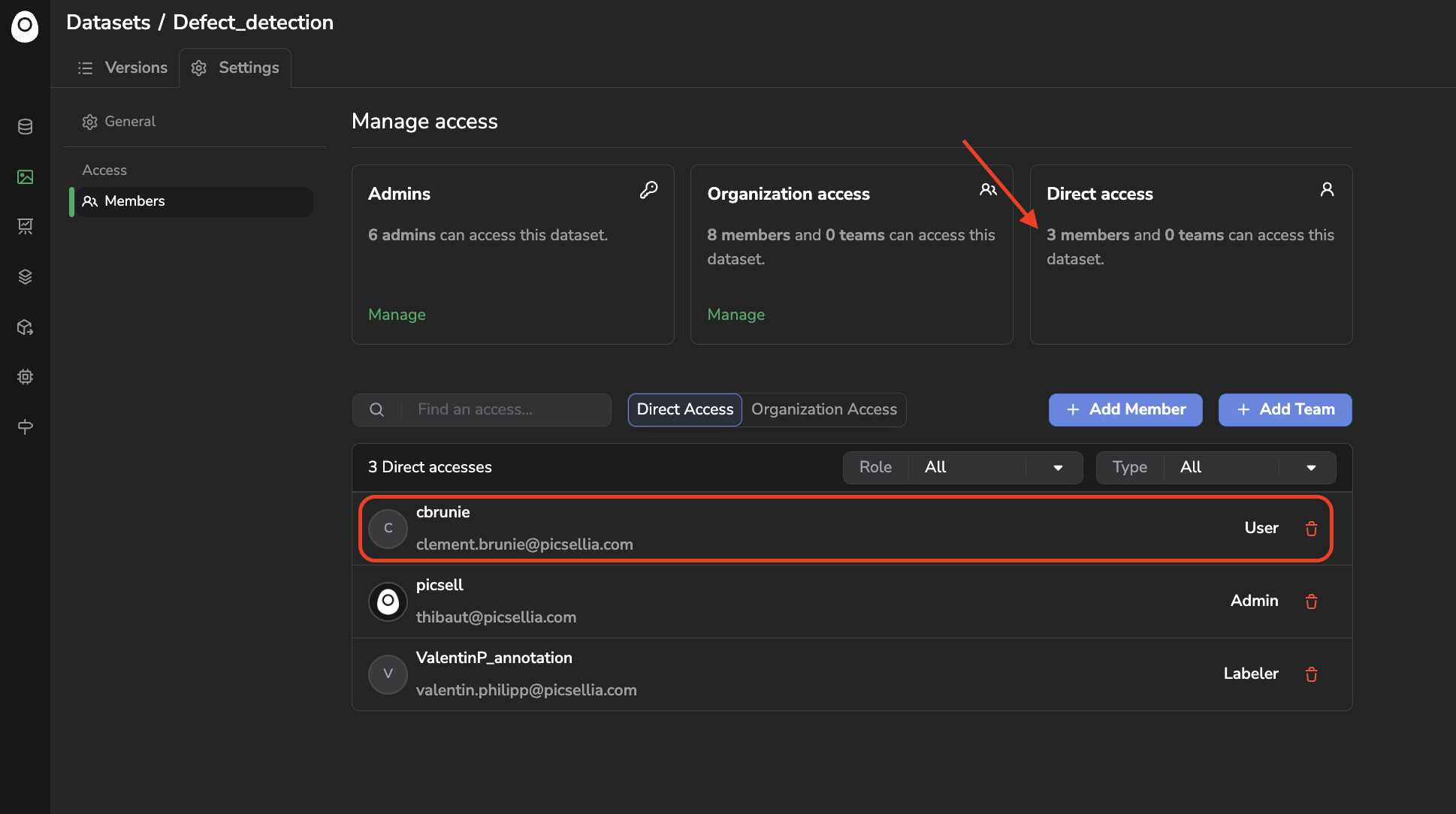
Direct Access list updated
It is important to note here that the Direct Access mechanism allows a Member to get higher privileges on a particular object than what he/she is supposed to access through the Organization Access or Organization Right. However, Direct Access can not be used to downgrade the privilege of a Member on a particular resource. Indeed if you grant a Member a Direct Access with lower privileges on a particular resource then the one already in place with the Organization Access or Organization Right, it will actually create a Direct Access but this one will be flagged as Mixed Role, meaning that this one exists but the Member has higher privileges by default one the current resource type, then the Direct Access won't be applied.
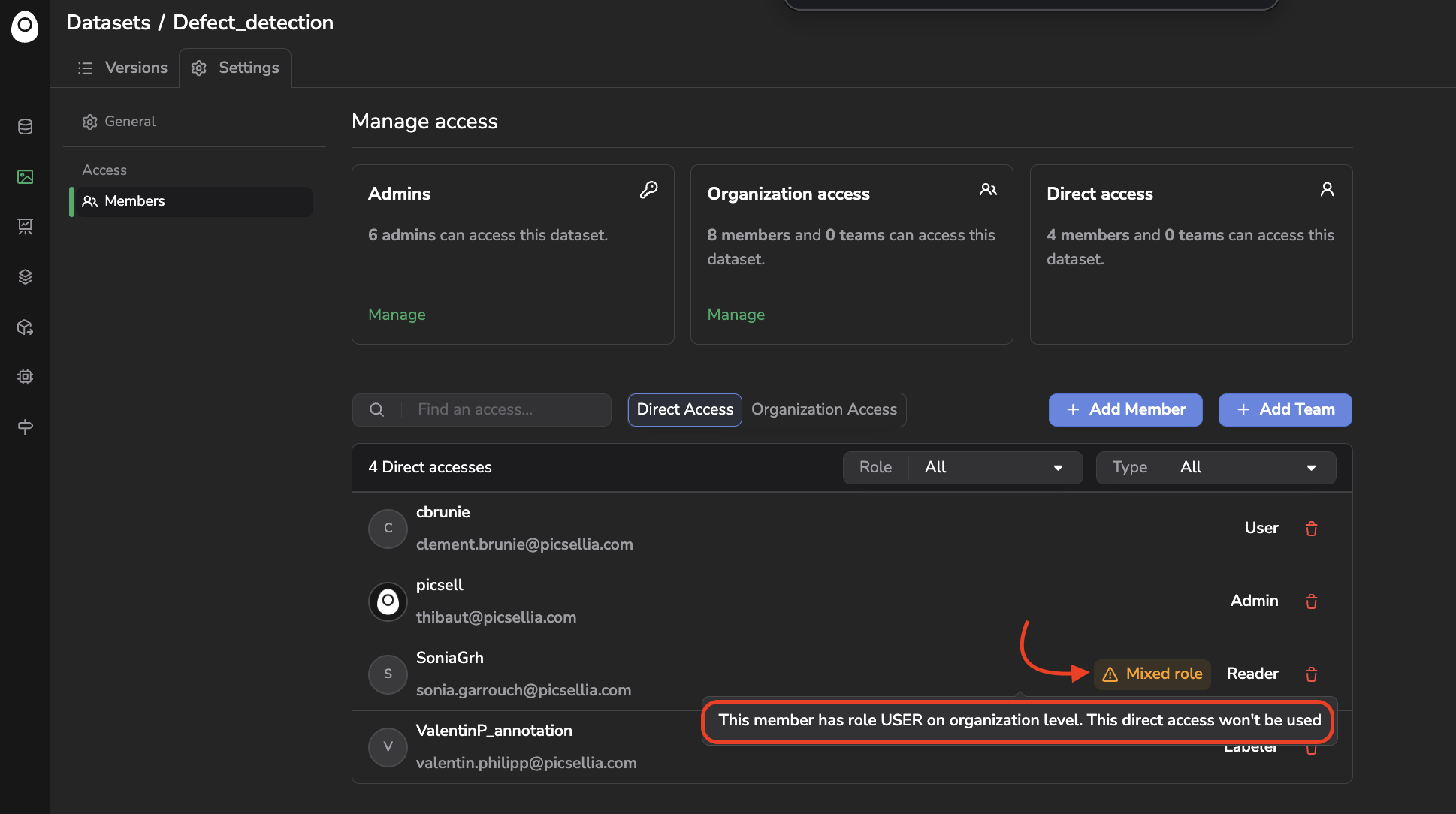
Mixed role example
3. Manage Members easily with Teams
You are now able to provide each Member of your Organization with the exact level of permissions and access required on the different resource types and particular objects of your Picsellia Organization.
However, this could be tedious to configure for each Member the proper Organization Right, Organization Accesses, and potential Direct Accesses. For that reason, you have the possibility to group Members inside Teams; this way, you simply need to configure the permissions and accesses for the Team in order to apply them to every Team Member.
To do so, you need to have the Admin Organization Right and access the Teams tab of the Organization Settings.
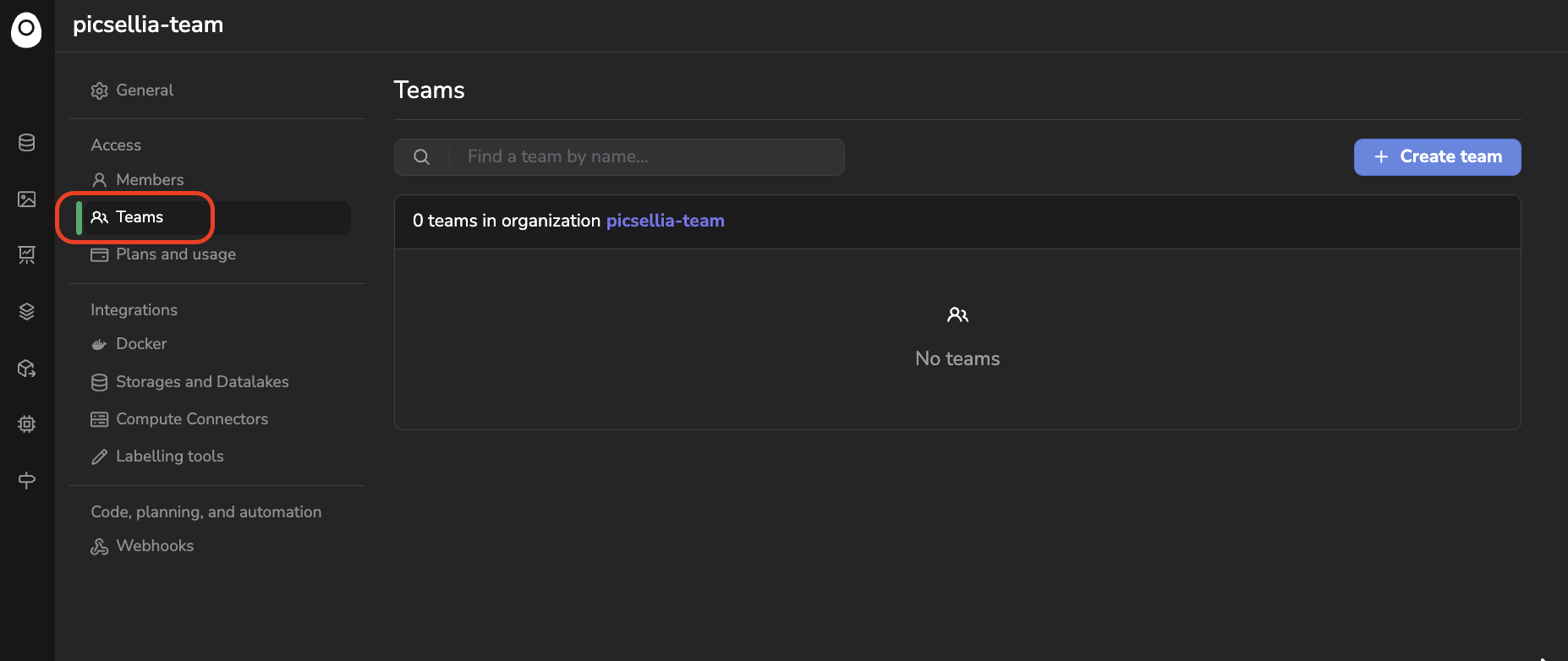
Access the Teams tab
You can then click on + Create Team, enter your Team name, and select the Member who will be part of this new Team by prompting their usernames.
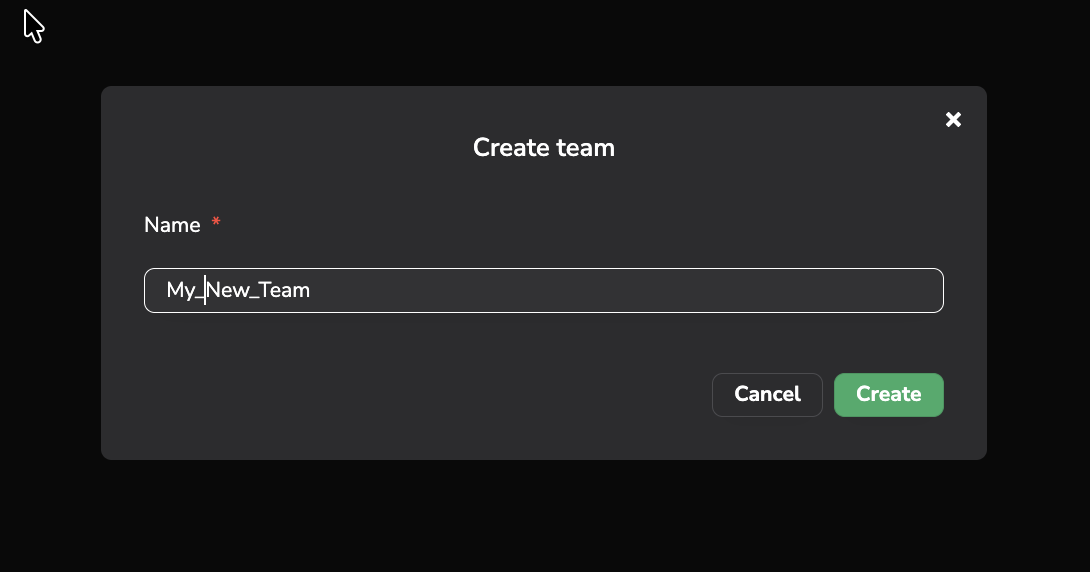
Create a new Team
Once created, you can click on Update to access the Team management page that will allow you to populate the Team with existing Members and define its permissions and access.
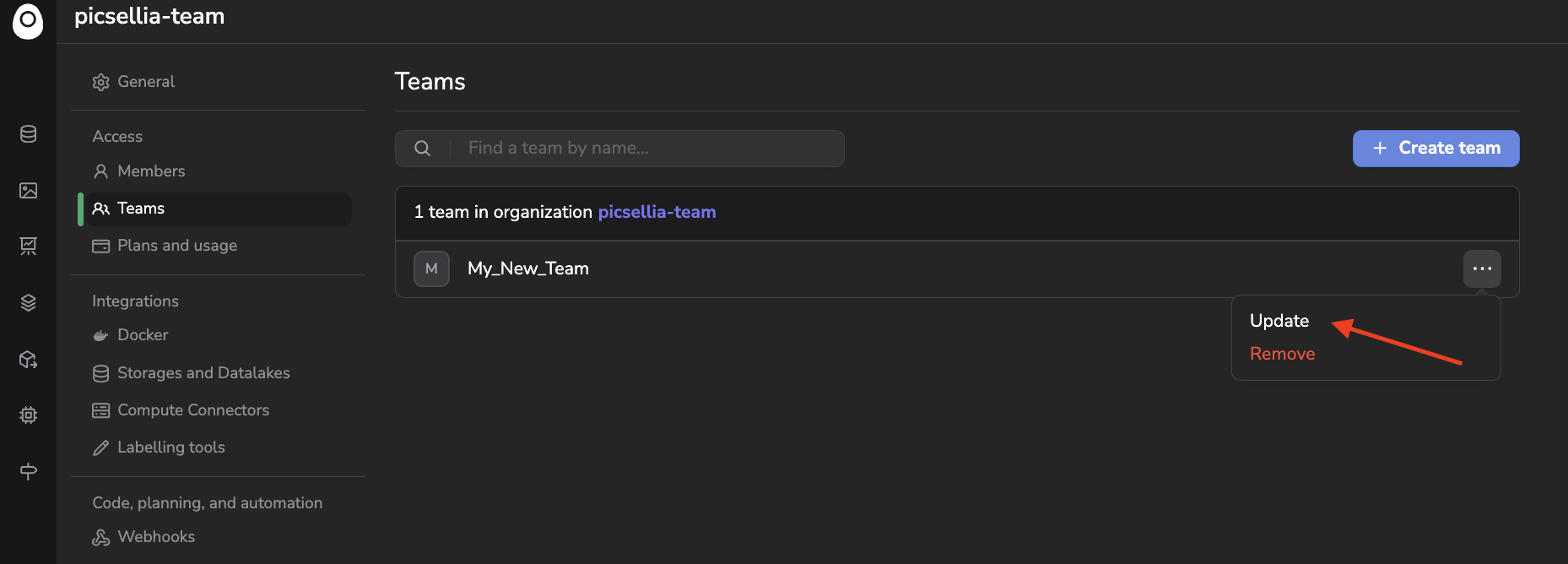
Update Team
From that view, you can:
- Update the Team name
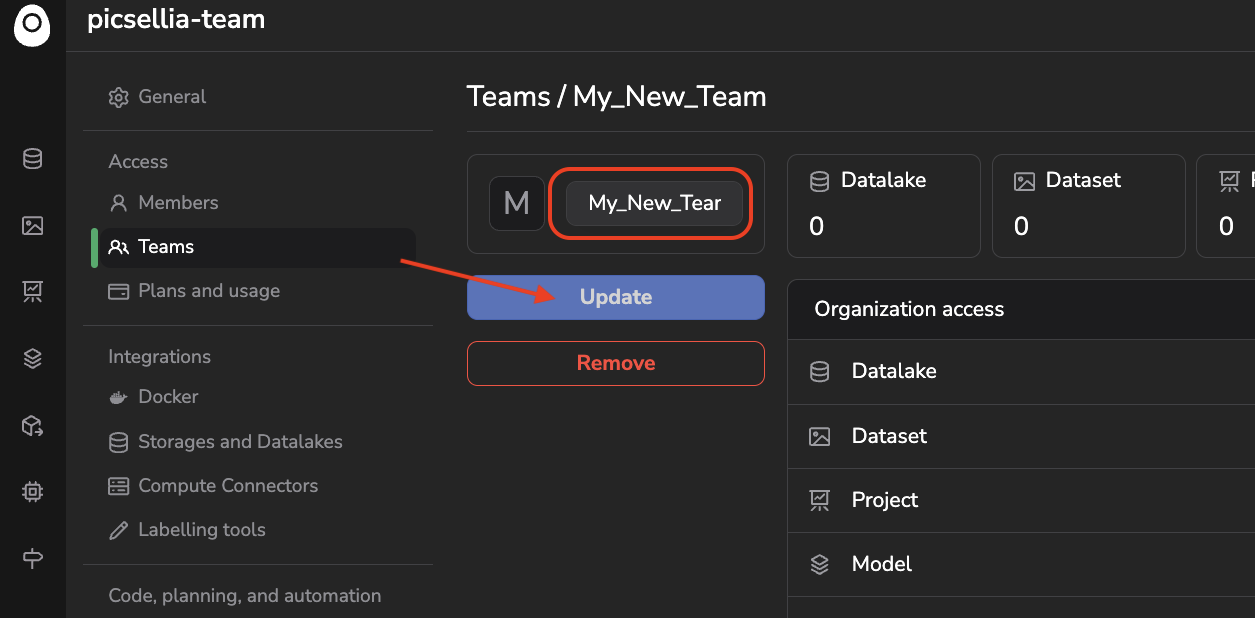
Update Team name
- Visualize the number of objects the Team Members can access grouped by resource type
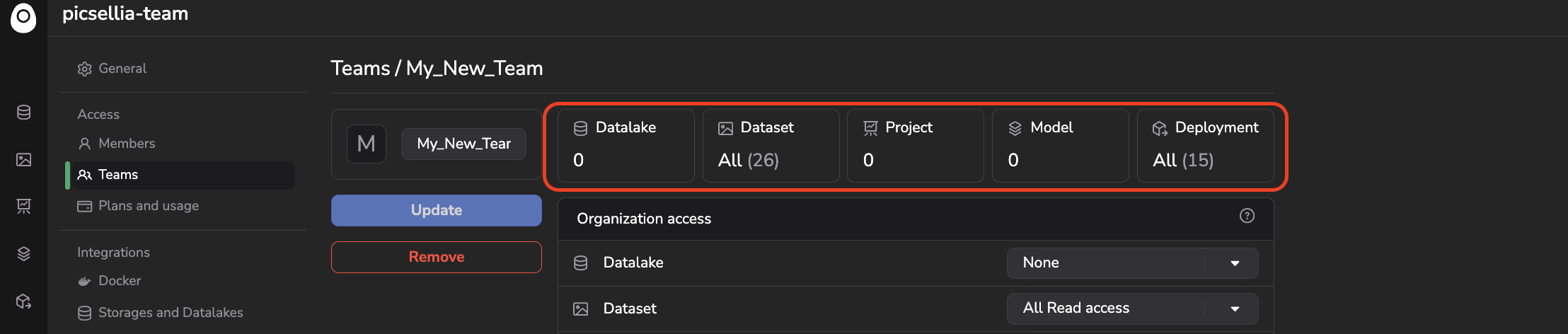
Number of object accessible for Team Members
- Add or Remove Members
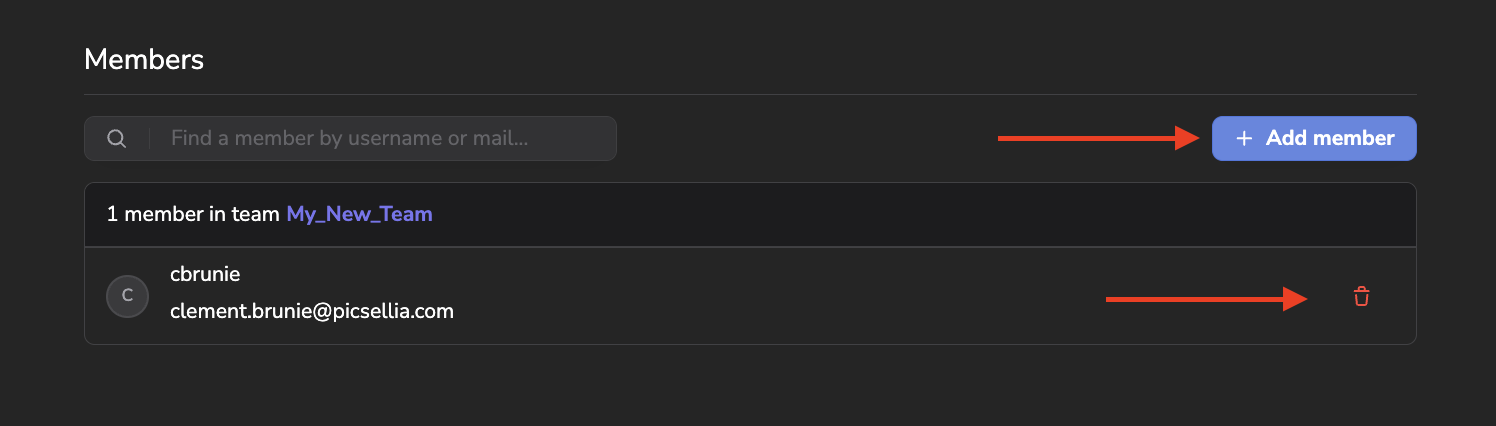
Manage Members of the Team
- Edit the Organization Accesses of the Team for each resource type. Please note that the Organization Accesses work the exact same way as for a unique Member detailed previously on the page.
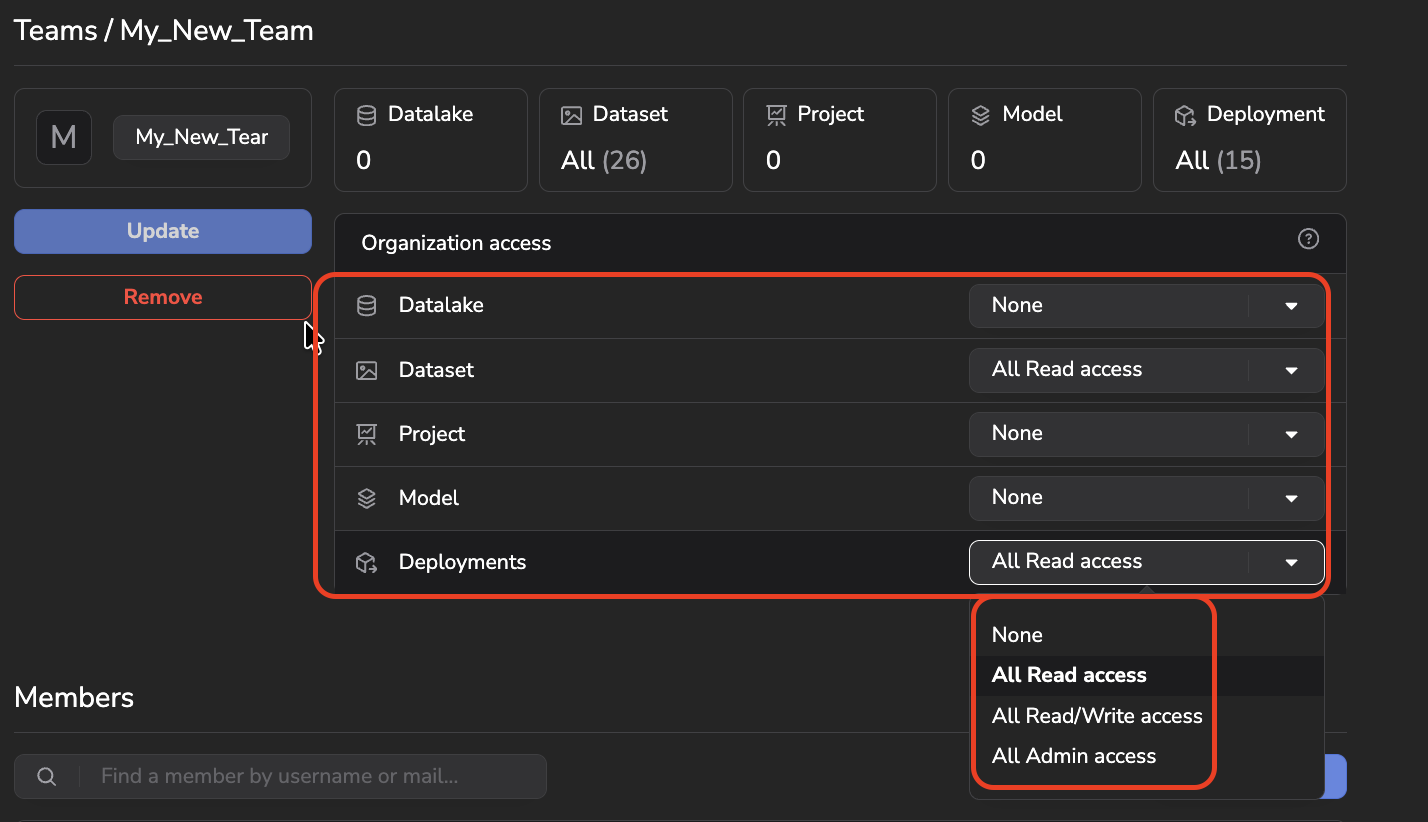
Edit Organization Access
Once everything is properly configured, you simply need to click on Update to apply the setup to your Team.
Basically, a Team is useful in two situations:
- Provide a group of Members privileges in terms of Organization Access easily by setting up one Team Organization Access instead of every Member manually.
- Ease the creation of Direct Access on a particular Object, allowing you to provide Direct Access to the whole team instead of selecting users one by one. This is typically very useful for Unprivileged users.
Please note that in some cases, for some Members, the Organization Accesses can be in conflict, meaning that for a given resource type, a Member can have several different roles, one granted to the Member directly in the Members tab, and one or several others granted in the Teams the Member is part of. In that case, it is always the role with the higher privileges that will be applied.
Another situation you can end up in is related to Members with Unprivileged Organization Right. If they are getting higher privileges than None on any resource type through a Team, they will still only be able to access the Campaign feature from the UI. However, through the SDK, their token will get additional rights that reflect the privileges provided by the Team. This situation can lead to potential risks; it is highly recommended to avoid providing specific Organization Access through a Team to a Member with Unprivileged Organization Right.
Updated about 2 months ago