

Compute Connectors
The Compute Connectors tab, available in the Integrations category of your Organization Settings, lets you track every compute infrastructure integrated with your Organization to run Trainings and Processings. It sits next to the Storages and Datalakes tab, which handles the equivalent integrations for storing your Data.
In a few words, a Compute Connector is an integration with a compute infrastructure; it enables the ability to launch Trainings and Processings jobs from Picsellia on any infrastructure.
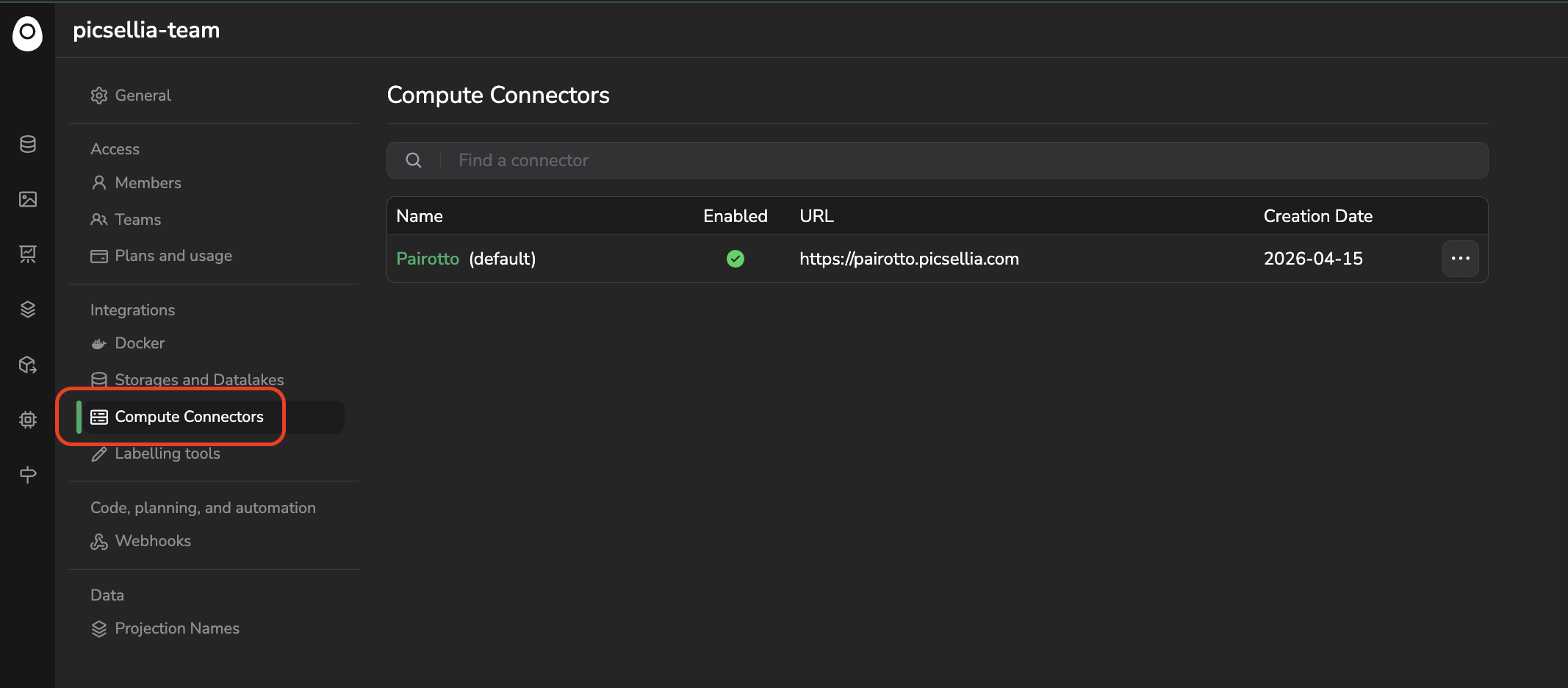
List of Compute Connectors
1. Available connectors
For each Compute Connector, the list displays its name, whether it is currently enabled, its URL, and its creation date. A newly created Organization starts with a single, Picsellia-managed connector which is never displayed in that list.
There are three ways your Trainings and Processings can be executed, depending on the Compute Connector used. They are detailed below.
2. Picsellia's own compute infrastructure
By default, your Trainings and Processings run on Picsellia's own compute infrastructure. This usage is metered and consumes MPU from your plan's included consumables. Related documentation is available here.
3. Your own cloud infrastructure, orchestrated through SkyPilot
Instead of consuming MPU on Picsellia's infrastructure, you can connect your own cloud compute (for instance on AWS, GCP or Azure) as a Compute Connector. Picsellia then orchestrates your Trainings and Processings on your own cloud account using SkyPilot, so the compute is provisioned and billed directly by your Cloud Provider instead of through your Picsellia plan.
Picsellia team support is required for this integrationProperly integrating your own cloud infrastructure through SkyPilot requires specific credentials and configuration. Please contact the Picsellia team so they can set this up with you.
4. Your own infrastructure, through the myoboku agent
If your compute infrastructure isn't dynamically orchestrated by a Cloud Provider (for instance on-premise machines), you can instead install myoboku, a small, open-source Picsellia job launcher, directly on your infrastructure. Once running, it picks up the Trainings and Processings triggered from Picsellia and executes them locally, without needing Picsellia to reach your infrastructure from the outside. Installation and configuration instructions are detailed in the project's README.
Picsellia team support is optional for this integrationProperly integrating your own infrastructure through the myoboku agent can also require the Picsellia team's help to configure it with your Organization. Please contact them before installing it.
5. Choose the Compute Connector for a run
Once one or several Compute Connectors are integrated with your Organization, you'll be able to choose which one to use directly from the UI when launching a Training or a Processing. Every run remains trackable from the Jobs tab regardless of the Compute Connector used.
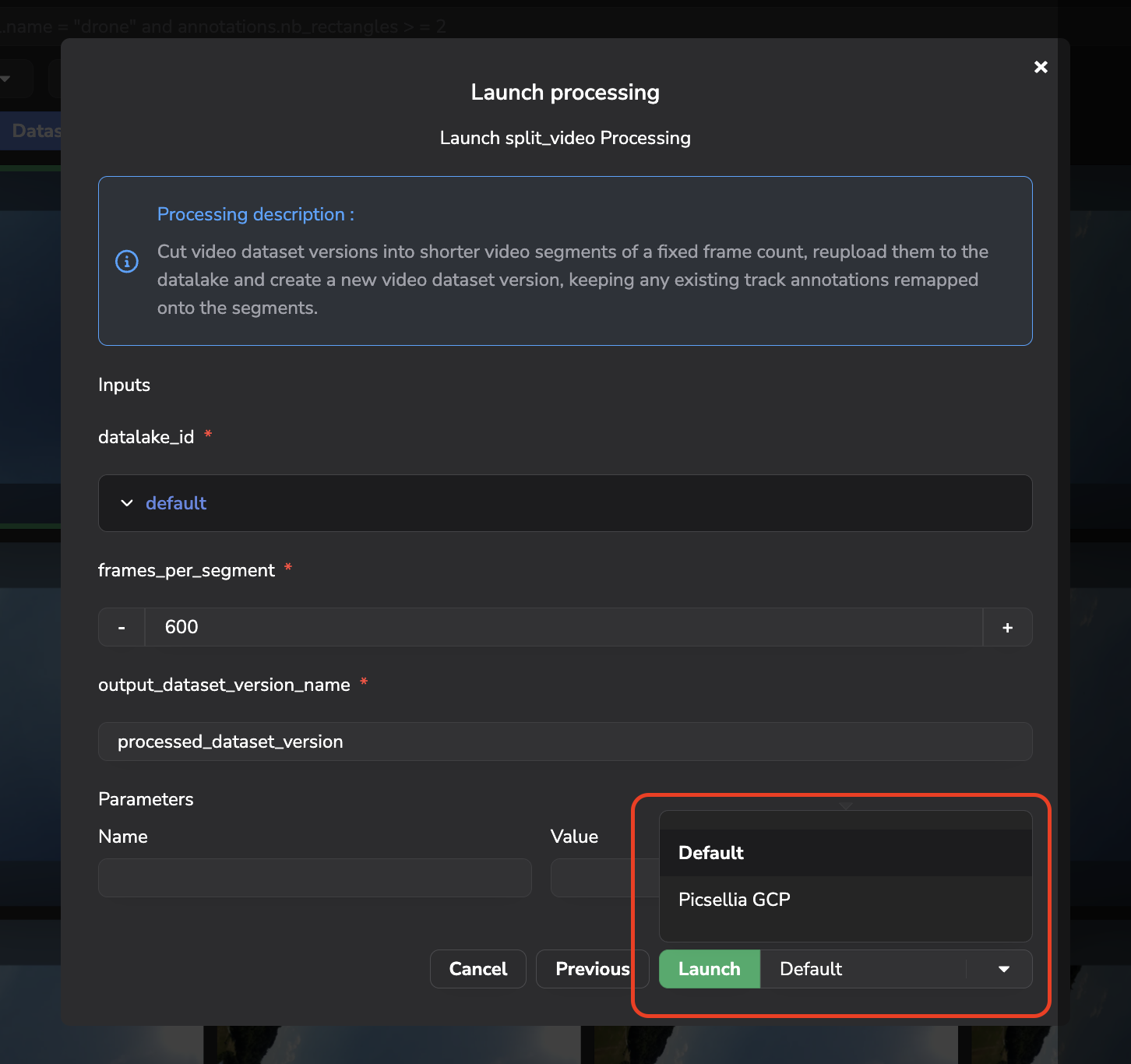
Choosing Compute Connector when launching a Processing
Updated 2 months ago