

Attributes
An Attribute is a structured field that lets you capture information beyond a Shape or an entire Asset: a color, a severity level, a quality score, or any other property specific to your use case. Two kinds of Attribute coexist on Picsellia: Shape Attribute, attached to a Label and filled in per Shape, and Asset Attribute, attached to the whole Asset.
For Computer Vision teams, Attribute are what turn a DatasetVersion into more than a set of Label: they let you run structured quality control, filter or aggregate on criteria that a Label alone can't express, and capture business-specific information (severity, quality grade, condition) directly next to the Shape or Asset it describes, instead of relying on free-text notes or spreadsheets kept outside Picsellia.
1. Shape Attribute
Shape AttributeA Shape Attribute is defined at the Label level and is filled in when annotating for each individual Shape using that Label.
It is created and defined from the DatasetVersion Settings, in the Labels page, using the + Add attribute button next to a Label, as introduced here.
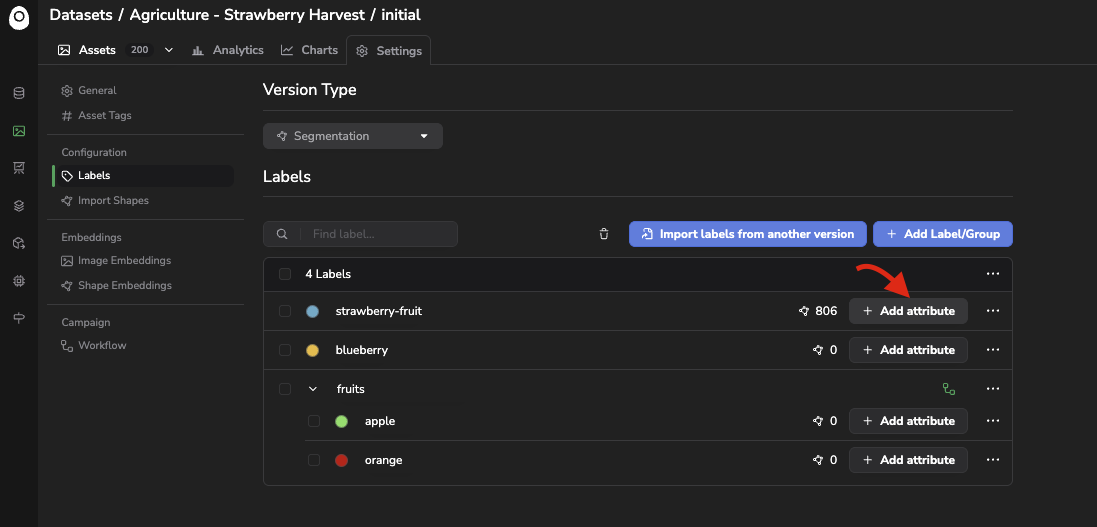
Shape Attribute creation
Creating or editing a Shape Attribute lets you configure:
- A name.
- A Type: String, Integer, Float, or Boolean.
- Whether it is Required.
- Under Advanced parameters: a predefined list of Choices (not available for the Boolean type), Allow multiple answers to let several Choices be selected at once, and, for Integer or Float, a Min / Max bound.
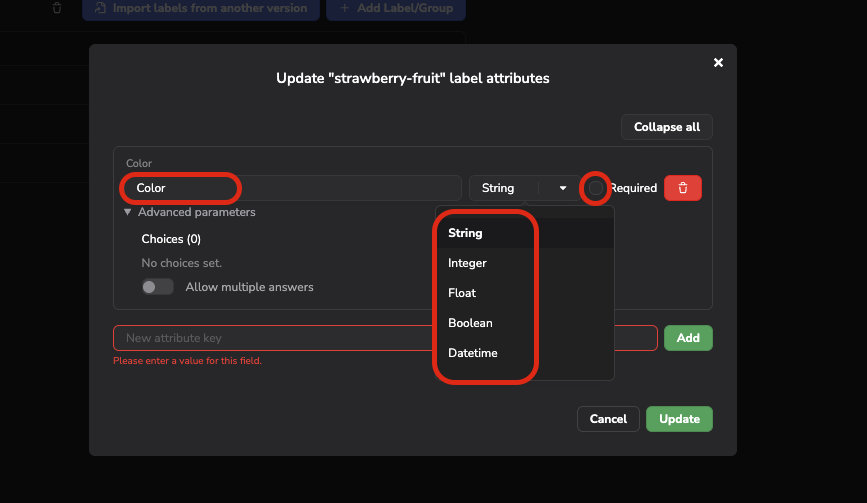
Definition of attribute Name, Type, and whether it is required
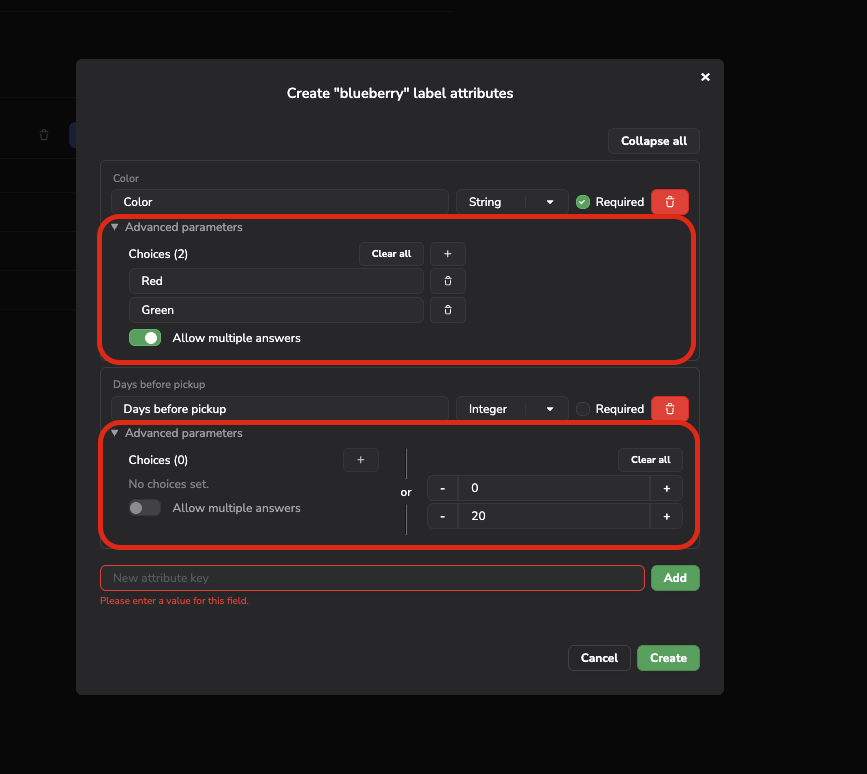
Advanced capabilities to define rules on the potential values based on the attribute type
Once all the Shape Attributes for the selected Label are properly defined, you can click on the Create button and potentially do the same for any other Label of the current DatasetVersion that needs Shape Attributes. The number of Shape Attributes defined per Label is then displayed in the Labels page as shown below:
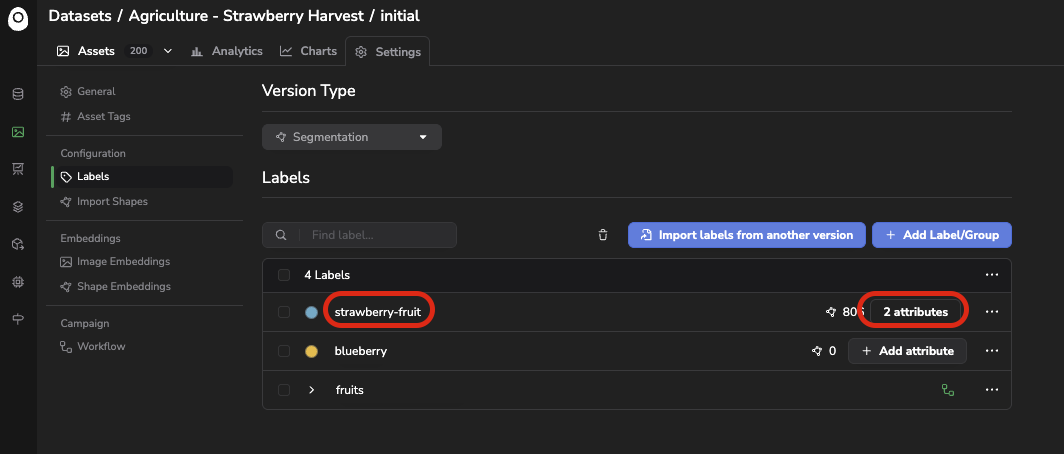
Number of Shape Attributes defined per Label
You can edit or delete an existing Shape Attribute at any time, by clicking on the ... button next to any Label.
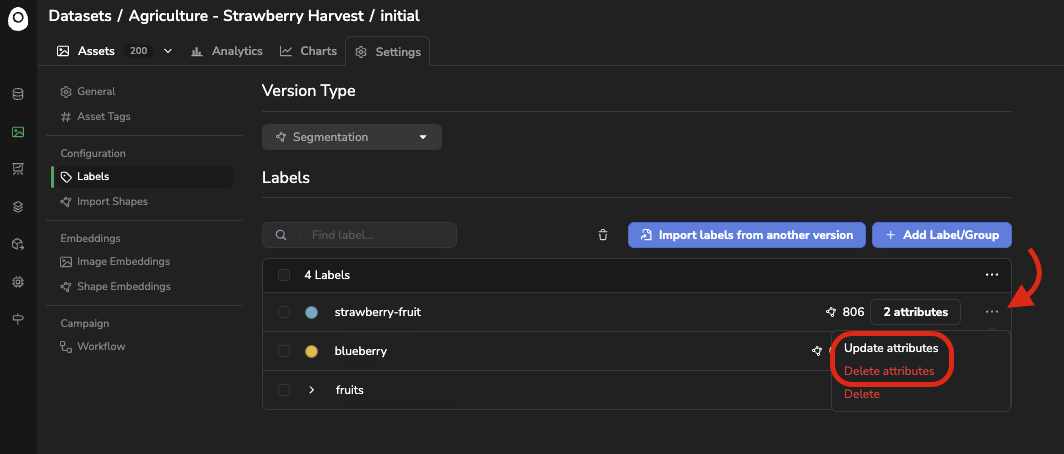
Update / Delete Attributes
The Delete Attributes option will permanently delete all the Shape Attributes configuration and all the associated values for the selected Label.
By clicking on Update Attributes, you will have the possibility to edit the configuration (Name, Type, whether it is required, the Advanced Parameters) for each Shape Attribute of the selected Label. Once the changes are done, you simply need to click Update to take them into account. Please note that it won't affect the values already created in the Annotation Tool (or via SDK), only the to-be-created ones will be guided by the newly edited configuration.
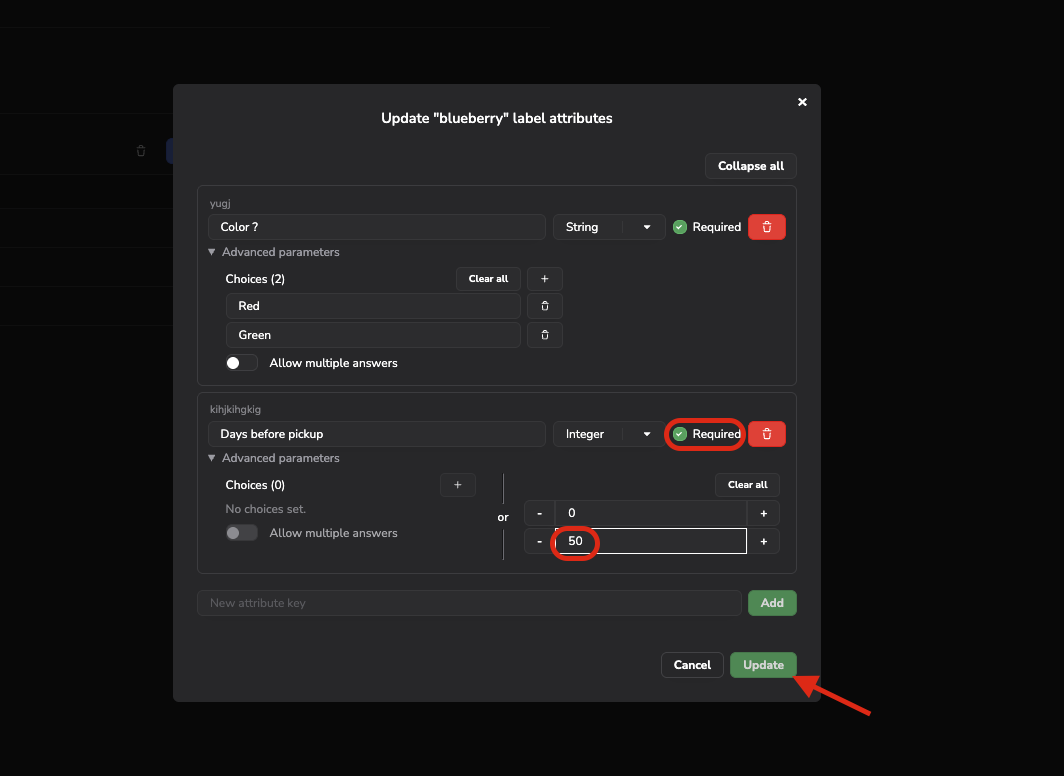
Shape Attributes configuration update
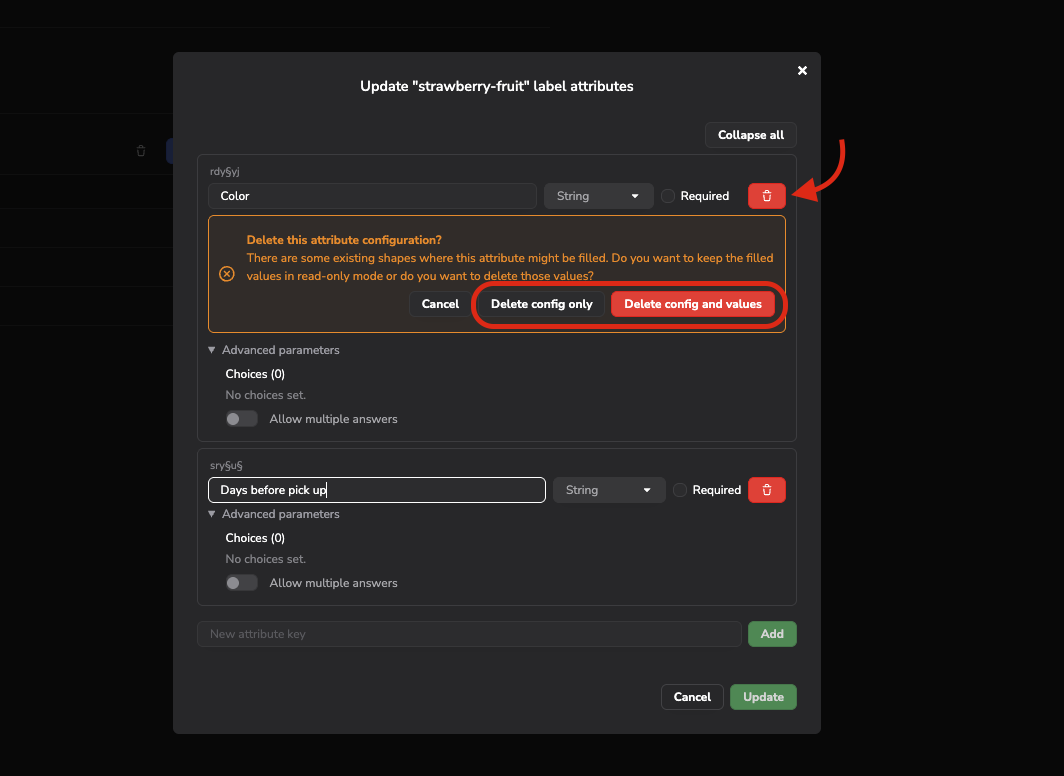
From the Shape Attributes update form, you can also perform a soft delete of any Shape Attributes; rather than being completely deleted, a Shape Attribute can also be archived: it disappears from the annotation experience in the future while its already-recorded values are preserved, and an archived Attribute can no longer be Required. In that case, you need to click on Delete config only. If you want to delete the Attribute config and its associated value, click on Delete config and values.
2. Asset Attribute
Asset AttributeAn Asset Attribute uses the same configuration mechanism as a Shape Attribute (name, Type, Required, Choices, Allow multiple answers, Min / Max), but is attached directly to the Asset as a whole rather than to a single Shape. This lets you capture information that describes the entire Asset rather than one specific object within it, for instance the weather conditions or the acquisition device for an image, independently of how many Shape it ends up being annotated with.
Unlike a Shape Attribute, an Asset Attribute isn't attached to any particular Label. It is configured from the same DatasetVersion Settings Labels page, but through the ... menu in the header of the Label table (next to the Label count), rather than through a specific Label row.
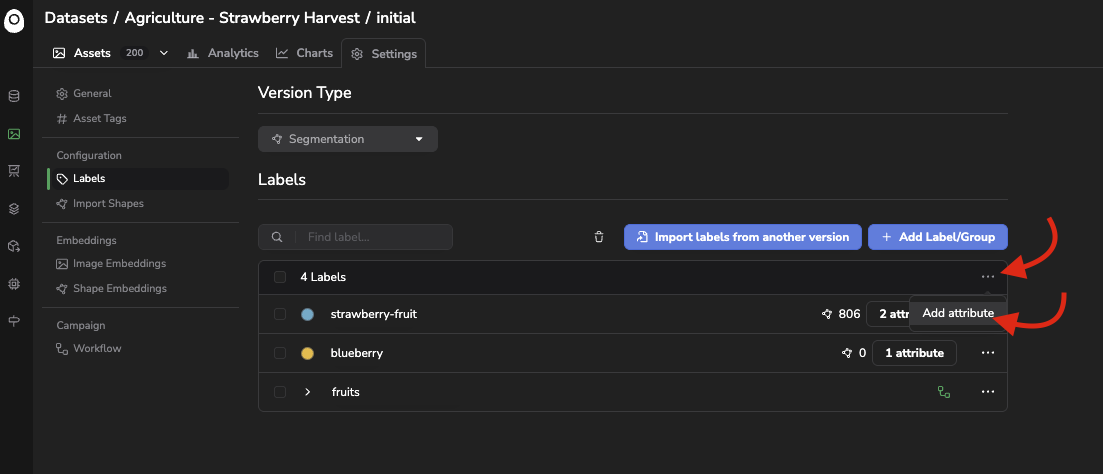
Create an Asset attribute
The Asset Attribute creation form works the same way as Shape Attributes:
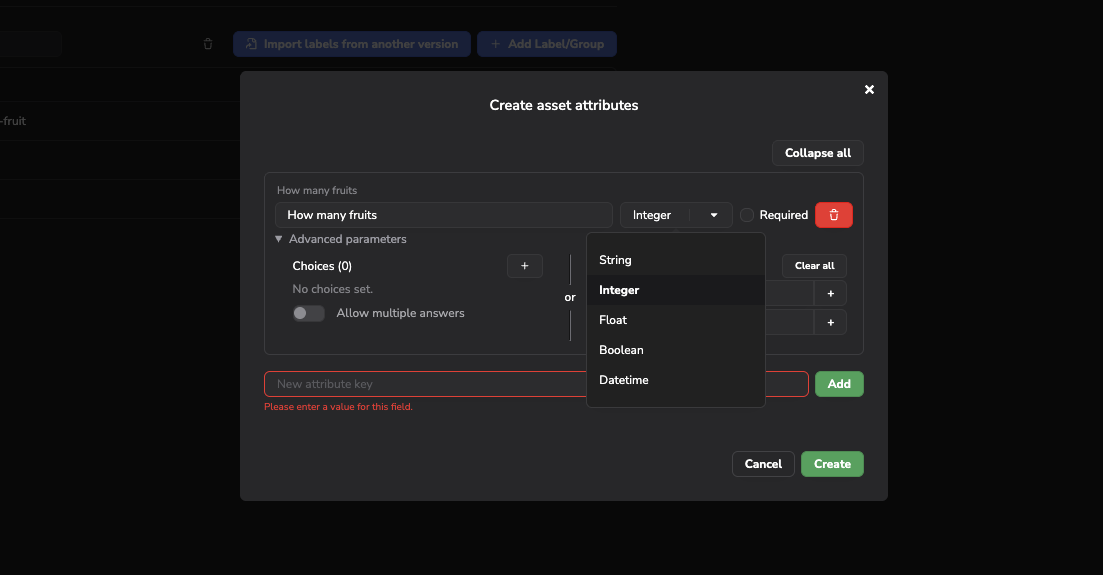
Asset Attribute creation
Once created, it also works the exact same way as Shape Attributes to update the configuration or delete Asset Attributes, whether it is a complete deletion or an archiving of the values.
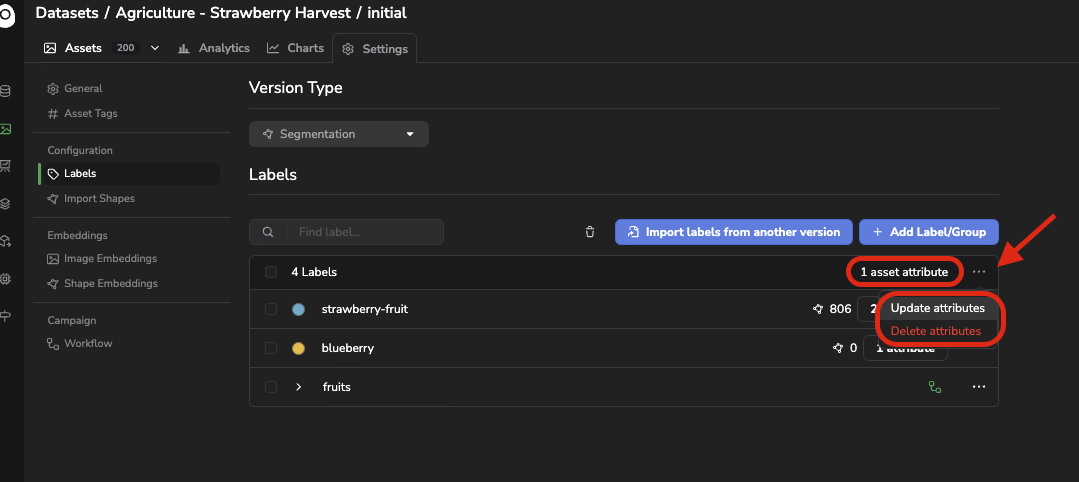
Update or Delete Asset Attributes
3. Fill in Attribute values
Attribute valuesWe now consider that all the necessary Asset Attributes and Shape Attributes have been defined as detailed in the previous paragraphs. It is time to check how to give values for these, for each Asset or Shape.
Attribute values are mainly filled in from the Annotation tool while annotating. In the Annotation Tool, you need to access the Selection tab accessible from the right-side floating menu as shown below:
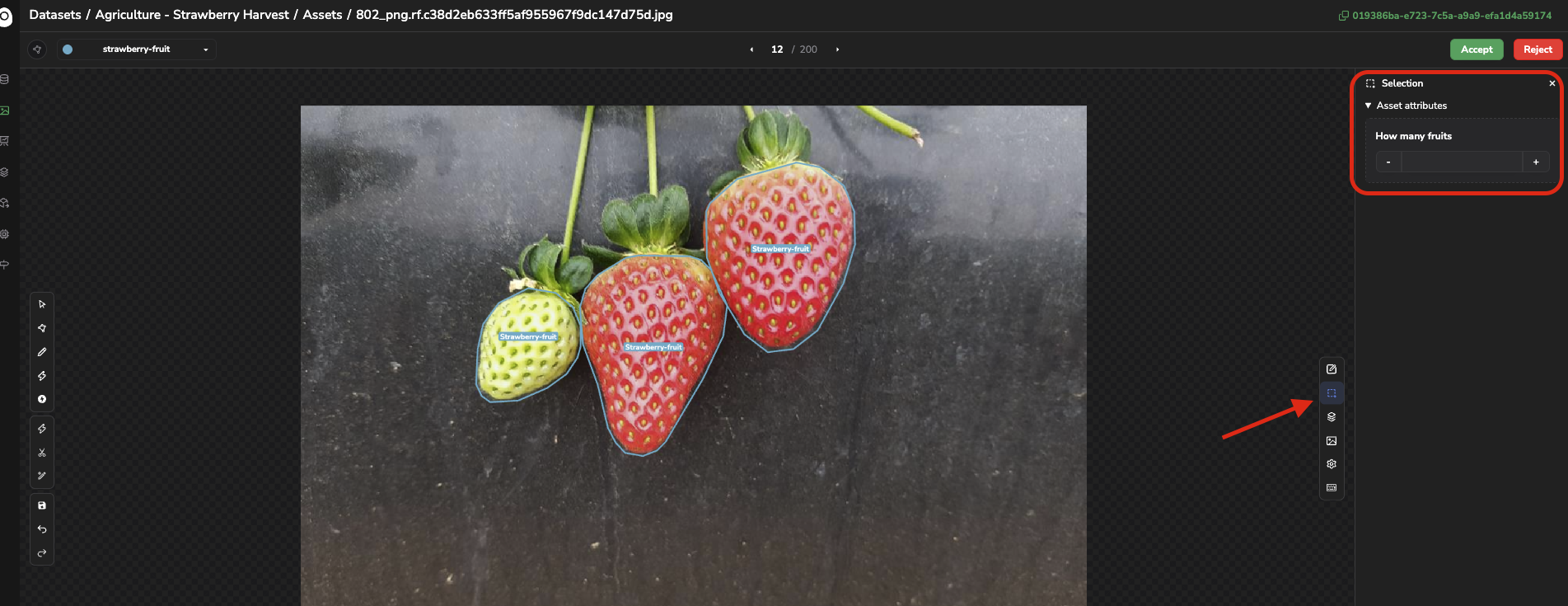
Here, either none or several Shape are selected; in that case, the Asset Attributes will be displayed, with the possibility for the user to fill in the available Asset Attributes.
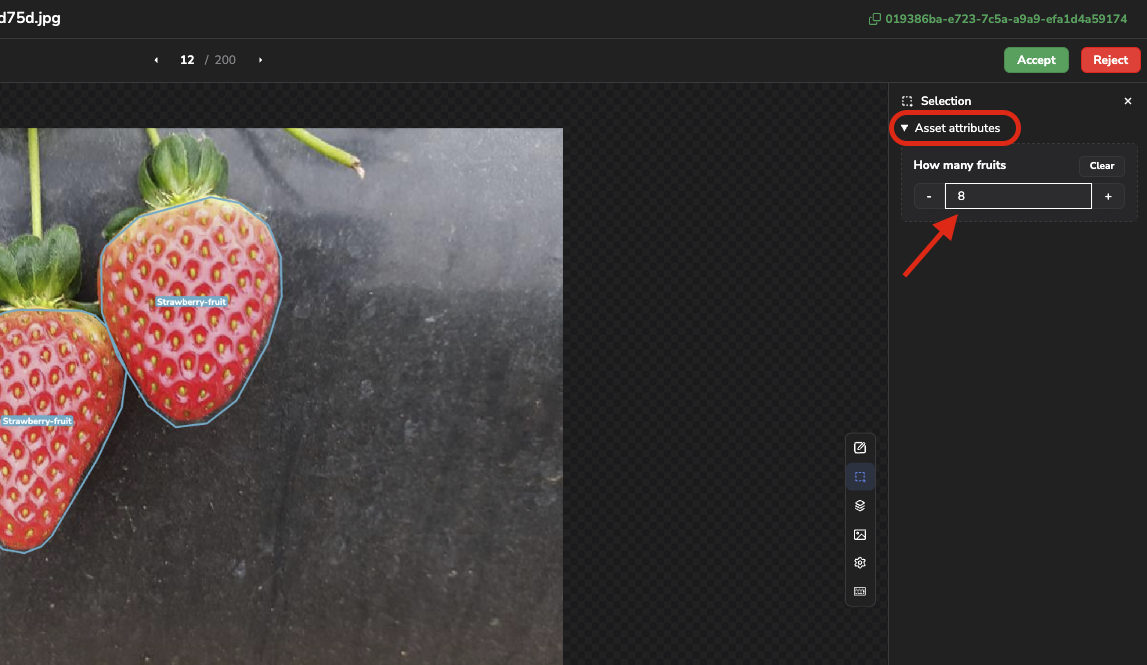
Fill in Asset Attribute
Or only one Shape is selected; in that case, the Selection menu will display all the information that is related to this one, meaning Label, Text field, coordinates (for Bounding Boxes and Keypoints only), and the Shape Attributes. From that Selection menu you'll be able to fill in the different values (as defined in the configuration) for all the Shape Attributes that are related to the Label of the selected Shape.
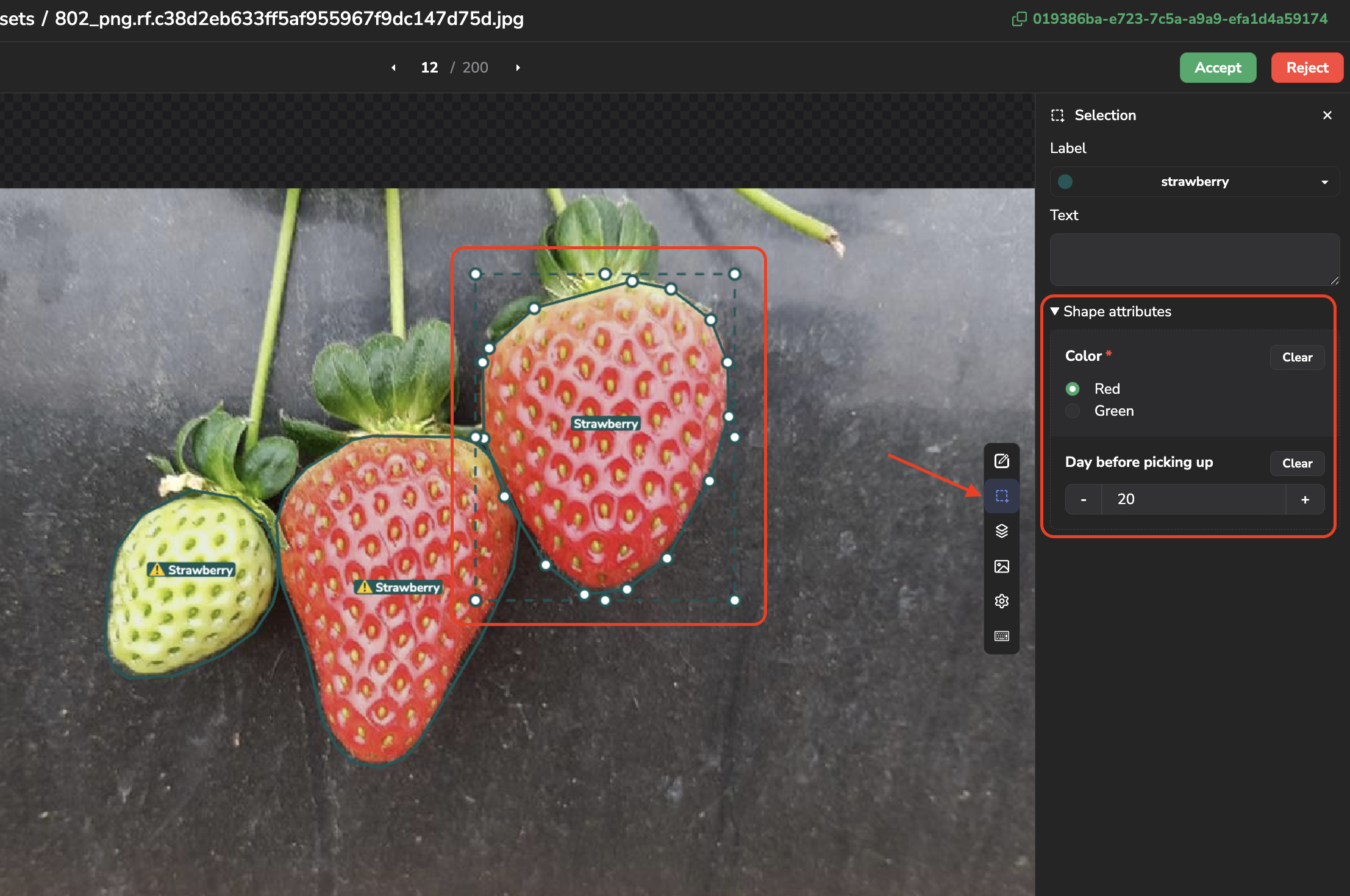
Fill in Shape Attributes
Required AttributesIf a
Shapeor anAssetis missing a value for aRequiredAttribute, a warning icon will be highlighted and theAnnotationcannot be saved in the Annotation tool until every RequiredAttributeis filled in.
4. Manipulation of Attribute (Annotation Import/Export, SDK, Fork..)
Attribute (Annotation Import/Export, SDK, Fork..)- When forking a
DatasetVersion, the existingAttributeconfigurations (AssetandShape) and the associated values for the forked objects are kept. - When importing
Labelfrom anotherDatasetVersion, eachLabel'sShape Attributeconfiguration can be carried over along with it if the associated checkbox is ticked.
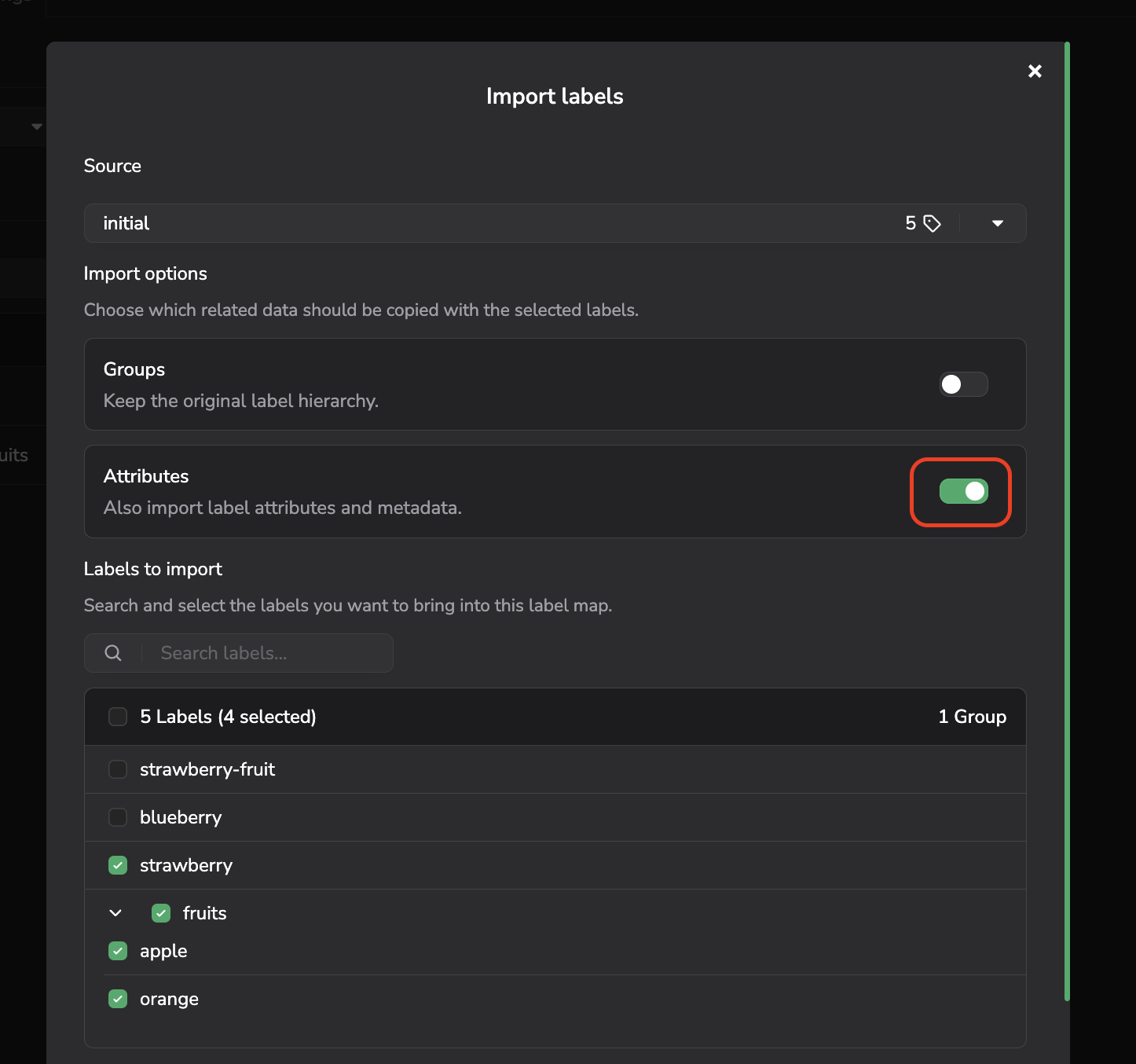
Carry Attributes during Label import
- Exporting a
DatasetVersionto a COCO annotation file includes anattributeskey filled with theShape AttributeandAsset Attributevalues of yourAnnotation. Importing a COCO annotation file that contains such anattributeskey saves those values back onto Picsellia. - On video
Asset,Attributevalues are saved on theTrackof anAnnotation. They are not yet included in COCO exports. - From the SDK, the
Attributeconfiguration is managed withget_attributes()/set_attributes(), available on bothLabel(Shape Attribute) andDatasetVersion(Asset Attribute).Attributevalues themselves are exposed through theattributesproperty, available on anAnnotation(Asset Attributevalues) and on everyShapetype (Shape Attributevalues).
5. Filter on Attribute values
Attribute valuesRecording an Attribute value pays off when you can retrieve the Asset carrying it: isolate every Asset graded below a quality threshold before a review round, gather the Shape marked as occluded to check how the model behaves on them, or count how many Asset were captured in a given condition before forking a DatasetVersion out of them.
Attribute are not searched through the Query Language. Instead, from the Assets overview of a DatasetVersion, use the Add filter button next to the Search Bar, detailed here, and choose what to filter on:
- An
Asset Attribute, matched against the value carried by theAssetitself. - A
Shape Attribute, matched against the value carried by aShapeof itsAnnotation. Since aShape Attributeis defined on aLabel, you select theLabelfirst, then one of theAttributeconfigured on it. AnAssetmatches as soon as one of itsShapesatisfies the filter.
The comparison proposed depends on the Attribute Type: an exact value for String and Boolean, with the configured Choices offered as suggestions when there are any, and a range for Integer and Float.
Lets start by creating a first filter on a Shape Attribute that is with the Type String and for which values can only be Red or Green as defined in the configuration by the Attribute creator.
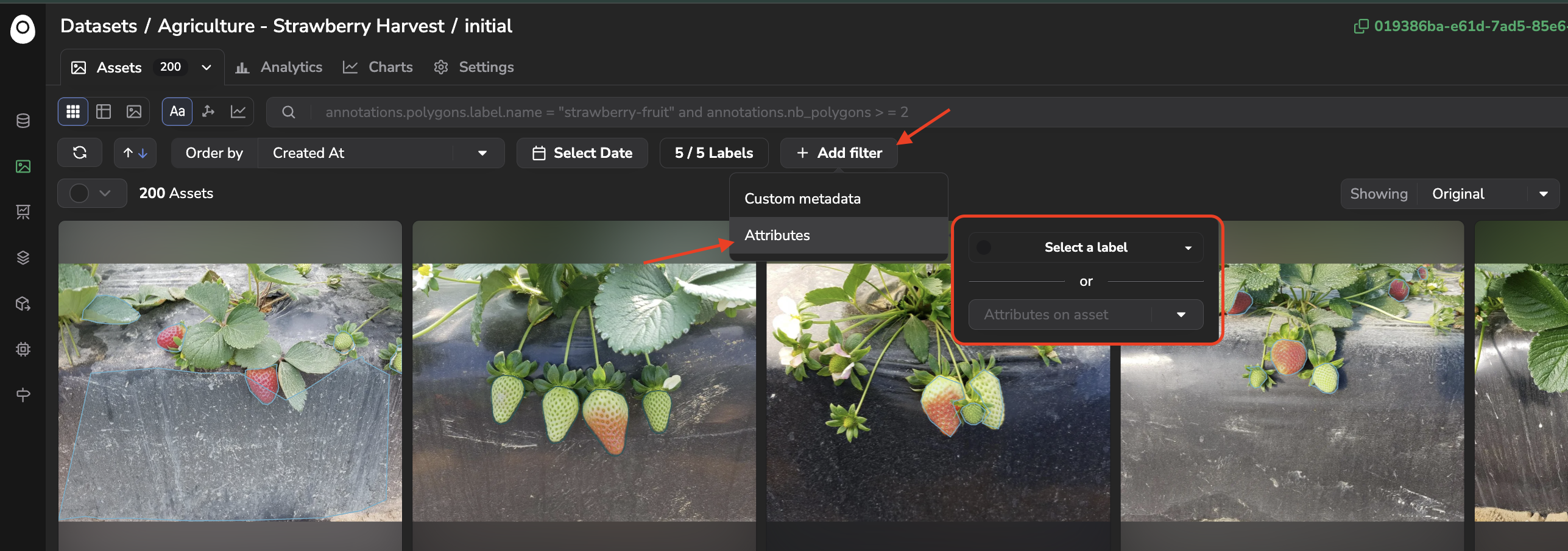
Create Attribute filter
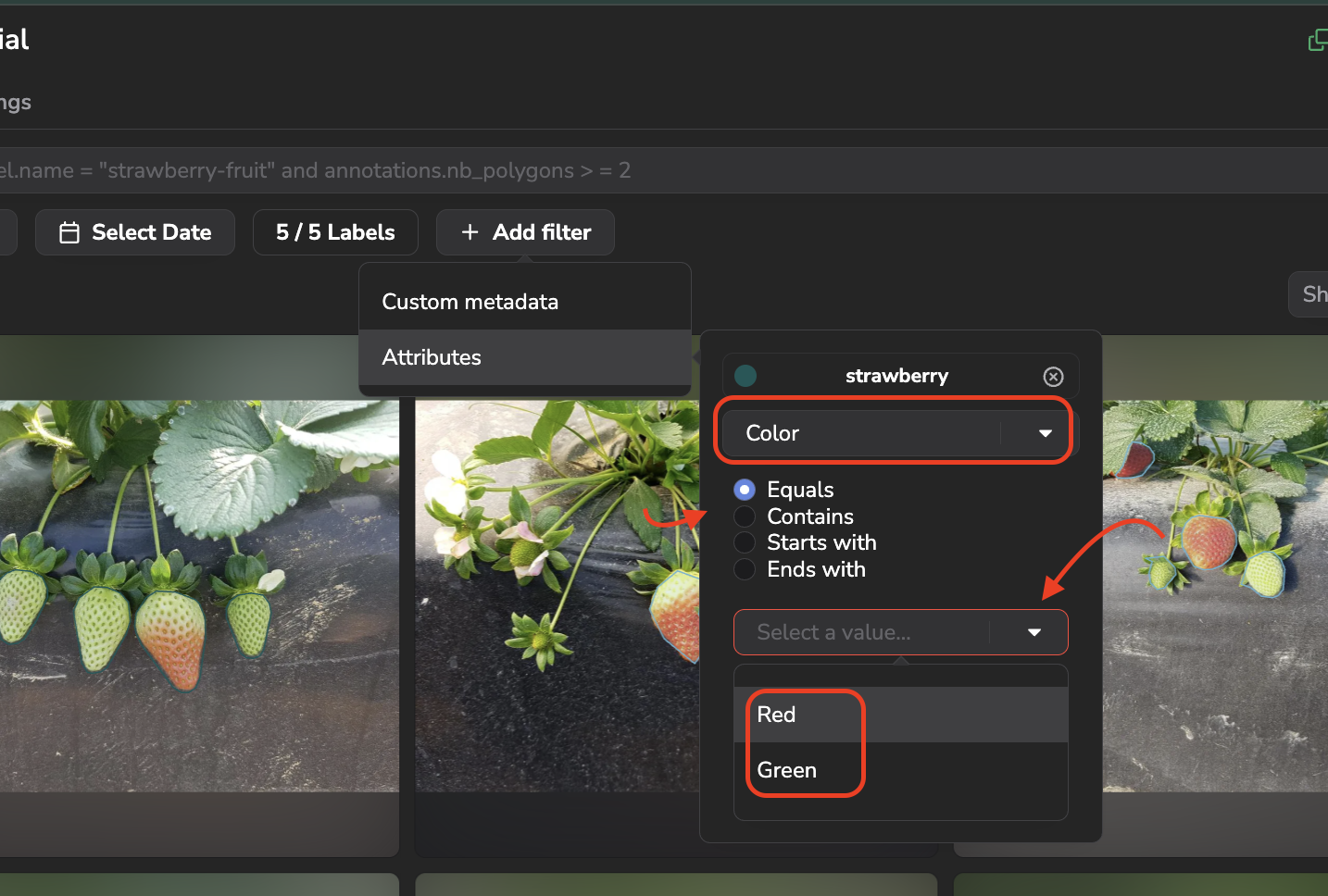
Configure Shape Attribute filter
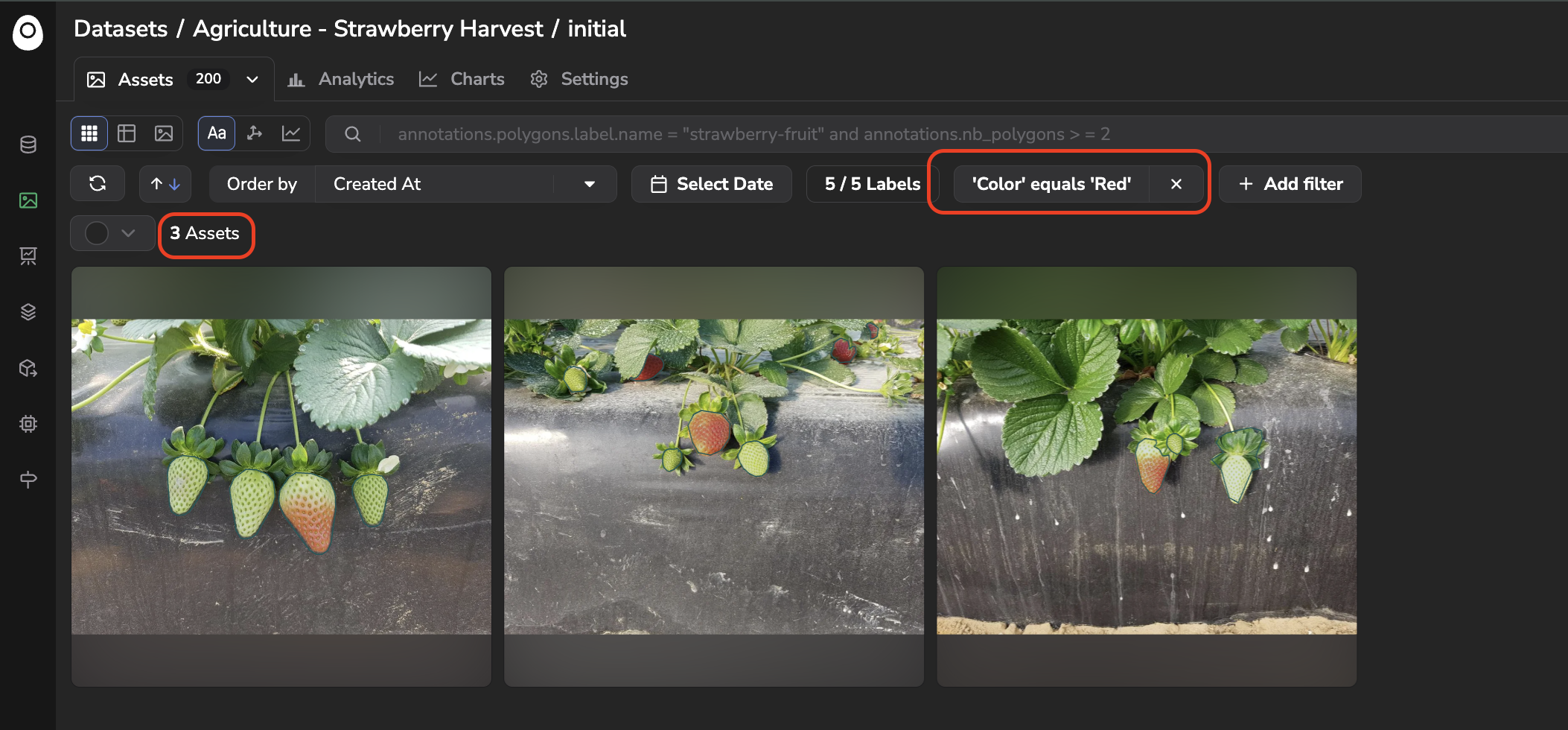
Result of the Shape Attribute filter
Lets now add a second Attribute filter this time on an Asset Attribute that is an Integer:
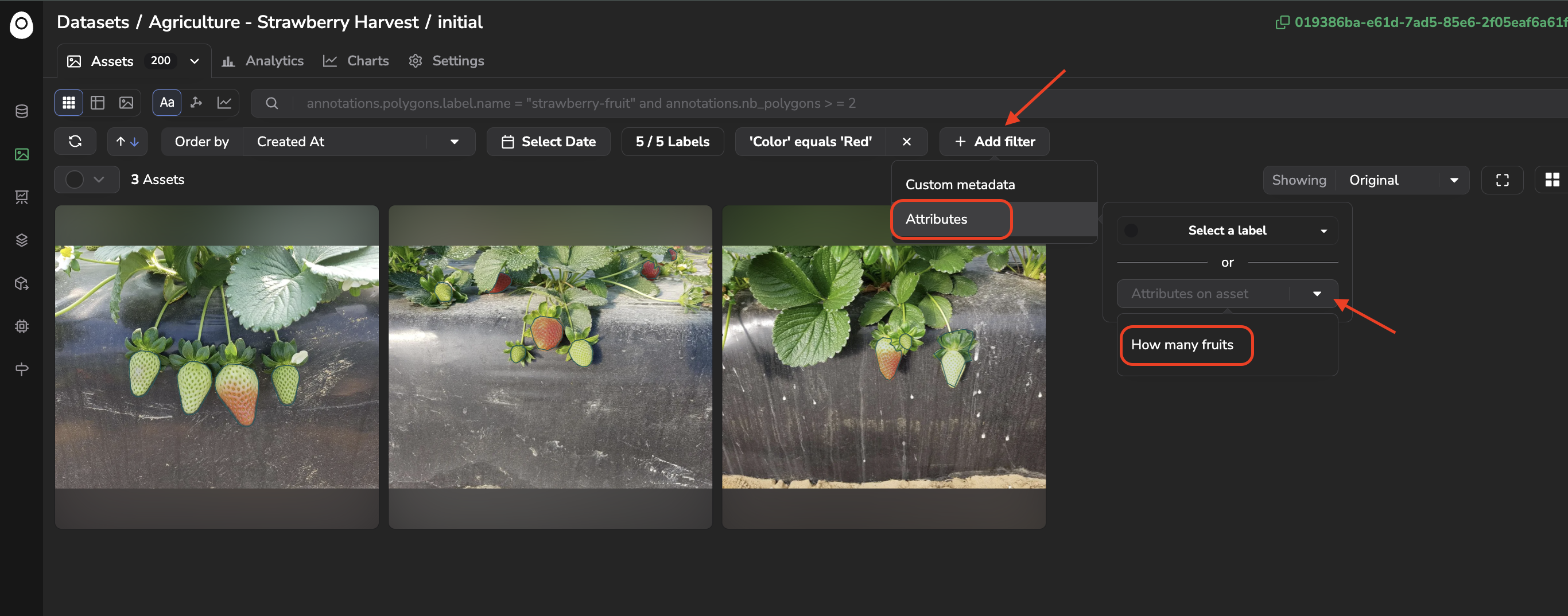
Create a second Attribute filter on Asset Attribute
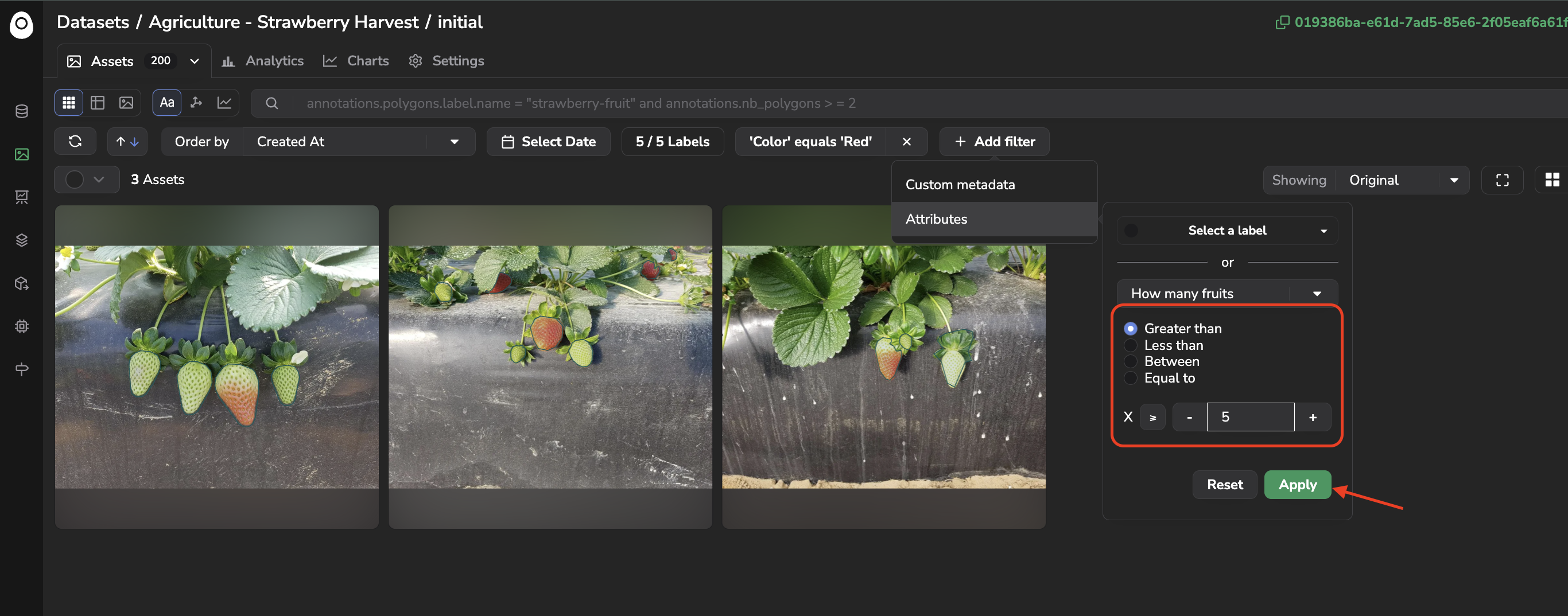
Asset Attribute filter configuration
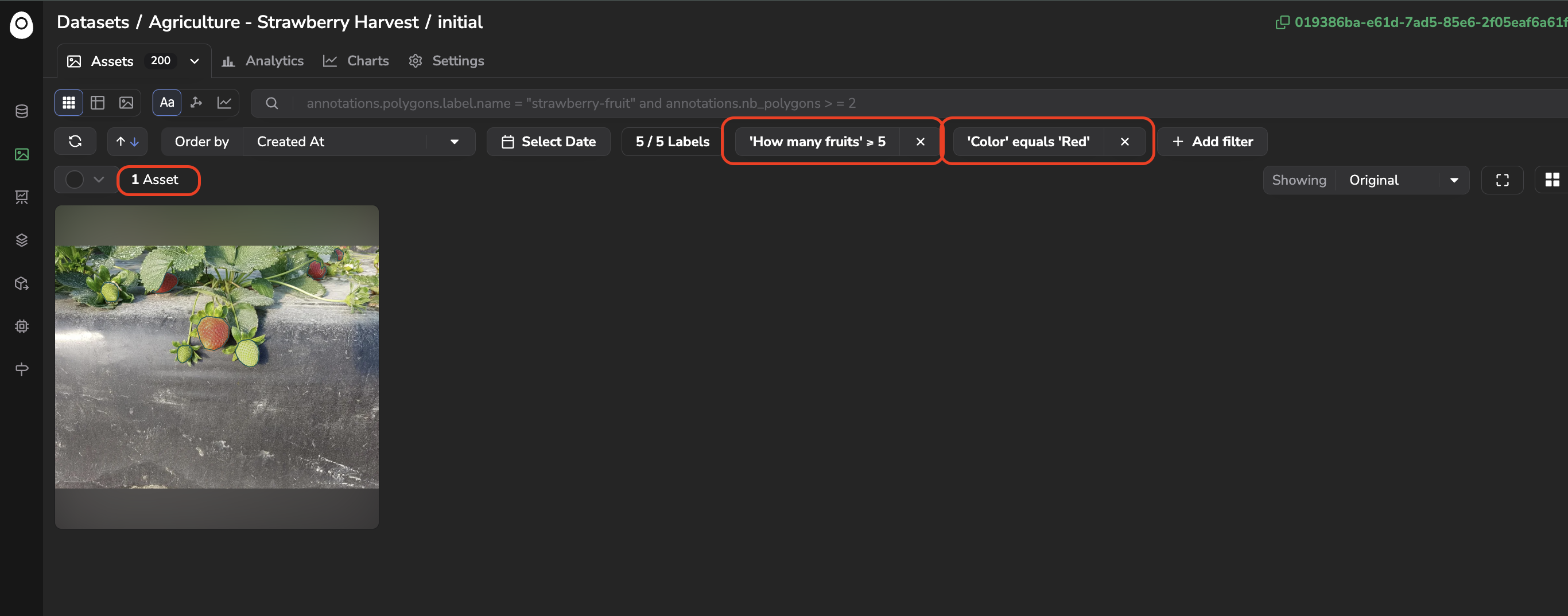
Result of the Shape Attribute filter and Asset Attribute filter
Please note that the filters (whether they are configured on Asset Attributes, Shapes Attributes or Custom Metadata) can be used with the SearchBar to create advanced ways of filtering among your DatasetVersion .
Filters are also available on
DeploymentandExperimentThese filters are also available on the
PredictedAssetof aDeploymentand on theEvaluationof anExperiment, where they apply to the predicted and reviewedShape.
Updated about 2 months ago