

Customize your Keyboard Shortcuts
To speed up repetitive actions, Picsellia exposes keyboard shortcuts across several parts of the platform, such as the Annotation Studio and the data grids used to browse your Data and Assets. All of these shortcuts can be reviewed and personalized from your Personal Settings.
When annotating or reviewing thousands of images or videos, even a fraction of a second saved per action (switching classes, drawing a Shape, moving to the next Asset) adds up across a whole Dataset, which is why keeping your hands on the keyboard rather than reaching for the mouse can meaningfully speed up an annotation campaign.
1. Access your Shortcuts settings
The Shortcuts tab is available in your Personal Settings, alongside General and Appearance.
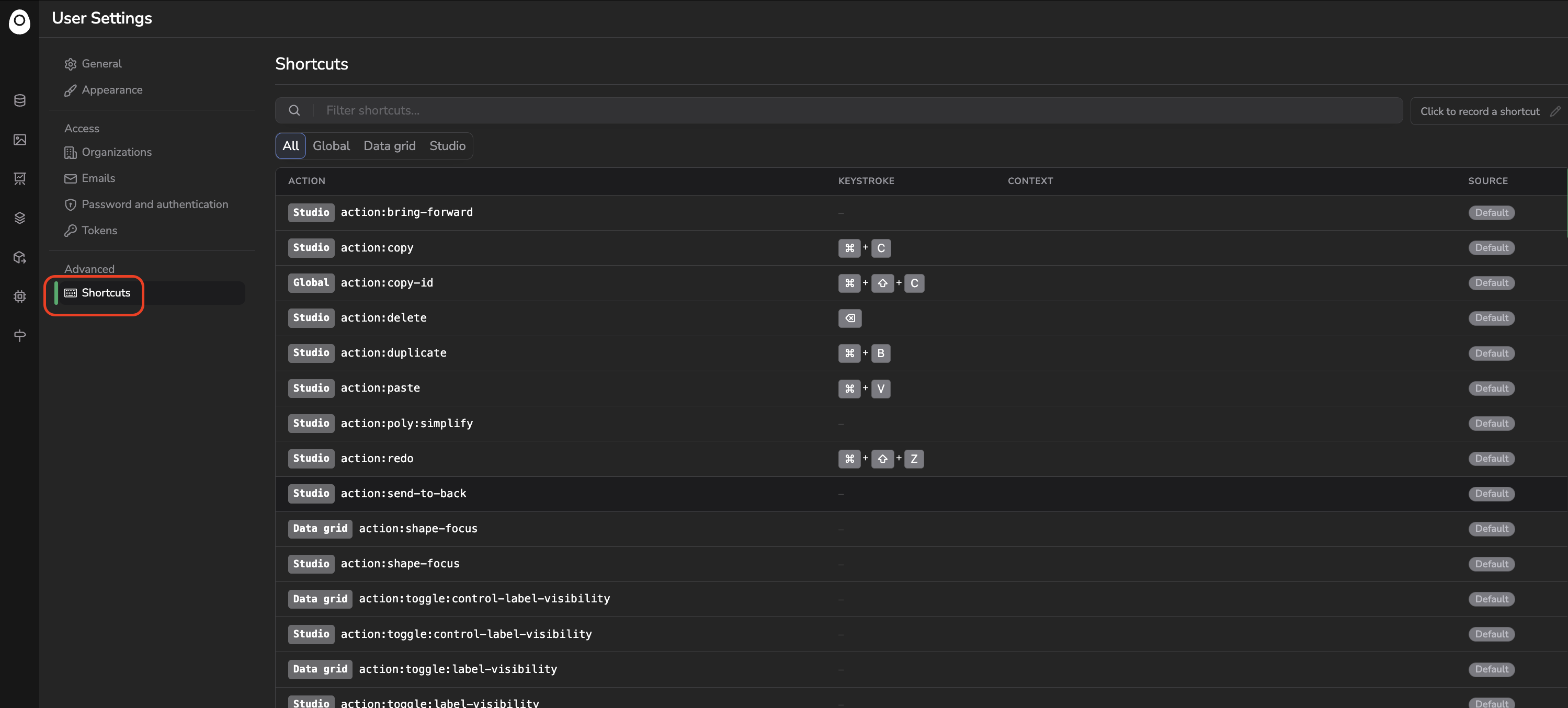
Shortcut settings tab
2. Browse the available shortcuts
The Shortcuts page lists every shortcut available on the platform:
- Use the Filter shortcuts... search bar to find a specific action by name.
- Use the All / Studio / Data grid tabs to only display the shortcuts relevant to a given part of the platform.
For each shortcut, the table displays:
- Action: the area badge (
StudioorData grid) followed by the action's identifier (e.g.action:copy,draw:classification). - Keystroke: the key combination currently assigned to trigger this action, displayed as key badges (e.g.
⌘+C). A shortcut with no assigned keystroke displays a dash. - Context: some actions are only bound to a keystroke under specific conditions (for instance
inference_type: MULTIorhas_campaign: true), when the same action can behave differently depending on where it's triggered from. - Source: whether the current keystroke is the Picsellia Default, or a value you personally customized.
3. Customize a shortcut
Click on the keystroke of any shortcut to open its edit panel.
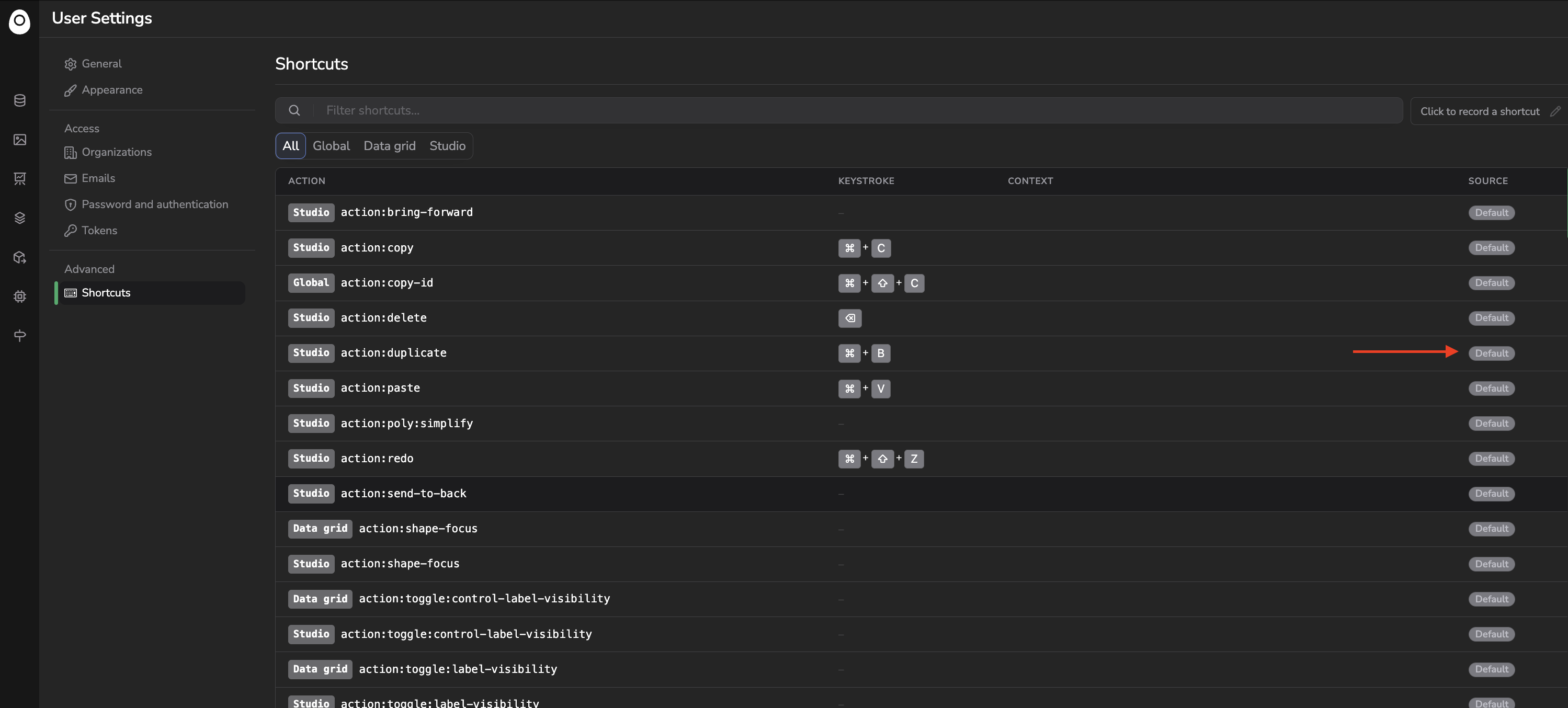
Personalize a shortcut
Recording a new keystrokeClick the Keystroke field, then press the key combination you want to assign. You can chain several key combinations one after another to record a multi-step sequence. The new shortcut is saved automatically after a short pause, or you can click Update to confirm it right away.
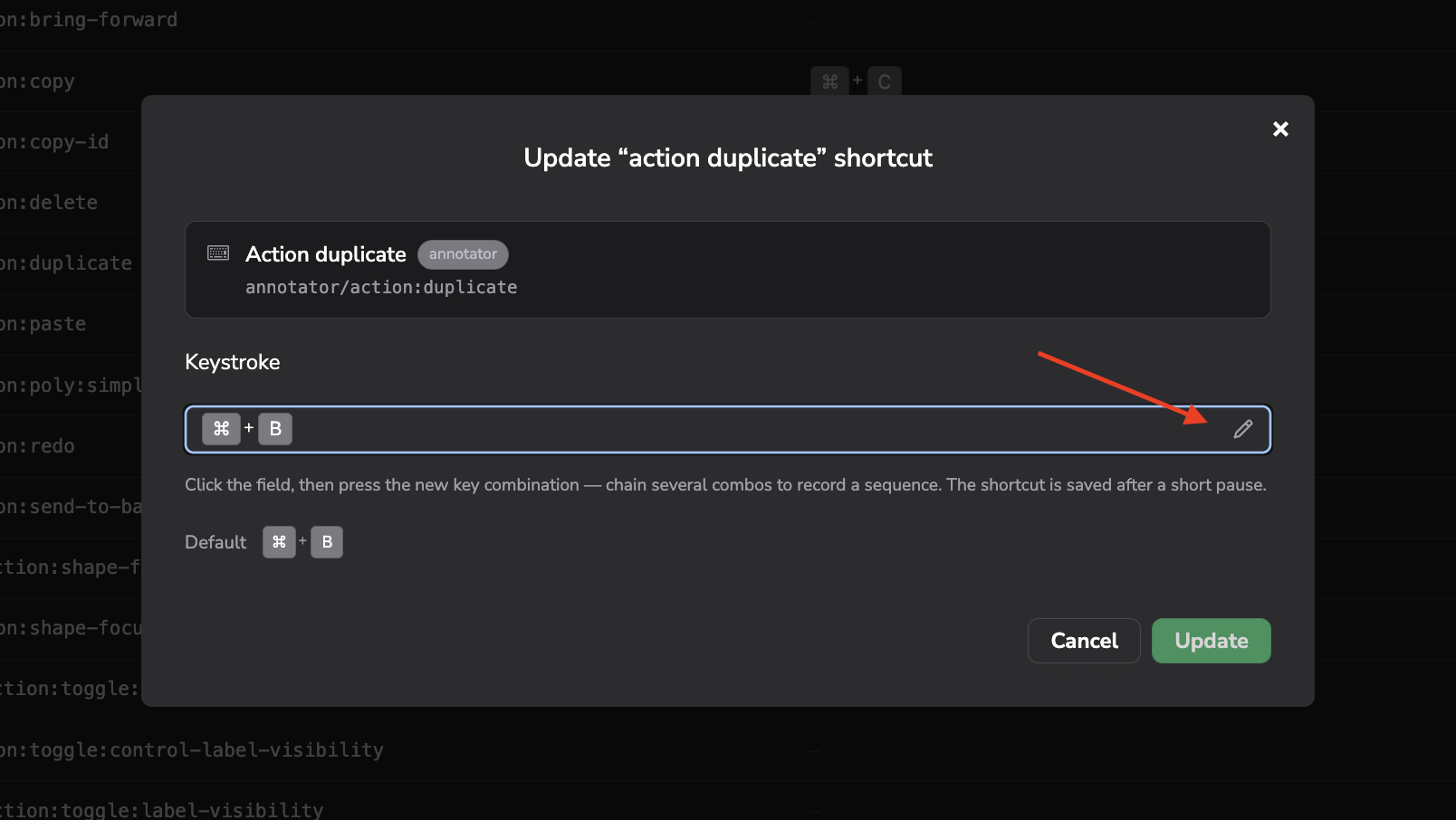
Define your custom shortcut
The Picsellia default keystroke for the action is always displayed for reference, and once you've set a custom value, a Reset button lets you revert to it at any time. Click Cancel to close the panel without applying any change.
Personal customizationShortcuts are customized per user, not per Organization: your personal keybindings follow you across every Organization you're a member of, and won't affect your colleagues.
4. Shortcut hints across the platform
Throughout Picsellia, whenever an action or a button has a keyboard shortcut assigned to it, hovering over it displays a tooltip showing that shortcut. This tooltip always reflects the keystroke that will actually be triggered: the Picsellia Default one, or the one you personalized from the Shortcuts settings if you've customized it.
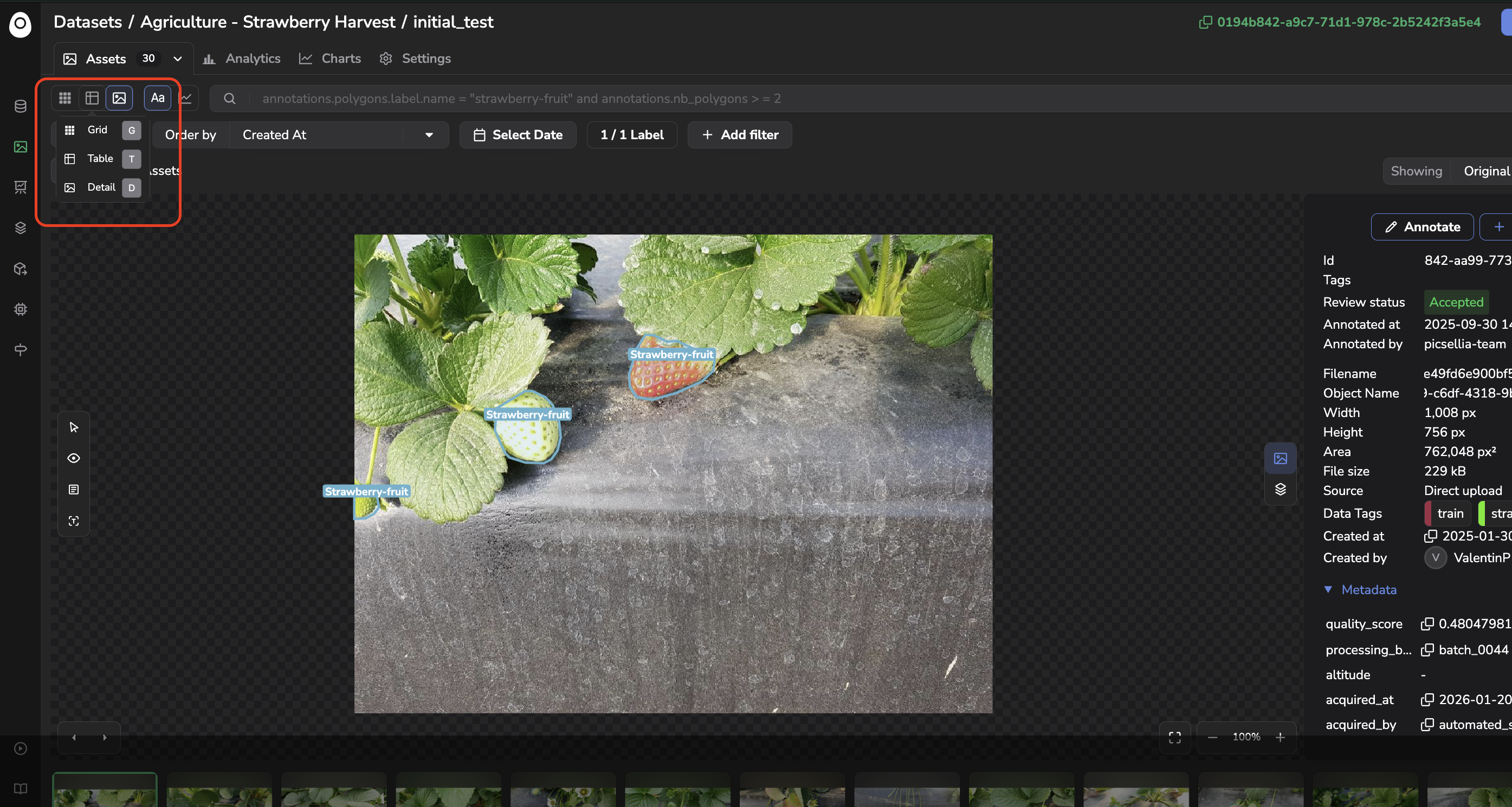
Example of a shortcut available
Updated 3 months ago