

Explore your Assets and Shapes with Embeddings
Explore your images and shapes with embeddings in Picsellia's DatasetVersion. Learn about similarity search, text-to-image search, and UMAP projections.
The Picsellia DatasetVersion offers several features that rely on the embeddings computed for each Asset and, depending on the Version Type, for each Shape. These embeddings enable a smooth and efficient exploration of a large volume of Asset or Shape, based on mathematical methods, in addition to the Query Language exploration mode detailed here.
This works the same way as Datalake embeddings exploration, detailed here. In a DatasetVersion, you additionally can compute one embedding per Shape, which unlocks the exploration of Shape embeddings to identify Shape clusters and annotation mistakes, for instance.
Not supported for videosEmbeddings computation and the Embeddings exploration mode are only available for images. Videos are not supported.
Shape Embeddingsavailability depends on the Version Type
Shapeembeddings are only available for someVersion Type(confirmed available for Segmentation, confirmed not available for Mask) — check the Shape Embeddings page of yourDatasetVersionSettings to see if it applies to yours.
In detail, based on the embeddings computation, in a given DatasetVersion, you'll be able to:
- Perform similarity search on
AssetandShape. - Query your
AssetorShapewith the Text-to-image search. - Explore your
AssetandShapein depth with the integrated UMAP projections map.
1. How to configure it?
First of all, before using the features that rely on the embeddings computed for your Asset or Shape, you need to activate this computation, knowing that Asset and Shape embeddings can be activated independently.
To do so, you need to access the DatasetVersion Settings, in the Embeddings category.
Ensure necessary rightsYou need to have the Admin rights on the current
DatasetVersionto access its Settings page.
Please note that the embeddings computation is DatasetVersion-related, meaning that if you have several DatasetVersion, you'll need to perform these activations for every DatasetVersion.
A. Data Embeddings
To activate the Visual Search feature on the Asset of the current DatasetVersion, access its Settings, go to the Data Embeddings page, and click on Activate.
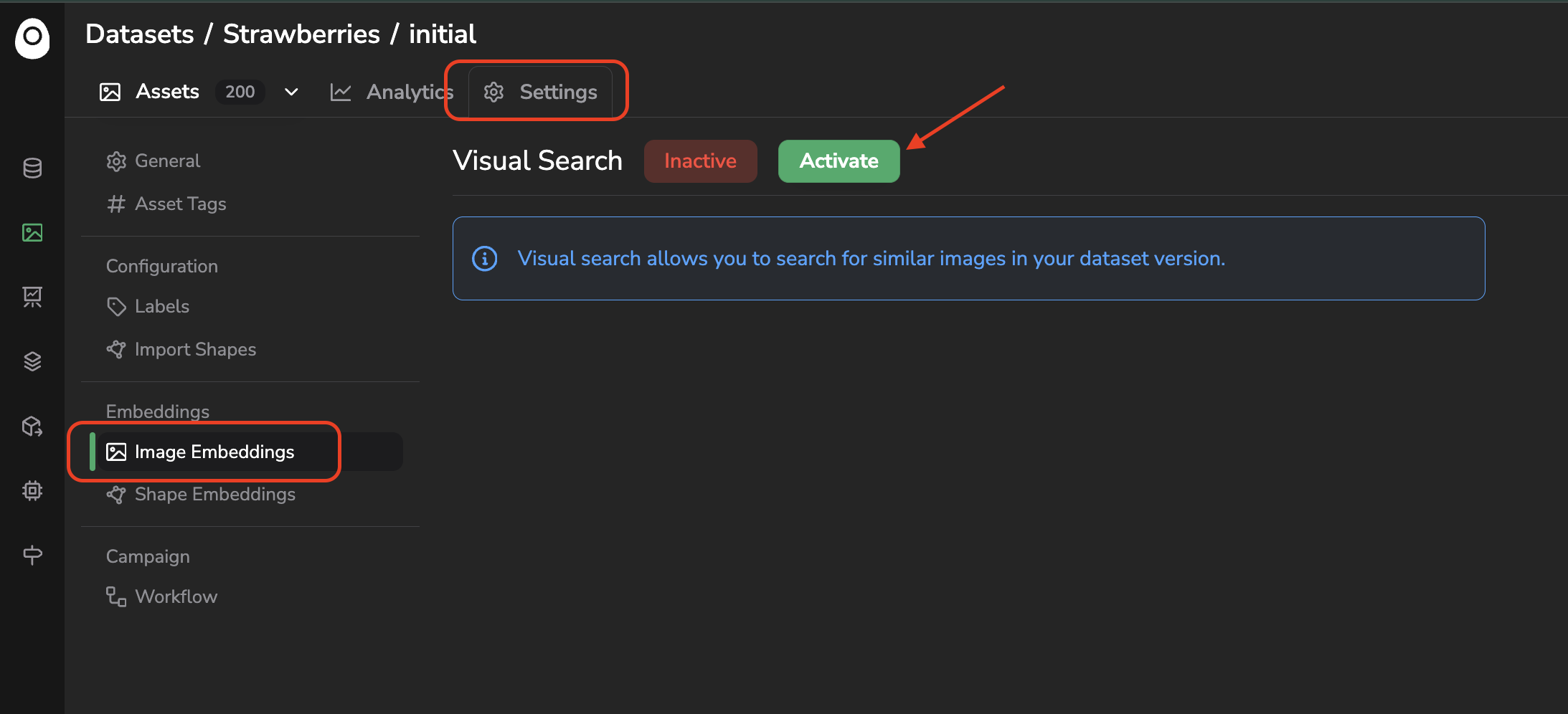
Access the Visual Search configuration page for images
B. Shape Embeddings
If available for your Version Type, you can similarly activate the Visual Search feature on the Shape of the current DatasetVersion (browsable from the Shapes view), from the Shape Embeddings page of its Settings, by clicking on Activate.
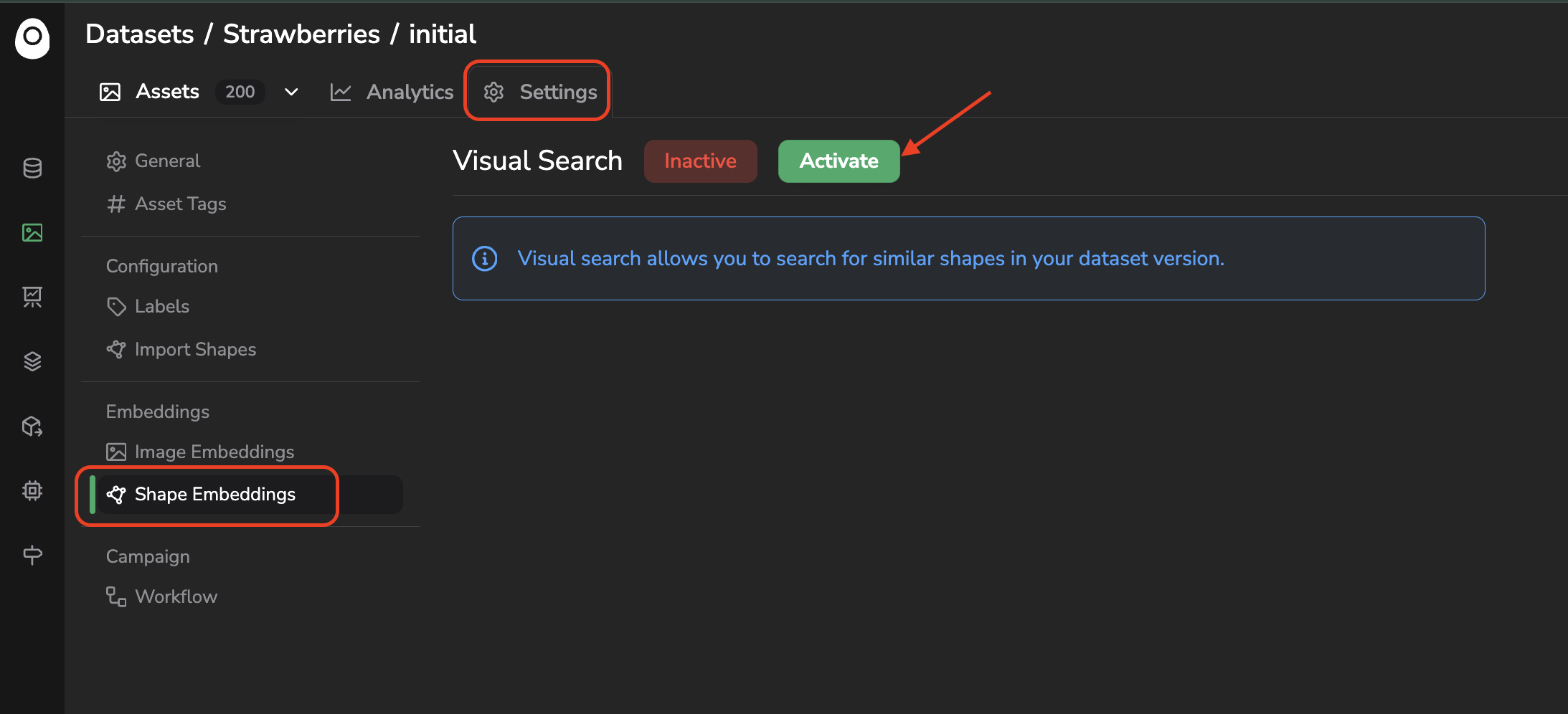
Access the Visual Search configuration page for shapes
Obviously, to compute Shape embeddings, the Asset of the current DatasetVersion must already be annotated, no matter how (annotation file import, Annotation tool, Annotation Campaign, pre-annotation Processing...).
C. Embeddings computation status
Once activated, the computation process and configuration work the same way for Asset and Shape embeddings. The computation starts right away, and can be tracked using the progress bar or directly from the related internal Job, accessible from the Jobs tab.
Datalake embeddings are necessaryA prerequisite to compute
Asset(image) embeddings in aDatasetVersionis to have activated them on theDatalakethe underlyingDatacomes from. As a consequence, those image embeddings have already been computed by theDatalake's Visual Search feature, so the computation forAssetonly is almost instant.
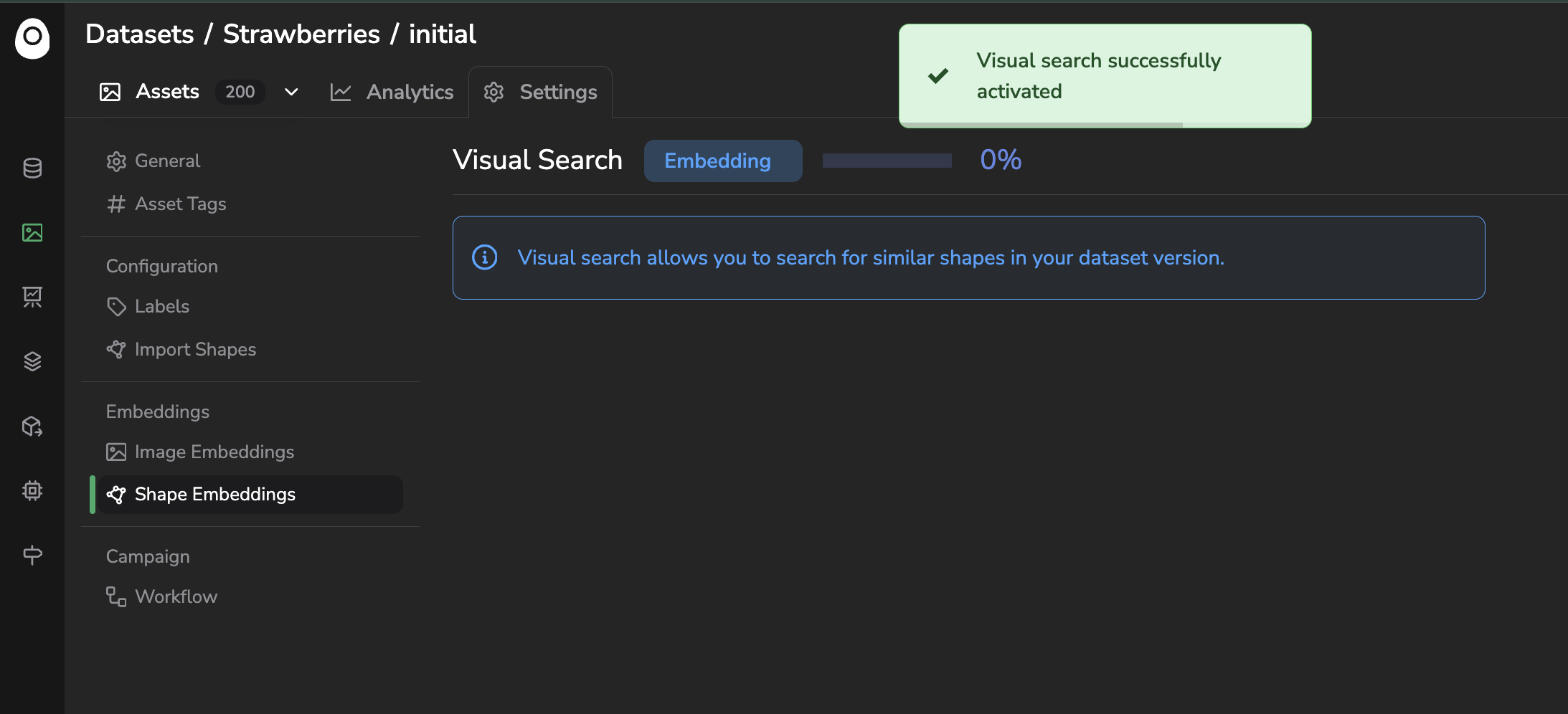
Activation of the Visual Search for shapes
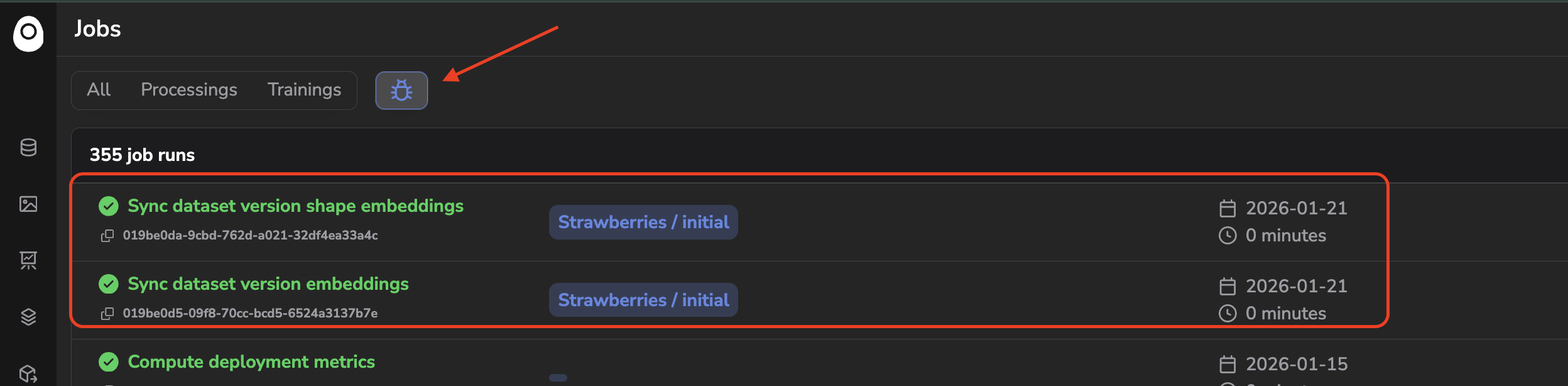
Embeddings computation job for images and shapes
Once the computation is over, you'll have access to an embeddings status overview that details the number of Asset or Shape treated successfully, as well as the ones that were not computed, for any reason:
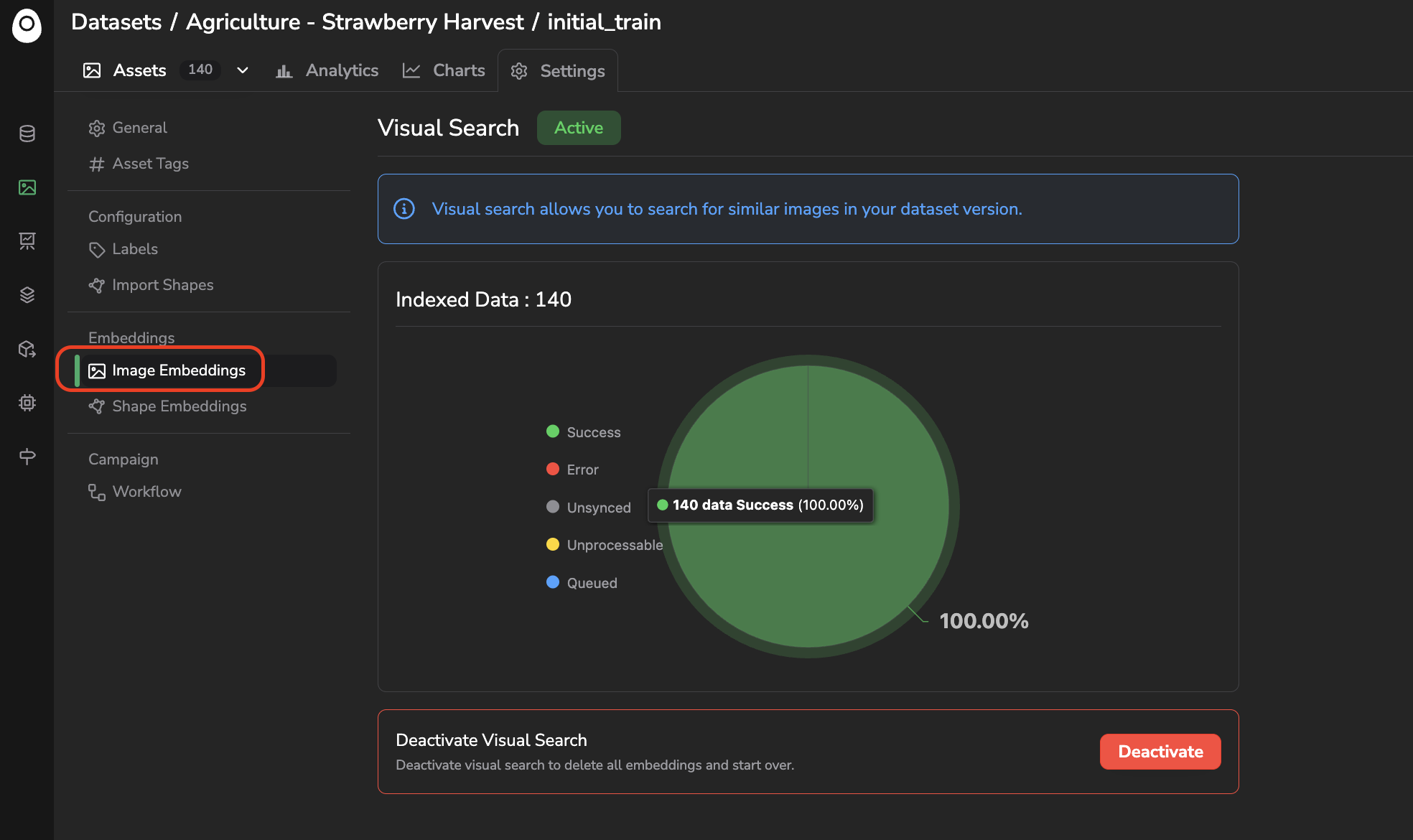
Embeddings computation overview
Sometimes Asset or Shape may not be computed due to an isolated issue during the computation process, or because they are not in a supported format. In both cases, you can relaunch the embeddings computation for all the Asset or Shape in a given status using the Retry button.
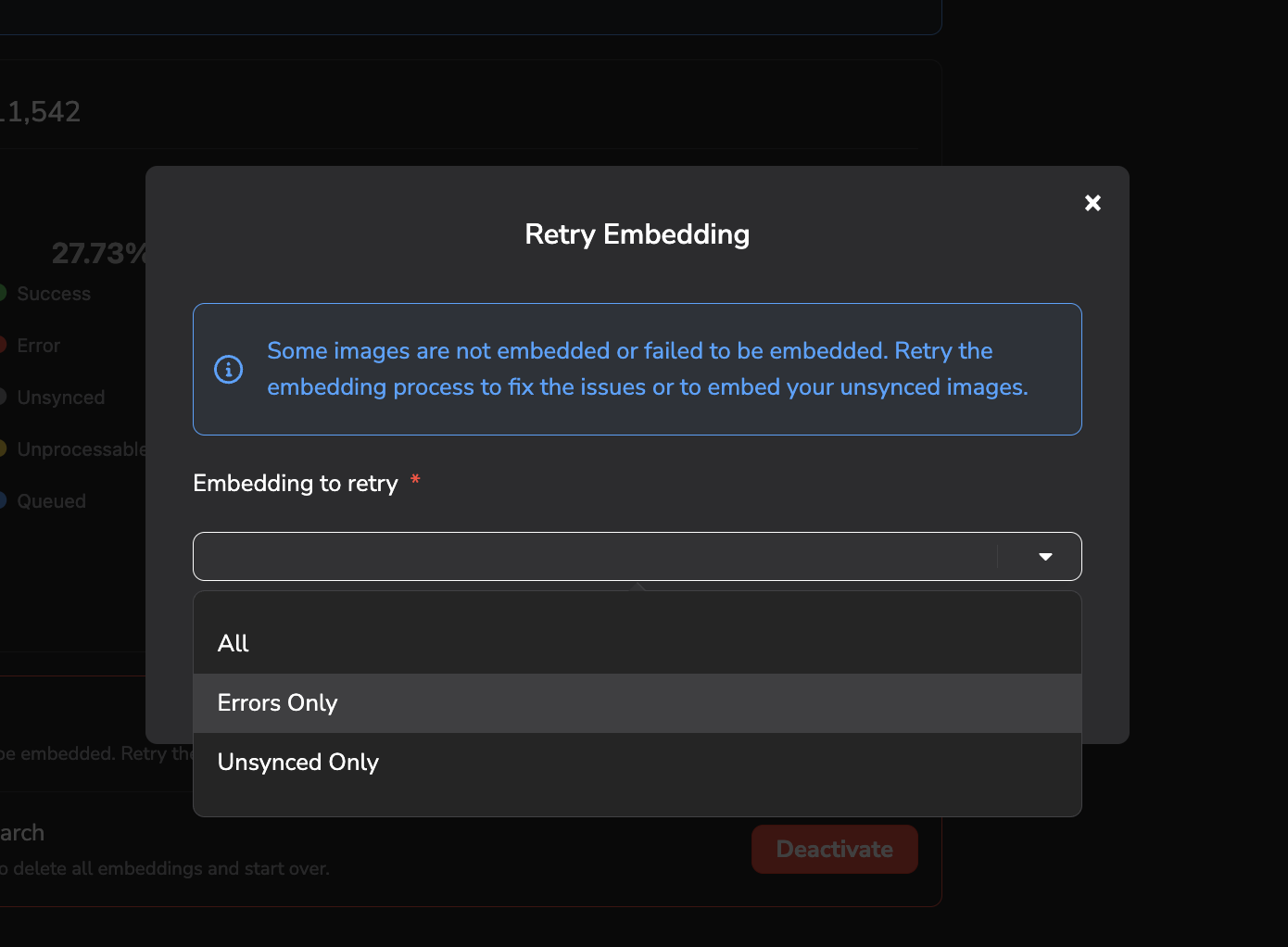
Retry embeddings computation
Once the computation is over, the Active flag appears. This means that from now on, each new Asset or Shape added to the current DatasetVersion will, if possible, be computed to generate an embedding from it.
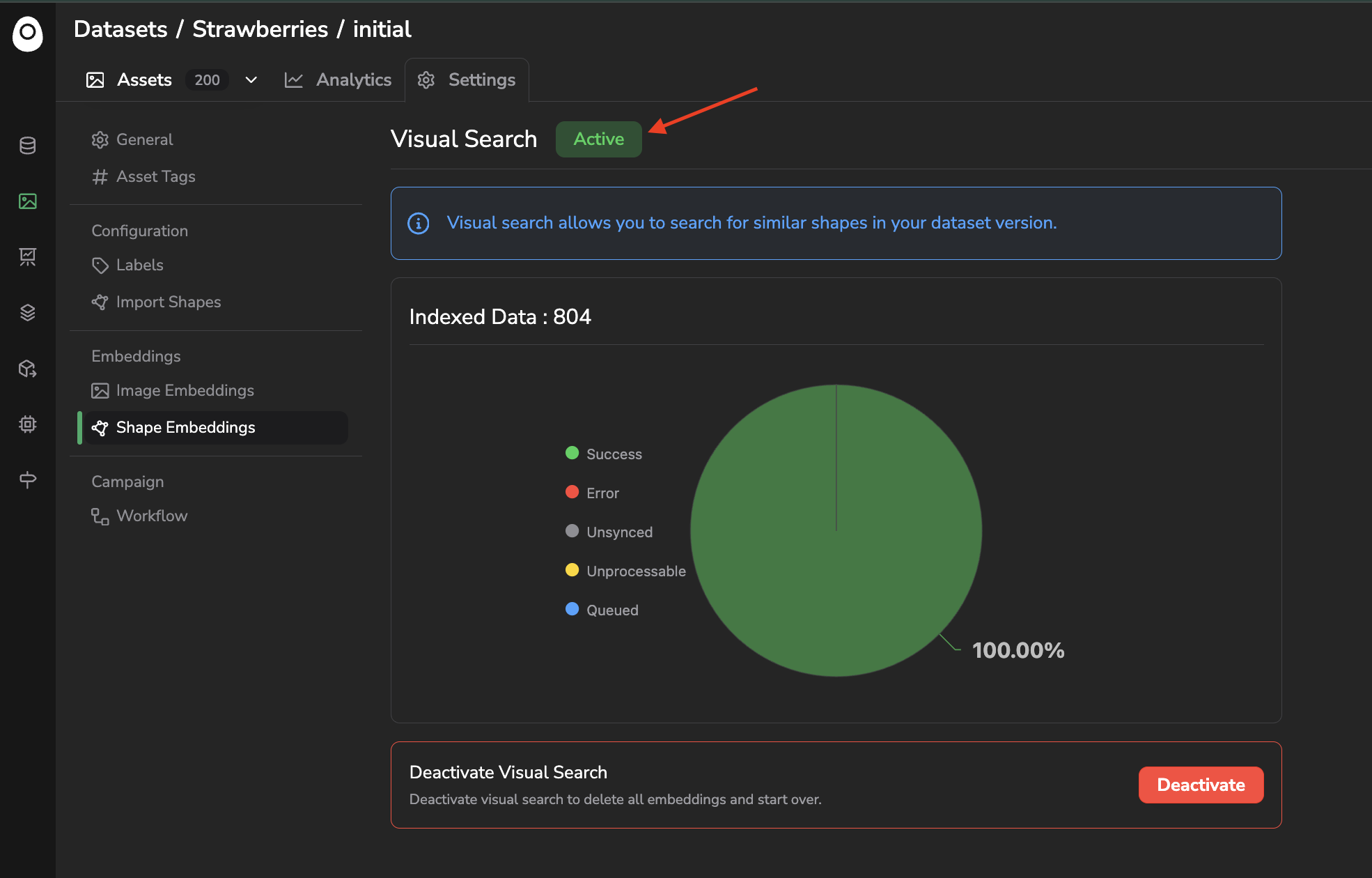
Visual Search feature status
Please also note that you can deactivate the embeddings computation at any moment by clicking on Deactivate. This will delete all the embeddings already computed for the current DatasetVersion, so please be very cautious while using this button.
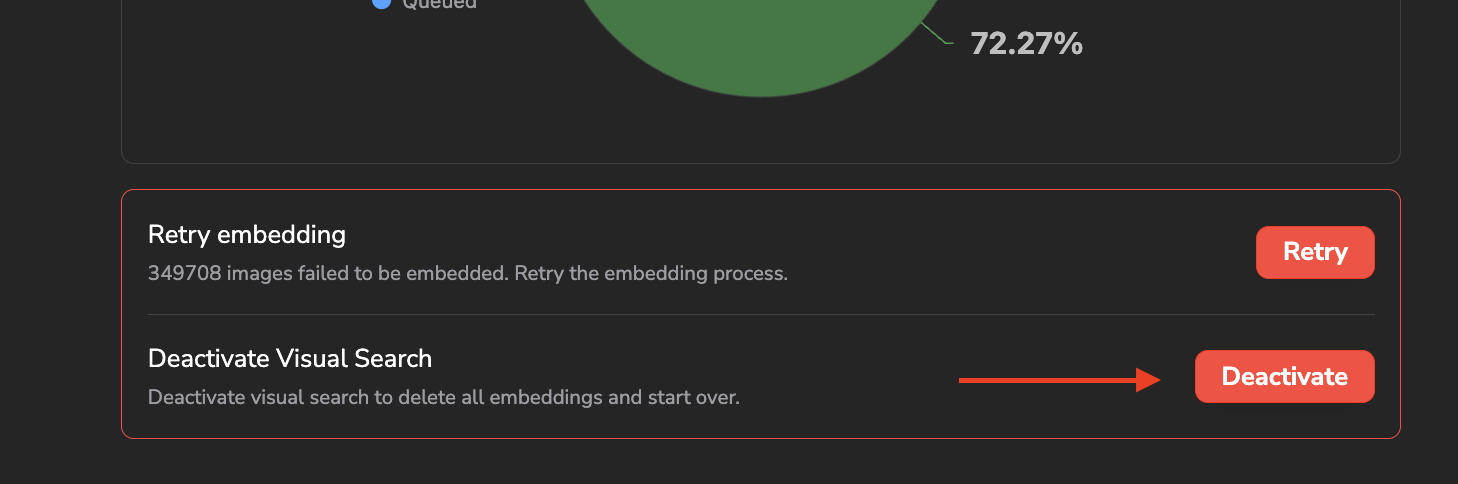
Visual Search deactivation
Let's talk quickly about the technology behind this embeddings computation.
The library open_clip is used to generate one embedding vector per Asset or Shape. In particular, it is the model ViT-B-16 with the weights datacomp_xl_s13b_b90k that are used by default. Once generated, each embedding vector is stored in a QDrant Vector Database and its Vector Search Engine, used to implement the exploration features detailed below.
Use your own embeddings model?
The Picsellia embeddings system is built by design to handle any type of embeddings model, so if you want to use your own model to compute the embeddings of your
DatasetVersion, please reach out to the Picsellia team so they can set up this specific configuration.In case you need more than a generic OpenClip model to compute and explore your embeddings, you can also leverage the Experiment Tracking feature of Picsellia to fine-tune the generic OpenClip model on your own images and captions. This lets you quickly train and integrate an embedding model that generates more insightful vectors in your particular context. For that need too, please reach out to the Picsellia team.
Now that the Visual Search feature is fully activated and the embeddings computation is over, let's detail the different features that leverage it to explore your Asset or Shape.
2. Similarity Search
The first and most common way to leverage the embeddings is through Similarity Search: it identifies the Asset or Shape that look the most like the selected one.
To find the x most similar Asset to a selected one, select it directly in your DatasetVersion, click on Find Similar, type the number of most similar Asset to search for, and click on Search.
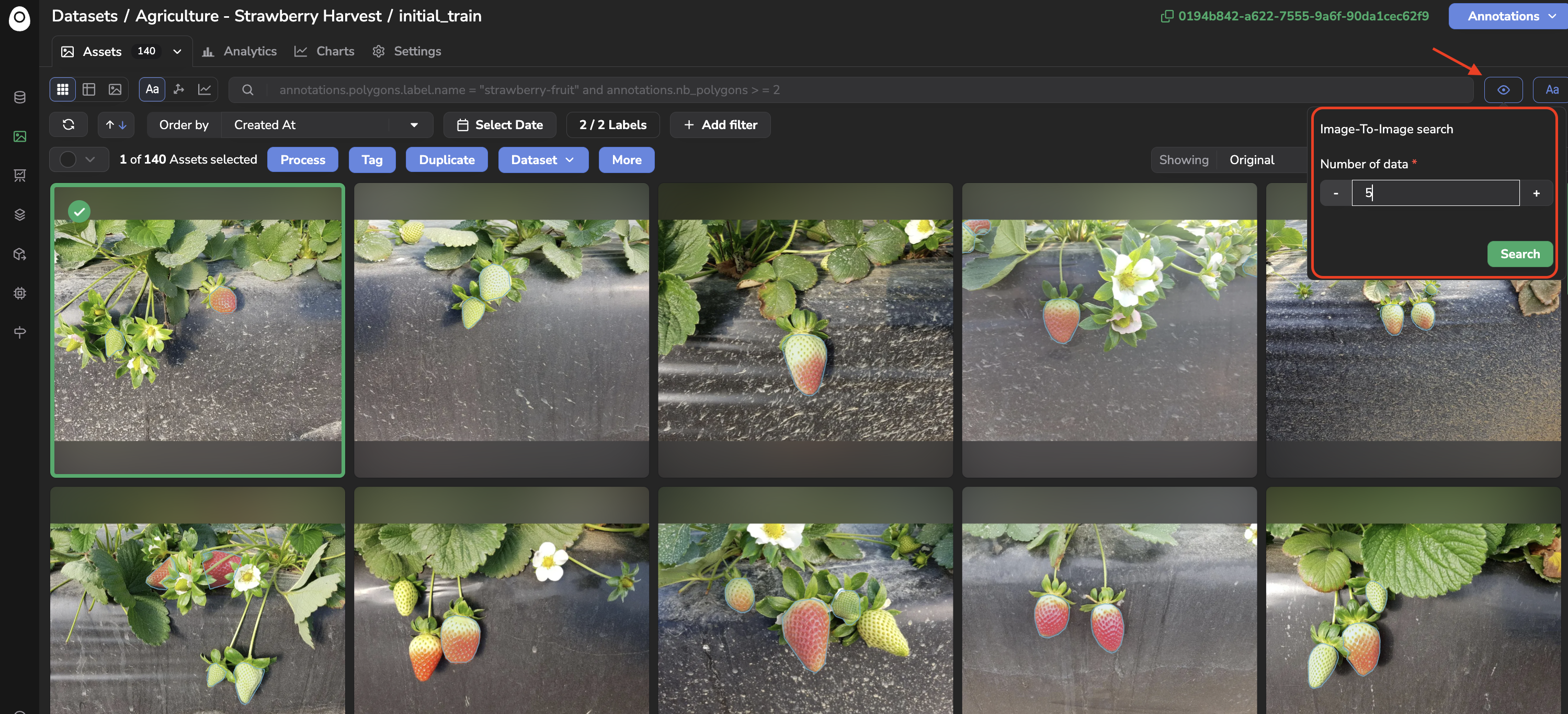
Using Similarity Search
The Similarity Search button is only accessible when one
Assetis selected.
Once found, the most similar Asset are displayed in the DatasetVersion Assets overview with a badge indicating the similarity score with the initial image. The cross icon next to the eye icon allows you to close the similarity search feature.
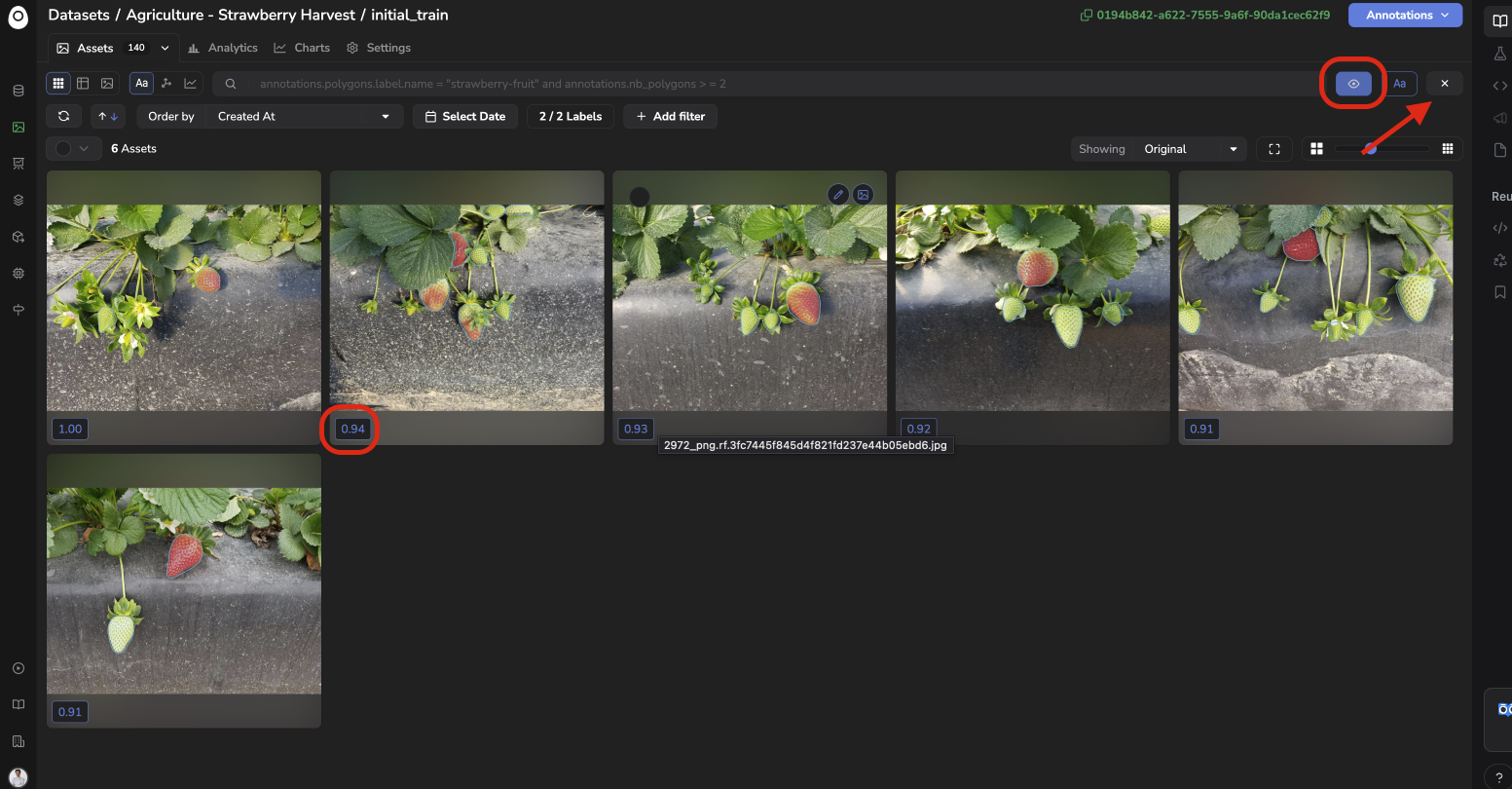
Similar images visualization
Performing this similarity search on Shape works almost the same way: switch to the Shapes view, select the Shape to search similarities for, and click on the eye icon to display the most similar Shape.
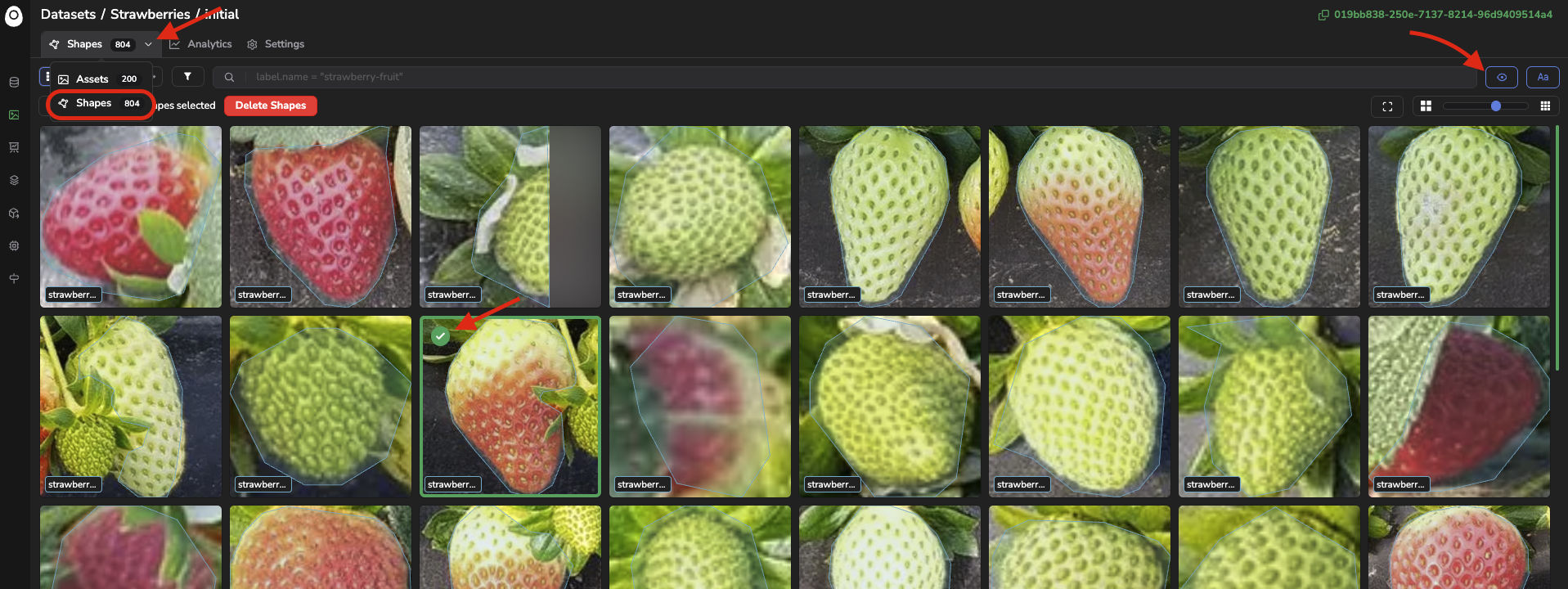
Perform a similarity search on shapes
3. Text-to-Image search
You can also explore your Asset or Shape, not based on the similarity with a given image, but based on a text prompt. This is made possible by the captioning embedded in the OpenCLIP model, and identifies the Asset or Shape that correspond the most to a given text prompt.
To find the x Asset that fit a text prompt best, click on the Text-to-Image icon, type your prompt, set the number of most relevant Asset to search for, and click on Search.
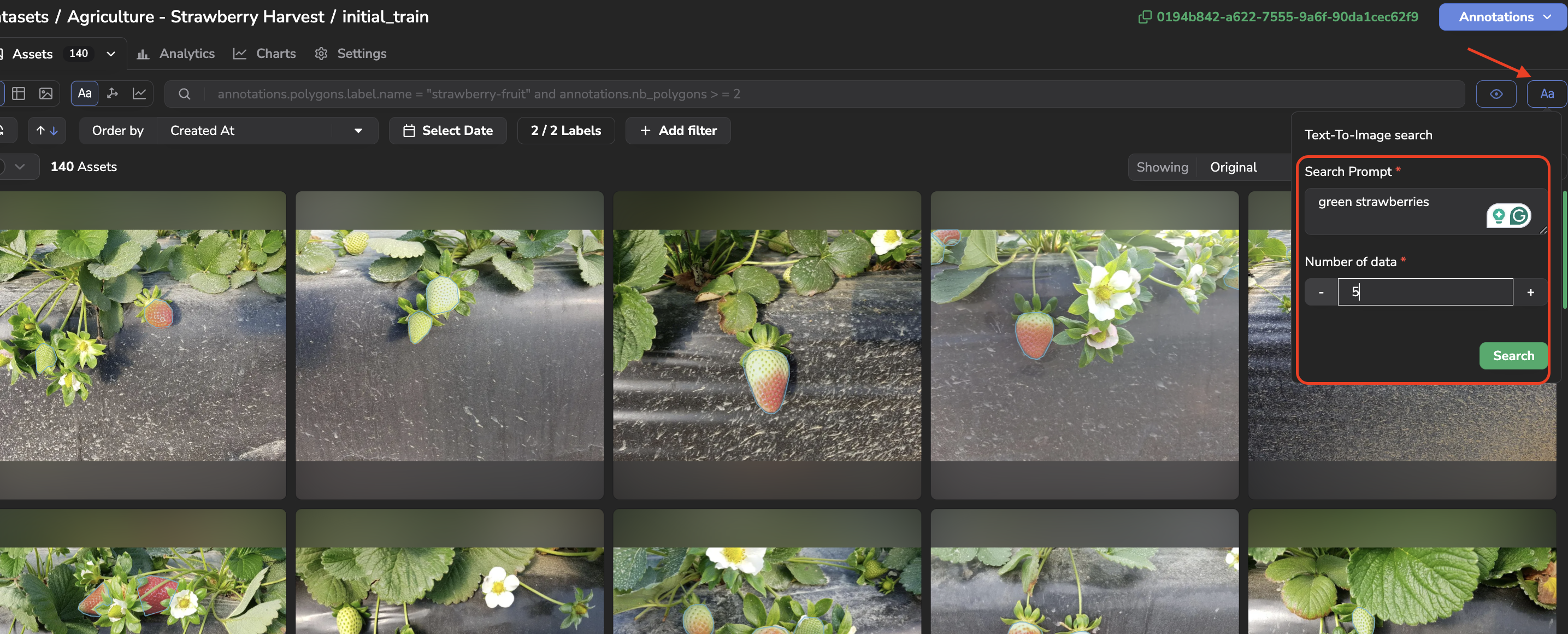
Text-to-Image search
Once found, the most relevant Asset are displayed in the DatasetVersion Assets overview with a badge indicating the matching score with the initial text. The cross icon next to the eye icon allows you to close the text-to-image search feature.
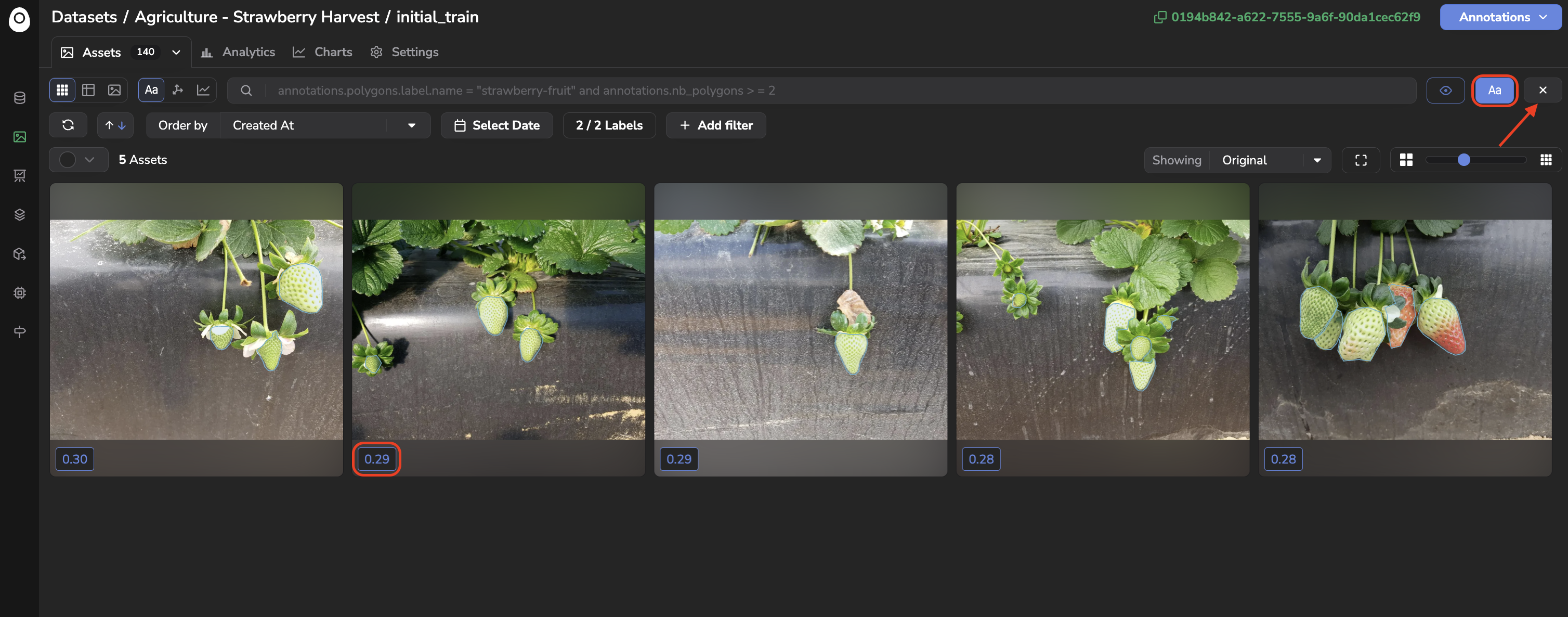
Text-to-Image search results
Performing this Text-to-Image search on Shape works almost the same way: switch to the Shapes view, click on the Text-to-Image icon, and type your prompt to display the Shape that correspond the most to it.
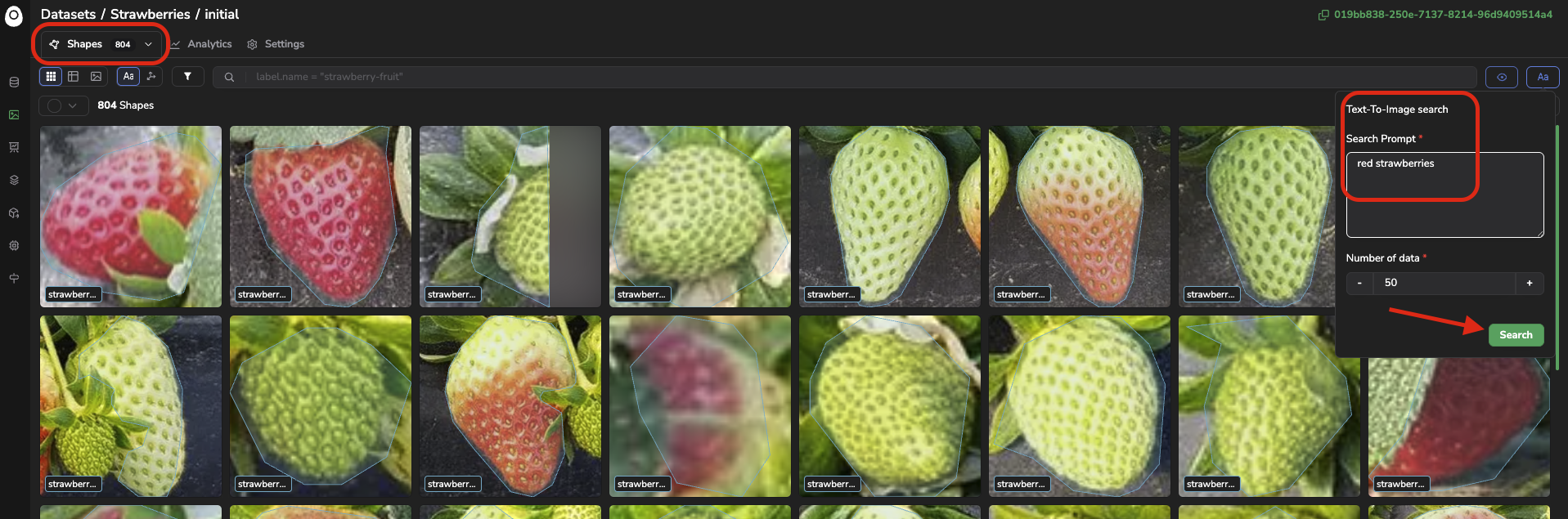
Perform a Text-to-Image search on Shapes
4. UMAP Projections
The last, and likely most powerful and flexible, way to leverage embeddings in a DatasetVersion is the UMAP projection and visualization of every embedding vector computed for it. This is accessed by clicking the UMAP Projection button, which opens a scatter plot displaying the point cloud of all your embedding vectors, projected using the UMAP method.
If you are in the Assets view, the Asset embeddings projections are displayed; switching to the Shapes view instead displays the embedding projections for every Shape.
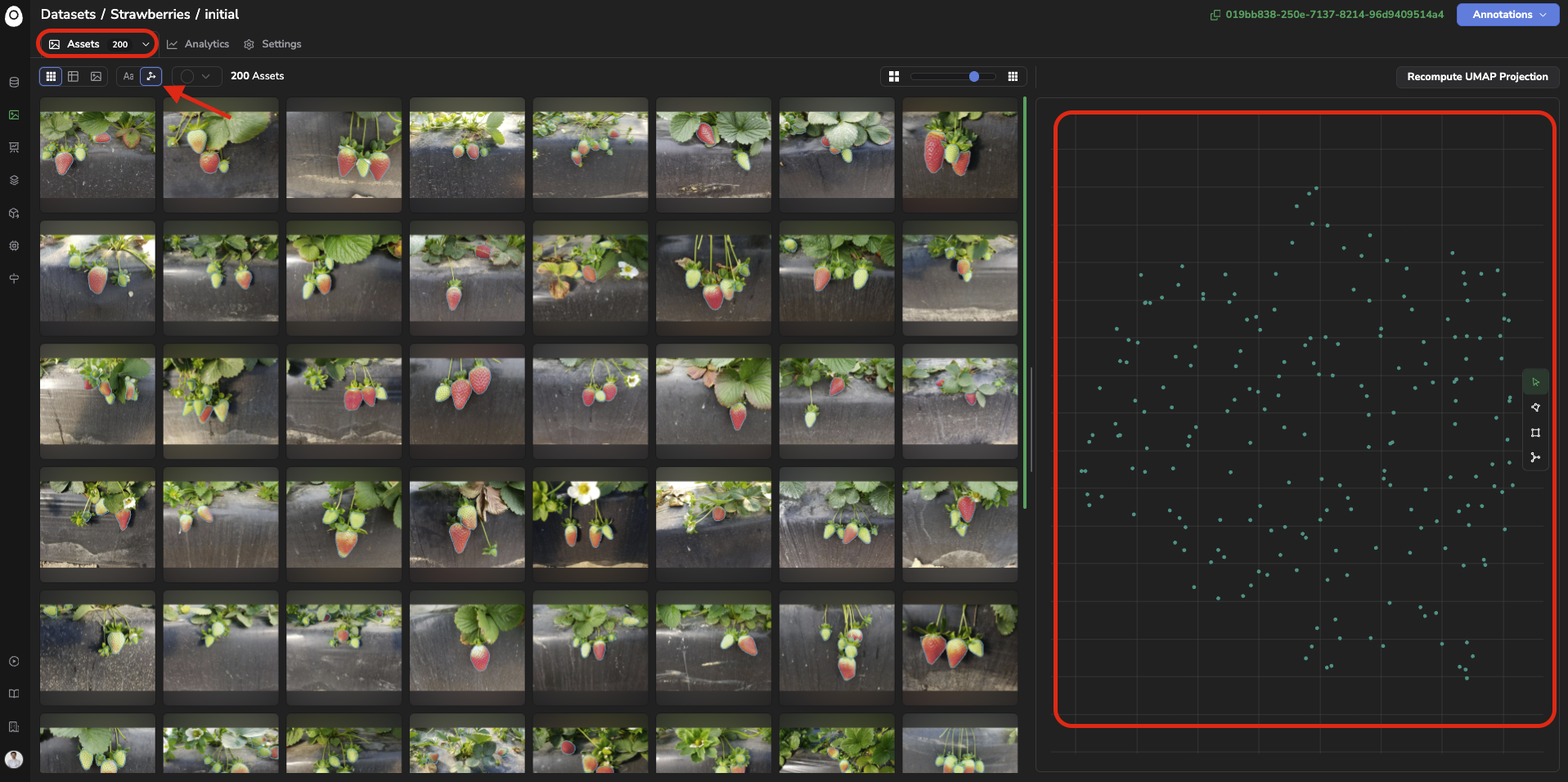
Image embeddings projections view
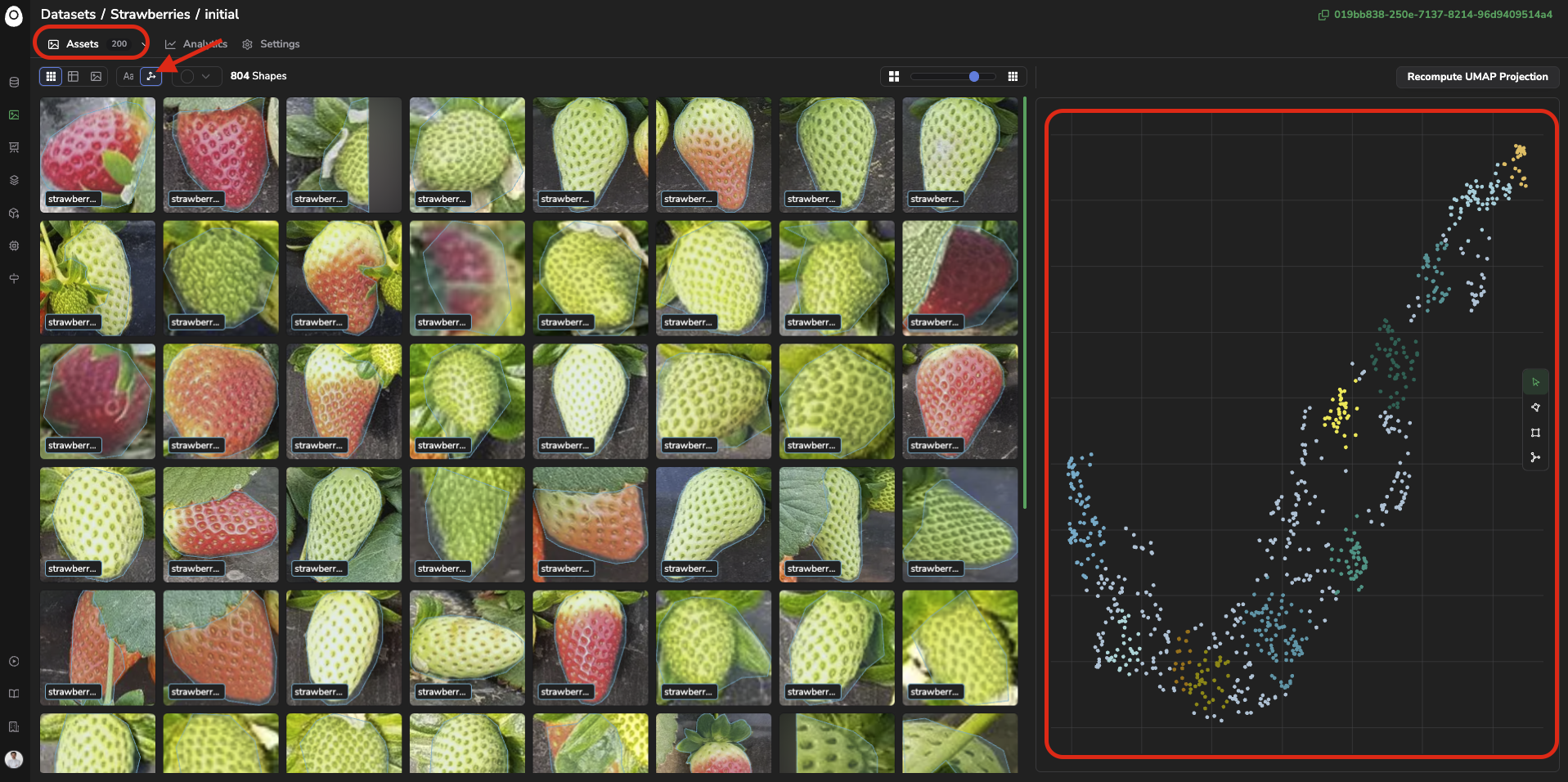
Shapes embeddings projection view
In both cases, each point represents one or several Asset or Shape (depending on how many are considered).
Asset or Shape that are visually close to each other are grouped using the DBSCAN clustering method and identified with the same color.
You can explore the embedding point cloud by selecting a group of points using the Select with lasso, Select with rectangle, or Select by cluster tools:
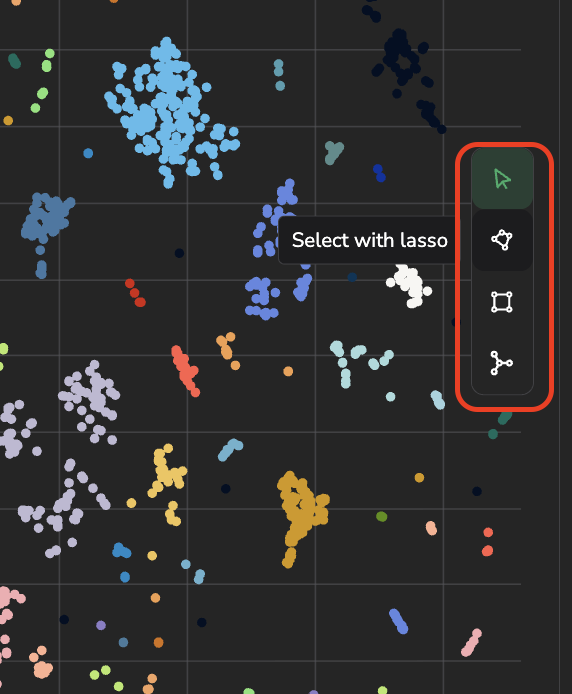
The Asset or Shape corresponding to the selected points are highlighted in red and displayed on the left panel.
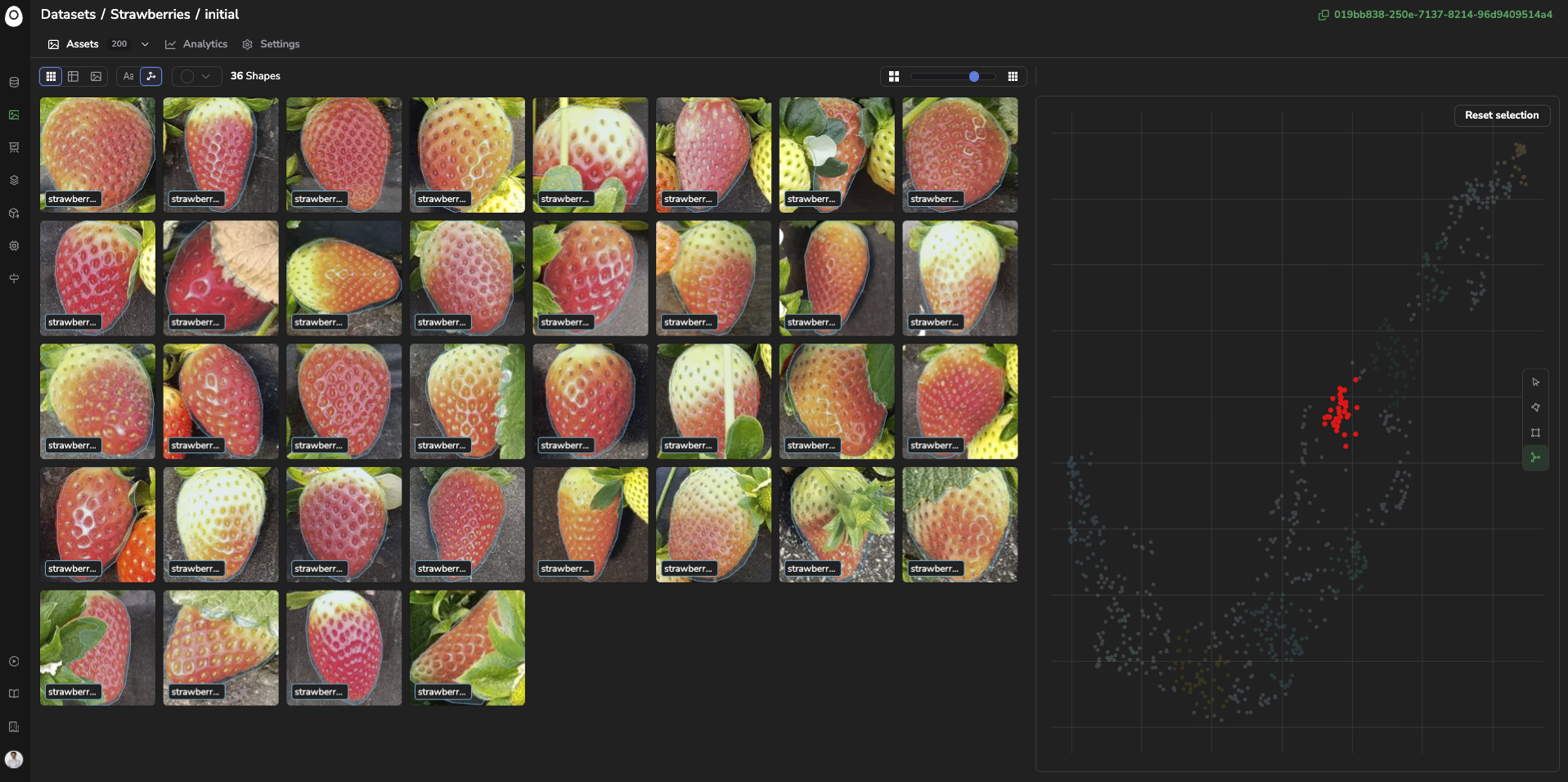
Selection of a shape cluster
Please note that it is not possible to explore a DatasetVersion using the embeddings scatter plot alongside the Search Bar at the same time. You can switch between the two exploration modes as long as the embedding selection or the search query is reset.
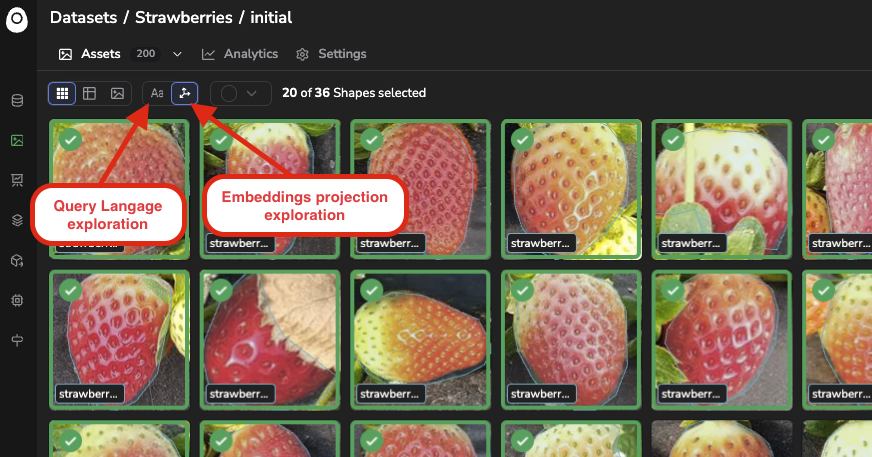
Embeddings vs Query Language explorations
Nevertheless, once Asset or Shape have been filtered with the embedding exploration tools, they can be selected and, switching back to the Query Language exploration mode, attached/detached an AssetTag, sent to a Processing, or used to create a new DatasetVersion.
A very illustrative use case for
Assetis to identify isolated points that are likely outliers or corrupted images, visualize them to validate it, and tag them to retrieve them easily in the future.For
Shape, a common use case is to identify isolated points, as they might indicate annotation mistakes.
To reset the embeddings selection, click on Reset Selection.
The UMAP projection is not recomputed automatically, so you can manually recompute the point cloud with all the latest Asset or Shape by clicking on Recompute UMAP Projection.
Please note that recomputing the UMAP also lets you set some UMAP and DBSCAN parameters, as shown below.
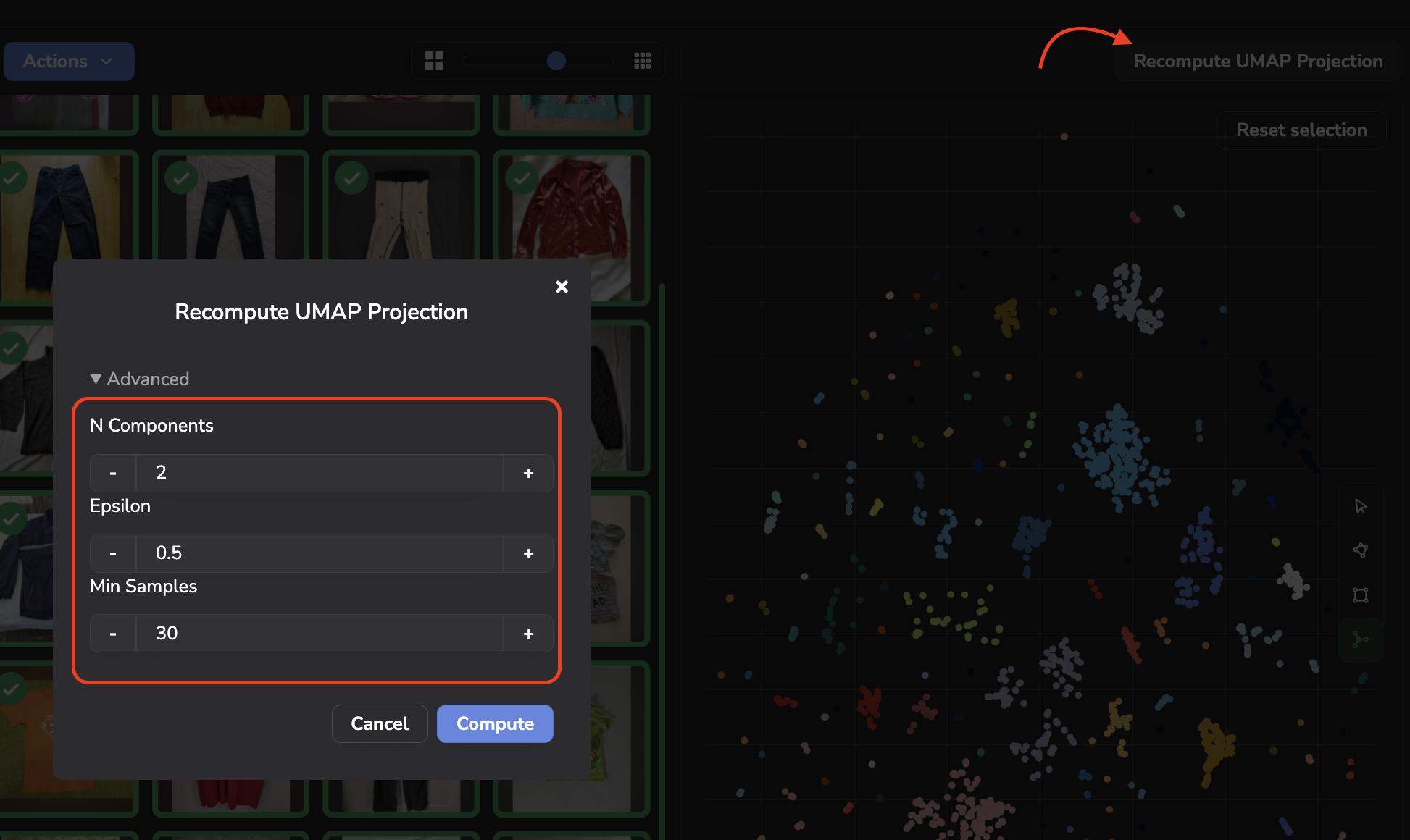
More details about the UMAP parameters are available here.
The DBSCAN parameters are the following:
- ε (epsilon): The maximum distance between two points for them to be considered neighbors.
- Min samples: The minimum number of points required to form a dense region.
Updated about 2 months ago