

Settings & Shortcuts
The Annotation tool exposes two panels, from the right-side icon rail, dedicated to personalizing how you work: Settings, which holds your display and behavior preferences, and Shortcuts, which recaps the keyboard shortcuts currently active, whether at their default value or the one you personalized.
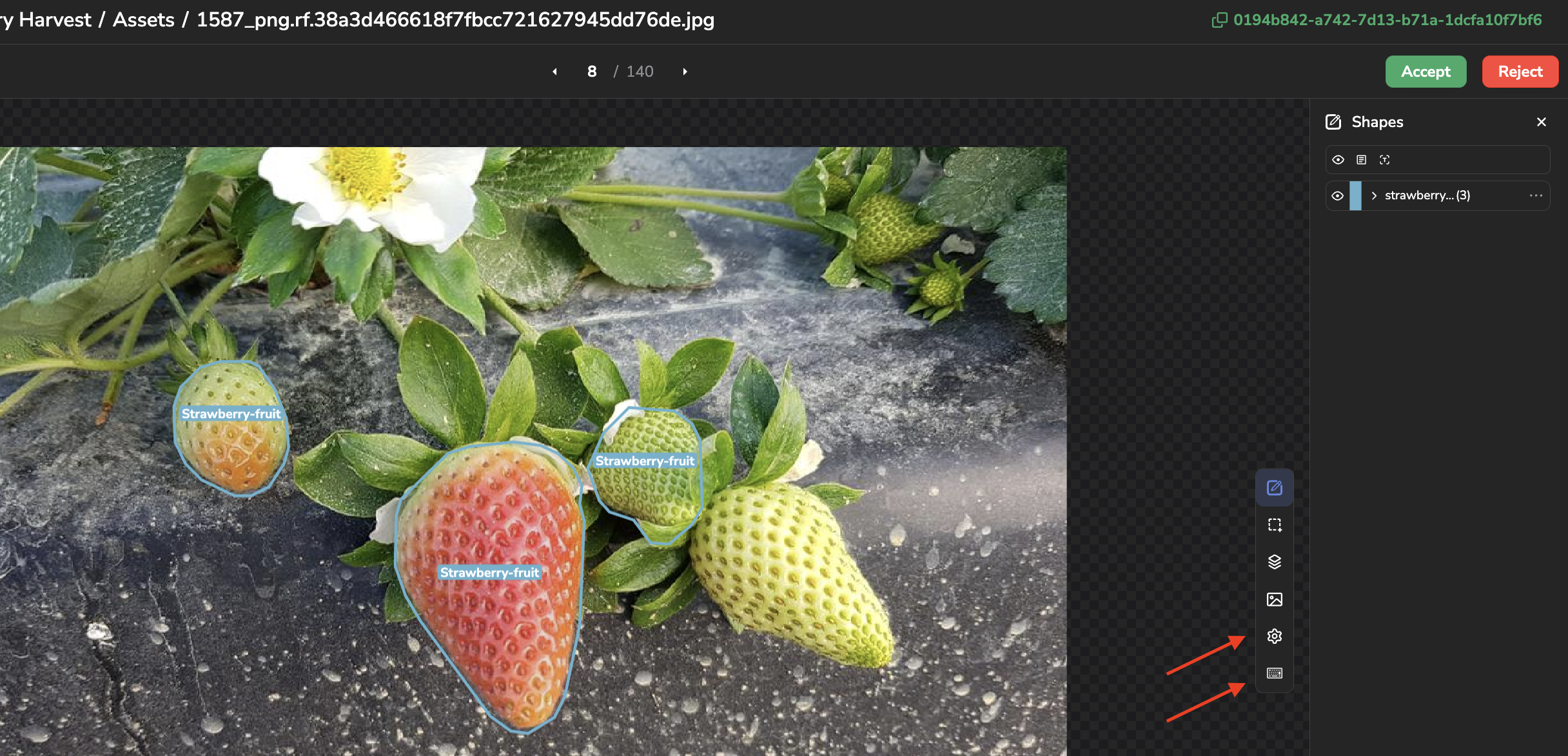
Access settings or shortcuts pages from Annotation tool
1. Settings panel
The Settings panel groups your personal preferences for the tool. They apply to your own account and persist across DatasetVersion. Once changed, click Update to save them.
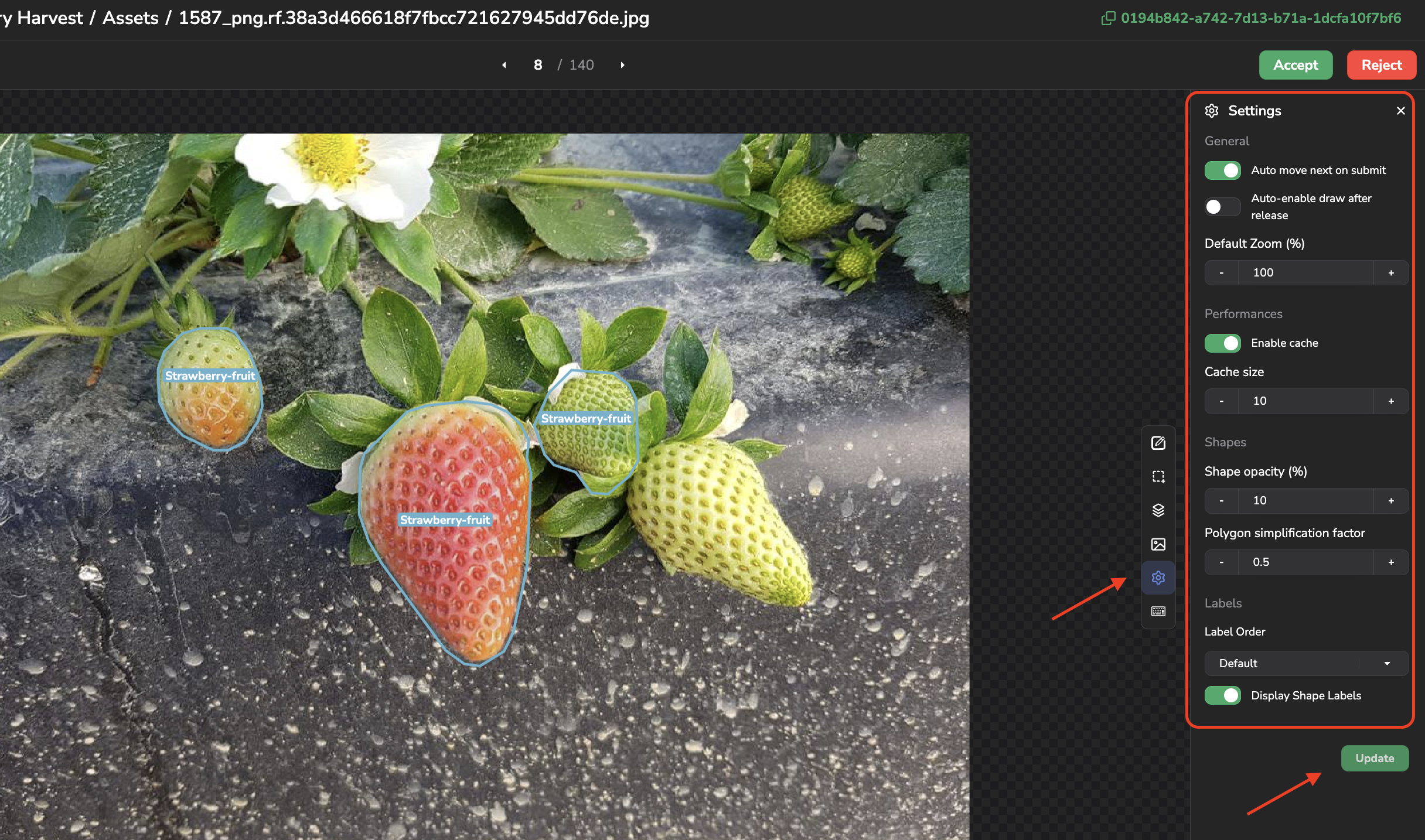
Settings available in the Annotation tool
A. General
- Auto move next on submit: automatically open the next
Assetin the queue right after submitting or reviewing the currentAnnotation. It doesn't apply to Save. - Auto-enable draw after release: automatically re-enable the Draw mode after finishing a
Shape, instead of falling back to Selection mode. - Default Zoom (%): the zoom level applied when opening an
Assetor using Reset Zoom.
B. Performances
- Enable cache: cache the next images in the queue. This aims at speeding up the navigation across the Asset gallery, especially if the files to display are big or if you have a slow internet connection.
- Cache size: the number of
Assetkept in cache.
C. Shapes
- Shape opacity (%): the fill opacity used to display all the
Shapeon theAsset. - Polygon simplification factor: how aggressively a polygon
Shapeis simplified when using the Simplify action (see Polygon editing) — the higher the factor, the more points are removed.
D. Labels
- Label Order: how
Labelare ordered in theLabeldropdown and the Shapes panel (Default, Alphabetical, or Reverse Alphabetical). - Display Shape Labels: show or hide the
Labelname next to eachShapeon theAsset.
E. Player
On a video DatasetVersion, an additional Player section configures the video player used to annotate:
- Annotation Default Duration when created: the default duration (in frames) given to a new
Annotationwhen it is created. - Display Skip to End / Beginning control: show or hide the buttons to jump to the start or end of the video.
- Display Frame Step controls: show or hide the buttons to move frame by frame.
- Enable Interpolation: automatically interpolate a
Shape's position between two keyframes. - Cursor out of Timeline behavior: how the timeline scrolls when the playback cursor reaches its edge (Stick to the Right, Stick to the Middle, or Moves back to the left).
2. Consult the active shortcuts
Most of the actions available in the Annotation tool can also be triggered through a keyboard shortcut. Shortcuts depend on the context you are in (the Annotation tool itself, an Assets overview, or globally across Picsellia) and, within the Annotation tool, on the Version Type of the DatasetVersion you are annotating.
The Shortcuts panel (right-side icon rail) displays a read-only, always up-to-date recap of every shortcut currently active for the DatasetVersion you are annotating, grouped into Tool, Annotation, and Queue Navigation sections, plus a Timeline section on video (see Video player).
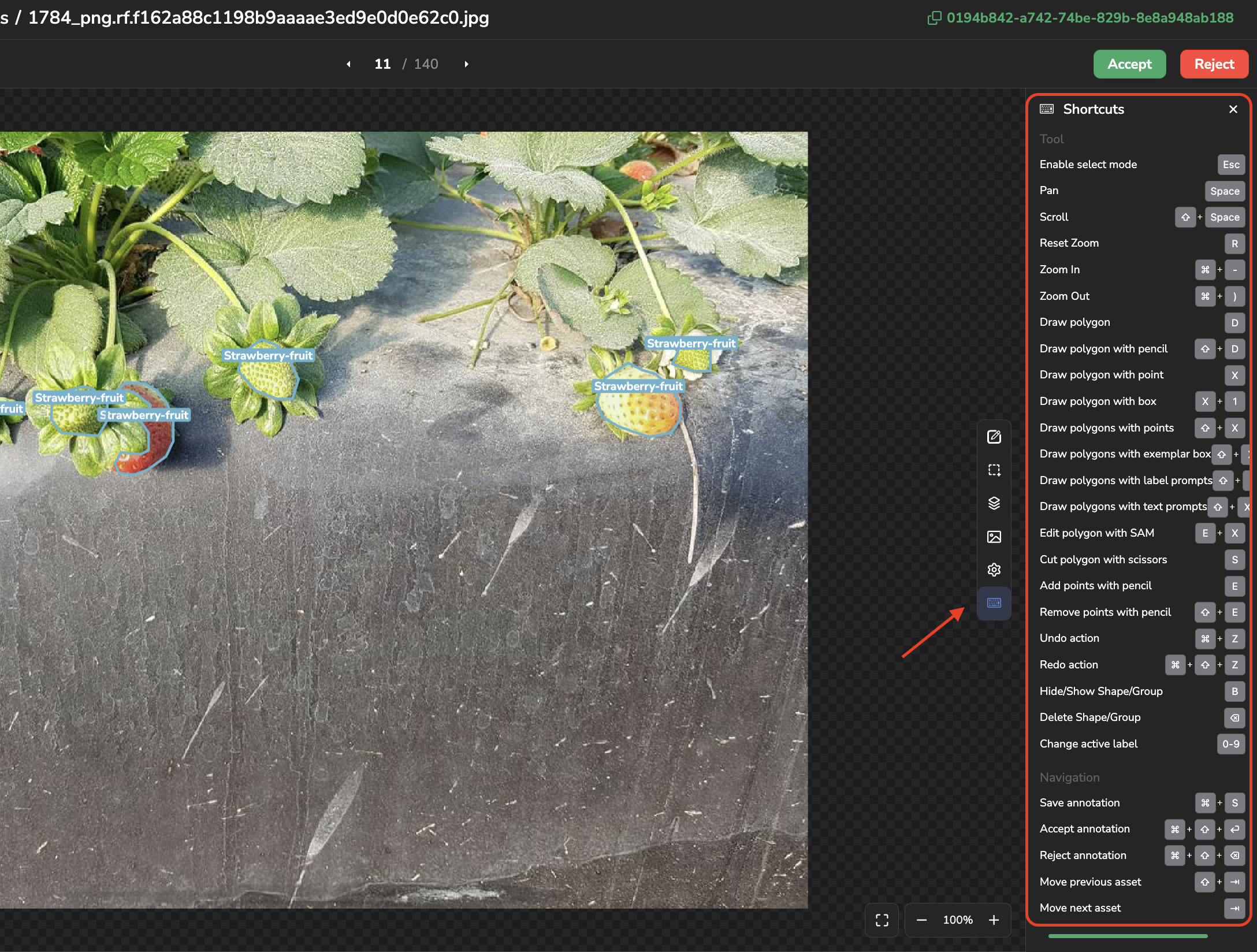
Consult available shortcuts for Annotation tool
3. Personalize your shortcuts
Shortcuts can now be personalized on a per-user basis, from your Profile settings: click on your avatar, go to Advanced > Shortcuts, or access it directly at Settings > Shortcuts.
This page lists every action available on Picsellia with its current keystroke, and lets you filter them by Context:
- Studio: actions available in the Annotation tool.
- Data grid: actions available in the Assets, Datalake, or other list/grid views.
- Global: actions available anywhere in the product.
Some actions are also scoped to a specific Version Type (for instance, the D key draws a rectangle in Object Detection mode but a polygon in Segmentation mode) or to a specific condition, such as being inside an ongoing Annotation Campaign.
To personalize a shortcut, click on its row, then Click to record a shortcut and press the new key combination. Once changed, the Source column of the corresponding row switches from Default to Custom, so you can always tell at a glance which shortcuts you have overridden. A customized shortcut can be reset back to its Default value at any time.
Shortcuts are personalCustom shortcuts are tied to your own user account and apply wherever you use Picsellia; they don't affect other members of your
Organization.
4. Reference
The main shortcuts available by default are summarized below. Refer to the Shortcuts settings page for the exhaustive and always up-to-date list, including all the Version Type-specific variants.
A. Navigation
| Action | Default shortcut |
|---|---|
| Enable select mode | Esc |
| Pan | Space |
| Scroll | Shift + Space |
| Reset Zoom | R |
| Zoom in / out | Cmd/Ctrl + = / - |
Move to previous / next Asset | Shift + Tab / Tab |
Save Annotation | Cmd/Ctrl + S |
| Undo / Redo | Cmd/Ctrl + Z / Cmd/Ctrl + Shift + Z |
Lock / unlock the selected Shape | F |
Accept / Reject Annotation | Cmd/Ctrl + Shift + Enter / Cmd/Ctrl + Shift + Delete |
Change active Label | 0-9 |
B. Drawing, by Version Type
| Version Type | Draw action | Default shortcut |
|---|---|---|
| Classification | Classify Asset | D |
| Object Detection | Draw rectangle | D |
| Object Detection | Draw rectangles with exemplar box (SAM3) | X |
| Object Detection | Draw rectangles with label prompts (SAM3) | Shift + X |
| Segmentation | Draw polygon | D |
| Segmentation | Draw polygon with pencil | Shift + D |
| Segmentation | Draw polygon with points (SAM3) | X |
| Segmentation | Draw polygon with box (SAM3) | X, 1 |
| Segmentation | Edit polygon with SAM (SAM3) | E, X |
| Segmentation | Cut polygon with scissors | S |
| Segmentation | Add / remove points with pencil | E / Shift + E |
| Segmentation | Draw polygons with points (SAM3) | Shift + X |
| Segmentation | Draw polygons with exemplar box (SAM3) | Shift + X, 1 |
| Segmentation | Draw polygons with label prompts (SAM3) | Shift + X, 2 |
| Segmentation | Draw polygons with text prompts (SAM3) | Shift + X, 3 |
| Mask | Draw mask with pencil | D |
| Mask | Draw mask with brush | Shift + D |
| Mask | Draw mask with point (SAM3) | X |
| Mask | Draw mask with box (SAM3) | X, 1 |
| Mask | Add / remove pixels with pencil | E / Shift + E |
| Mask | Add / remove pixels with brush | Cmd + E / Cmd + Shift + E |
| Mask | Edit mask with SAM (SAM3) | E, X |
| Mask | Draw masks with points (SAM3) | Shift + X |
| Mask | Draw masks with exemplar box (SAM3) | Shift + X, 1 |
| Mask | Draw masks with label prompts (SAM3) | Shift + X, 2 |
| Mask | Draw masks with text prompts (SAM3) | Shift + X, 3 |
| Point | Draw point | D |
| Line | Draw line | D |
| Keypoint | Draw keypoint | D |
| Keypoint | Draw with template (Skeleton) | T |
Version Type-specific keysSeveral of these actions share the same default key (e.g. D) because only one Version Type is active at a time on a given
DatasetVersion. The Shortcuts settings page also lists a distinct key mapping for a Multi Version Type, meant to make every Version Type's shortcuts active at once on the same key; as noted here, Multi cannot be selected yet, so this mapping is not usable in practice for now.
C. Video player
On a DatasetVersion that contains videos, the Annotation tool displays a player and a timeline (see Annotation tool for video). The group of the Shortcuts panel named Timeline lists the shortcuts of the player (which plays the video and moves along its frames) and the ones of the timeline (the grid that represents the Track along the frames):
| Action | Default shortcut |
|---|---|
| Play / Pause | K |
| Previous / Next frame | J / L |
| Jump backward / forward (Step frames) | Cmd/Ctrl + J / Cmd/Ctrl + L |
| Go to start / end frame | Alt + J / Alt + L |
| Zoom the timeline in / out | Cmd/Ctrl + Wheel |
| Scroll the timeline horizontally | Shift + Wheel |
The number of frames of a jump is the Step value displayed on the right of the timeline. The Alt key is the Option key on a Mac. The two wheel gestures are listed with a + Wheel suffix, and the modifier they rely on can be rebound like any other shortcut.
Working on a Track also comes with a few shortcuts:
| Action | Default shortcut |
|---|---|
Copy / Paste a Track | Cmd/Ctrl + C / Cmd/Ctrl + V |
Duplicate a Track | Cmd/Ctrl + B |
Remove a Track | Backspace |
Split the selected Track at the cursor | Shift + S |
Cut the selected Track to the cursor | Shift + C |
| Join two sub-tracks (Join tracks) | Shift + M |
| Expand to the first frame / the cursor / the last frame | Shift + J / Shift + K / Shift + L |
The other actions of the video Annotation tool use the shortcuts of the tables above, for instance Draw rectangle, Undo, Save, or Change active label.
Updated 6 days ago